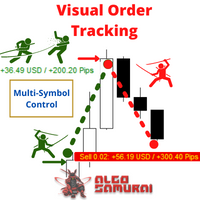
Visual Order Tracking
49 USD
Demo downloaded:
22
Published:
26 September 2020
Current version:
1.45
Didn't find a suitable robot?
Order your own one
on Freelance
Go to Freelance
Order your own one
on Freelance
How to buy а trading robot or an indicator
Run your EA on
virtual hosting
virtual hosting
Test аn indicator/trading robot before buying
Want to earn in the Market?
How to present a product for a sell-through
Version 1.45
2024.06.20
- bug fix
Version 1.44
2024.05.29
- minor bug fix
Version 1.42
2022.11.19
- for signal history analysis, added input Code Page (dropdown= ANSI | UTF7 | UTF8). Different platforms' signalhistory.csv files may be downloaded in different CSV formats, and Code Page allows you to correct for any differences in format
Version 1.41
2022.11.19
- for signal history analysis, added input Code Page (dropdown= ANSI | UTF7 | UTF8). Different platforms' signalhistory.csv files may be downloaded in different CSV formats, and Code Page allows you to correct for any differences in format
Version 1.36
2021.10.15
Major Update
- Added 3rd Panel, Closed Trades Panel, when clicking Green [Closed Trades] Button. When active, the button turns red.
- Closed Trades Panel shows controlled closed orders by Symbol, Ticket, Type, Lots, Open date, Open Price, Close Date, Profit, Pips, Magic, Comment
- Summary, Open Trades, and Closed Trades buttons are now located in the upper left of panel.
- When in any of the above views, you can click on [Export] button at bottom right to export the data as a CSV file to \MQL4\files\ folder and the file will be auto-named VotExport[Summary/Open/Closed]_MM-DD unique-identifier.csv
- Added 3rd Panel, Closed Trades Panel, when clicking Green [Closed Trades] Button. When active, the button turns red.
- Closed Trades Panel shows controlled closed orders by Symbol, Ticket, Type, Lots, Open date, Open Price, Close Date, Profit, Pips, Magic, Comment
- Summary, Open Trades, and Closed Trades buttons are now located in the upper left of panel.
- When in any of the above views, you can click on [Export] button at bottom right to export the data as a CSV file to \MQL4\files\ folder and the file will be auto-named VotExport[Summary/Open/Closed]_MM-DD unique-identifier.csv
Version 1.35
2021.09.10
- added button on panel that exports summary report to CSV file, saved at Data Folder > MQL4 > Files
Version 1.33
2021.06.03
- minor fix
Version 1.32
2021.06.03
- bug fix
Version 1.31
2021.05.26
-improved filtering method consistency for Symbol. Filter Symbol condition = Equal and Filter Symbol value = Current are now the default settings, meaning that UTS out of the box manages the trades of the symbol that UTS is dropped upon. What is the advantage? It frees up the Filter Symbol condition=None to work in the same fashion as None for Magic, Comments, Tickets. If None is selected, then no filter is applied, and UTS can control all symbols.
Version 1.29
2021.05.15
- bug fix
Version 1.28
2021.05.14
- bug fix
Version 1.27
2021.04.29
- added parameter, Max grid lines=10, to enable you to increase the number of symbol rows that you can see at a glance. Before I had created the panel with max 10 symbol rows with the option for you to scroll down to see all other symbols. Now you can indicate Max grid lines=20 to see all your 20 instruments at a glance.
Version 1.26
2021.02.22
Major Update
- Added 2nd Panel, Open Trades Panel, when clicking Red [Open Trades] Button.
- Open Trades Panel shows open orders by Ticket, Type, Lots, Profit, pips, SL pips, StopLoss, TakeProfit, Spread, Magic, Comment.
- Added ability to close any open order in Open Trades Panel (in VOT EA).
- In Summary Trades Panel, added buttons to show ClsOpen (Close & Open trades), ClsOny (Close Trades Only), and OpOnly (Open Trades Only).
- Added 2nd Panel, Open Trades Panel, when clicking Red [Open Trades] Button.
- Open Trades Panel shows open orders by Ticket, Type, Lots, Profit, pips, SL pips, StopLoss, TakeProfit, Spread, Magic, Comment.
- Added ability to close any open order in Open Trades Panel (in VOT EA).
- In Summary Trades Panel, added buttons to show ClsOpen (Close & Open trades), ClsOny (Close Trades Only), and OpOnly (Open Trades Only).
Version 1.24
2021.02.11
- minor fix
Version 1.23
2020.11.26
- provided a fix for VOT zoom. VOT should now work with different zoom levels and higher resolutions and proportional changes when font size is changed.
Version 1.20
2020.11.16
- fixed open net pip bug on display
- widened symbol column to accommodate longer symbol names
- widened symbol column to accommodate longer symbol names
Version 1.19
2020.11.06
- allowed for the import of MQL5 signal history
- allowed for the import of multi symbol history into same chart
- allowed for the import of multiple csv signal histories into same chart (Report CSV Files input: History1.csv,History2.csv, etc)
- allowed sorting of display columns and "remembers" the sorted column
- only scan the history until the StartDate
- allowed for the import of multi symbol history into same chart
- allowed for the import of multiple csv signal histories into same chart (Report CSV Files input: History1.csv,History2.csv, etc)
- allowed sorting of display columns and "remembers" the sorted column
- only scan the history until the StartDate

You are missing trading opportunities:
- Free trading apps
- Over 8,000 signals for copying
- Economic news for exploring financial markets
Registration
Log in
You agree to website policy and terms of use
If you do not have an account, please register