HiddenGem EA
- Experts
-
Andrey Dubeiko
 I work as a software engineer and have a passion for financial markets and creating trading bots. I want to present my best developments here and I hope you will appreciate them.
- Version: 1.0
- Activations: 5
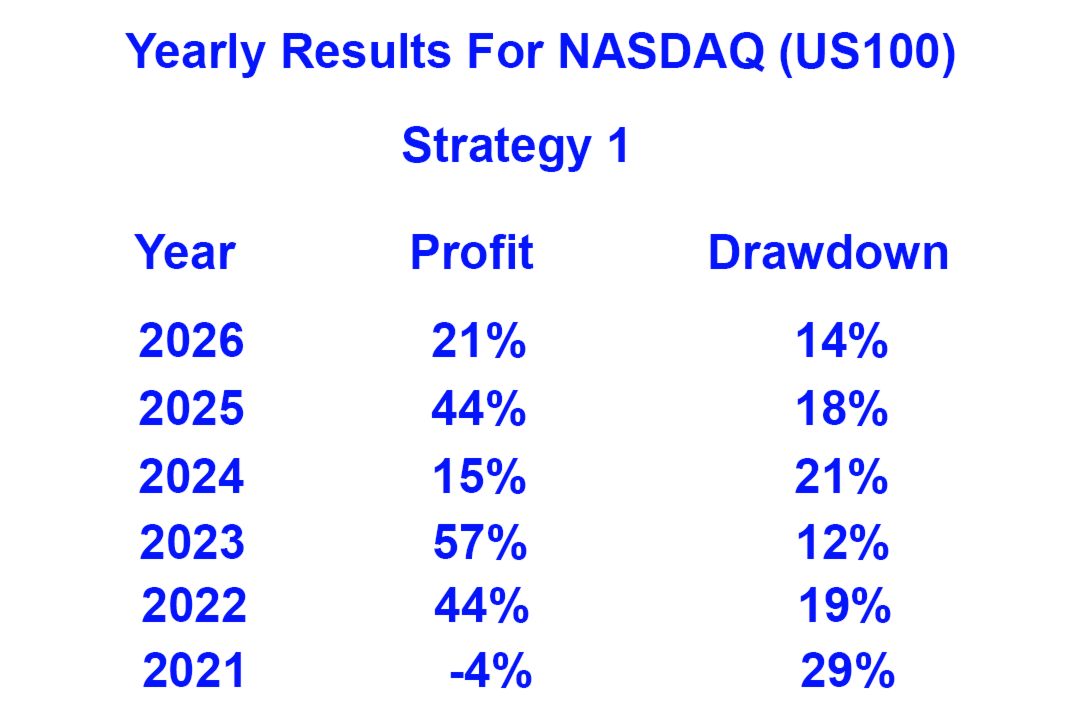
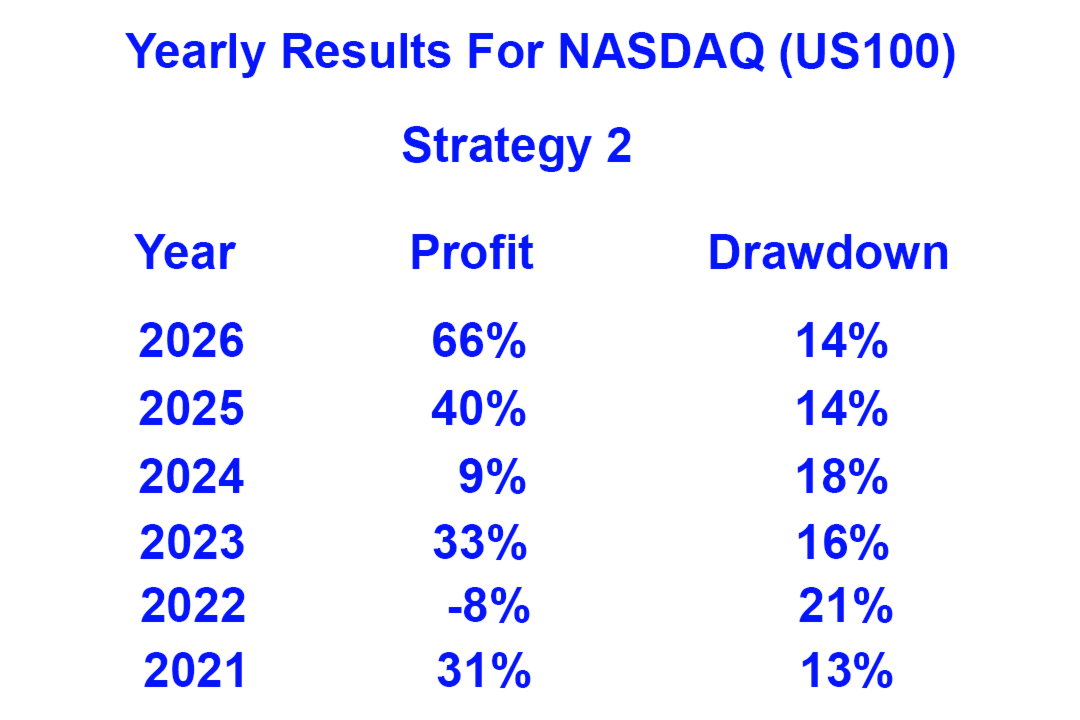
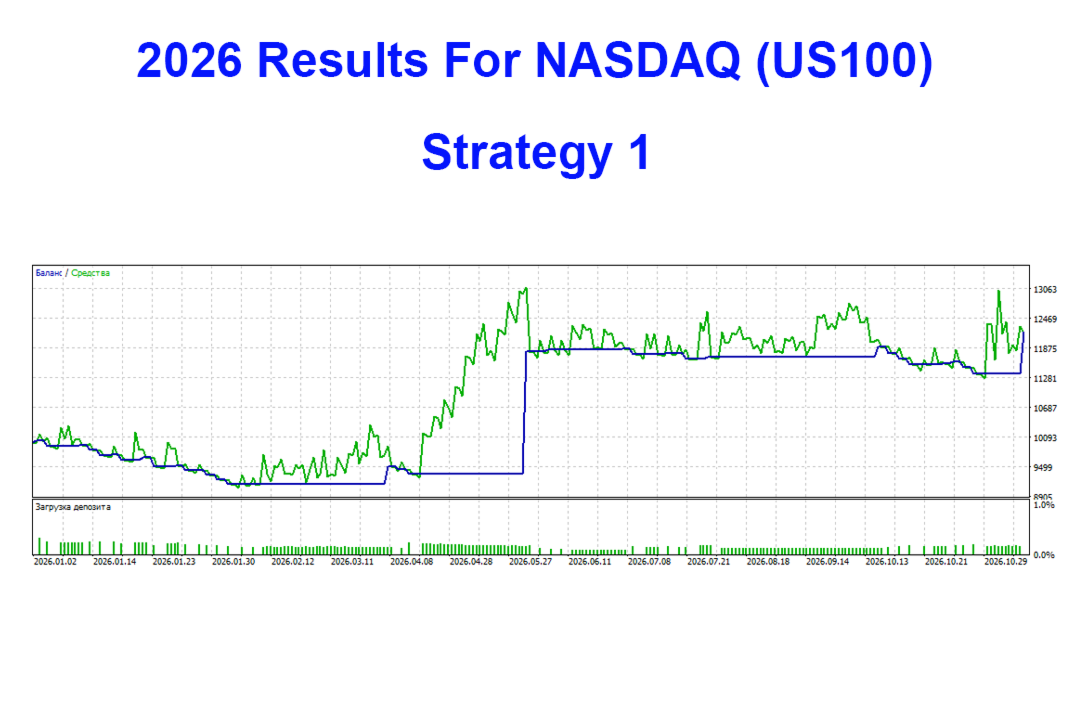
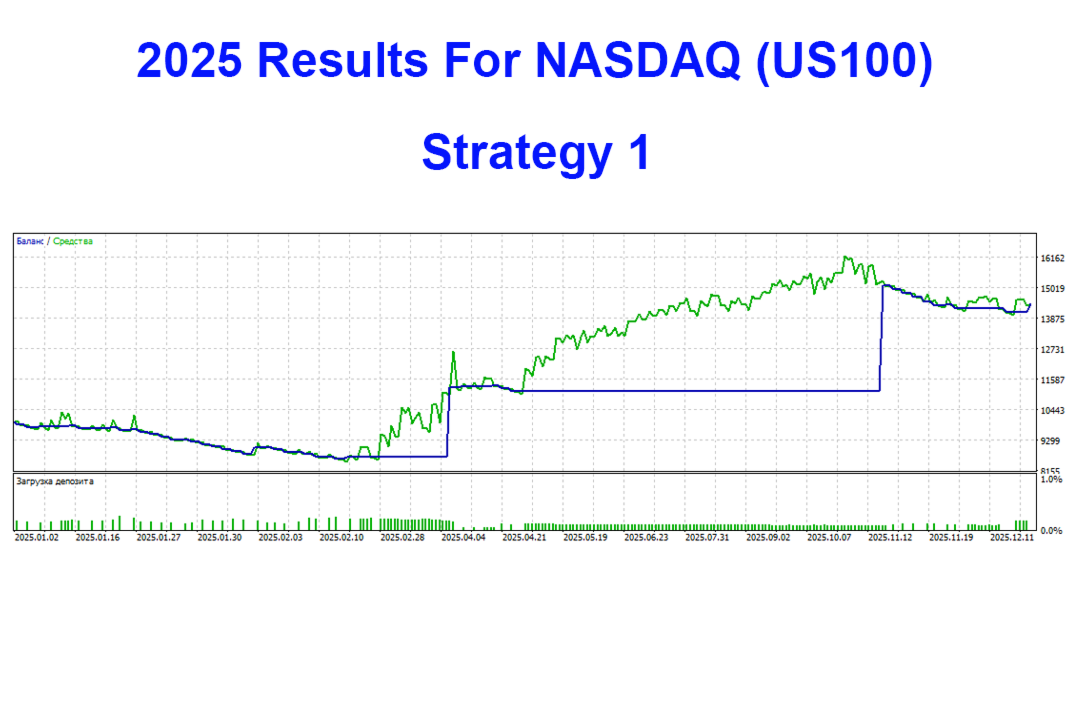
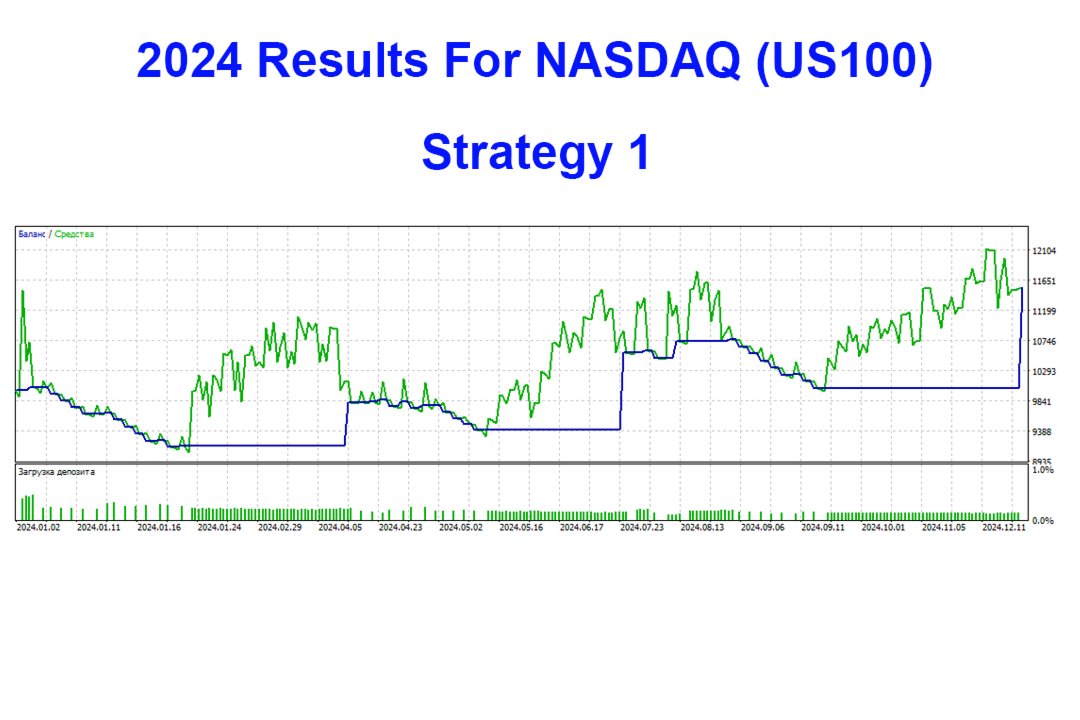
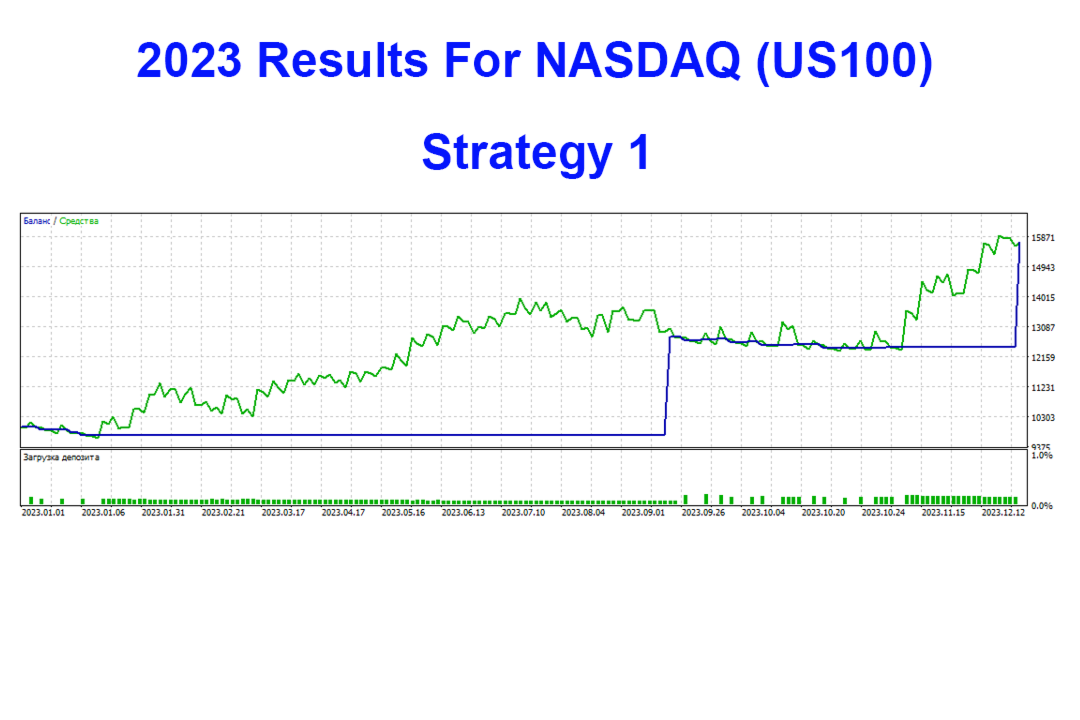
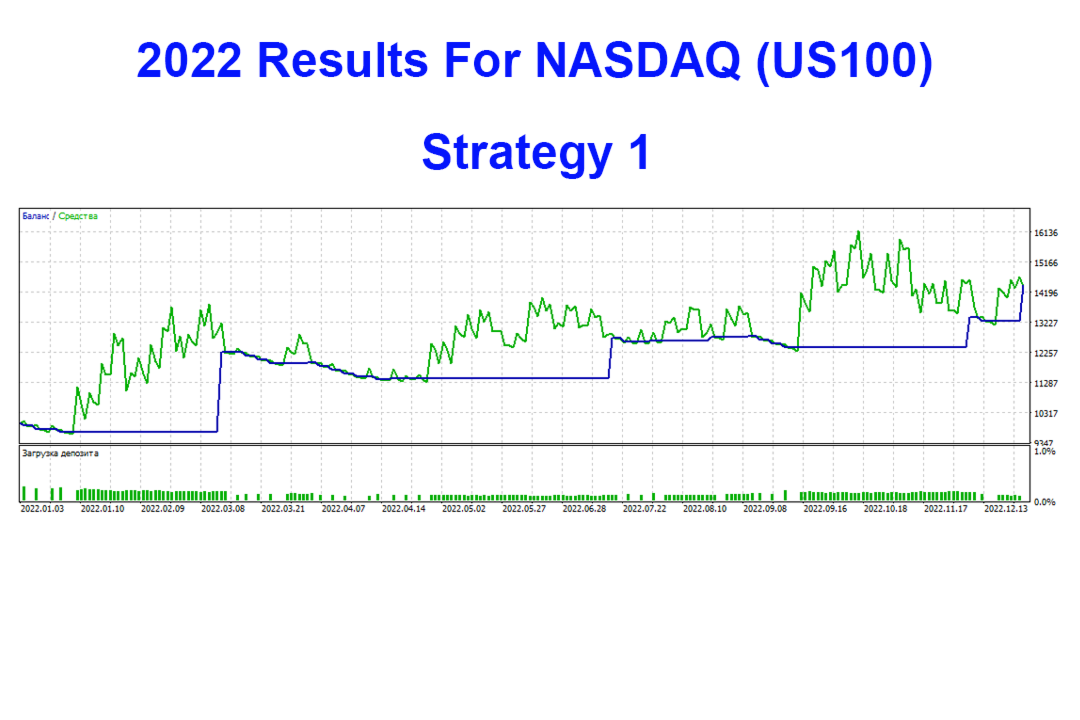
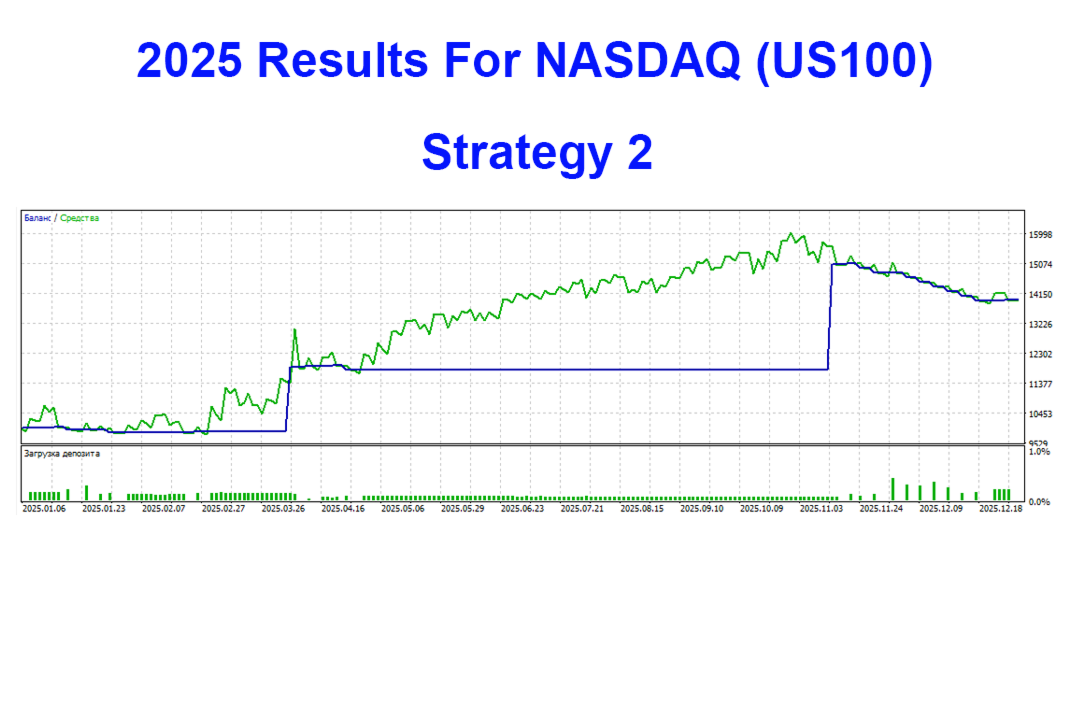
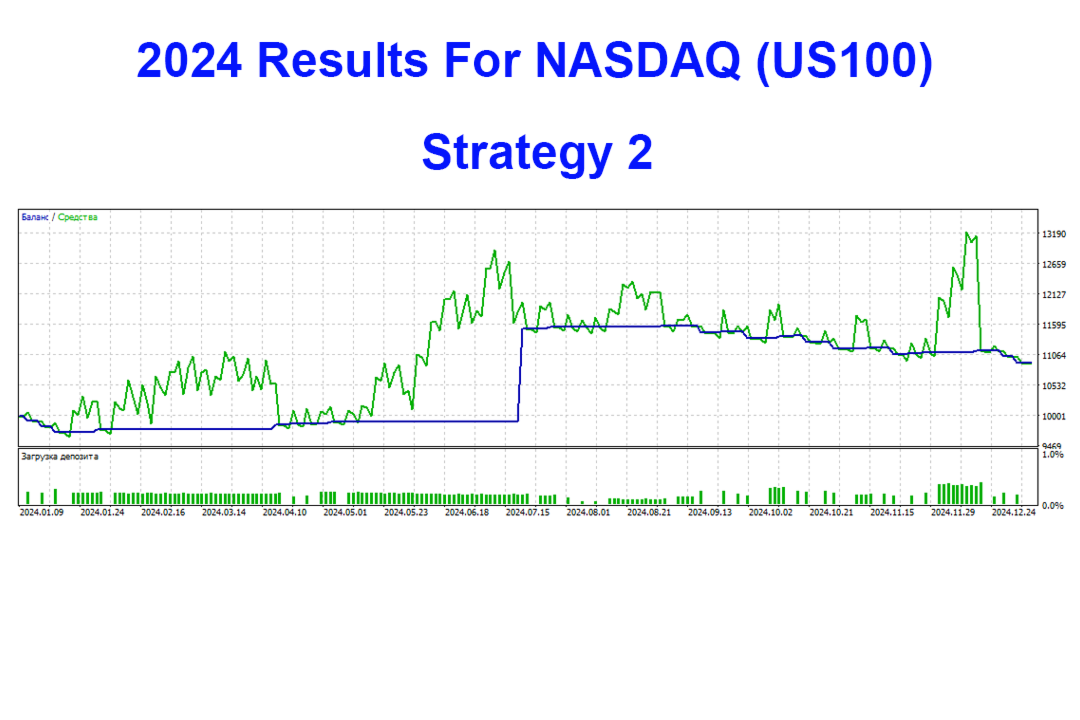
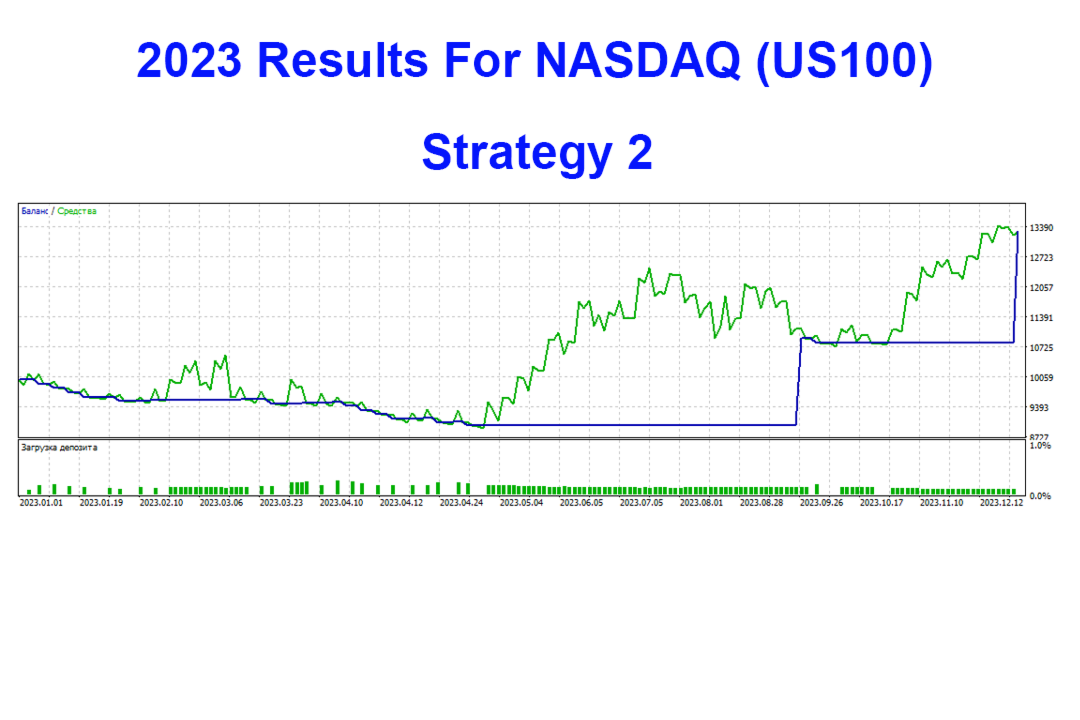
The "Hidden Gem" Expert Advisor (EA) is designed for the NASDAQ index; it executes both intraday trades and longer-term positions when a sustained market trend emerges.
The EA does not employ grid trading, Martingale, or averaging strategies. Instead, it relies on a strictly defined Stop Loss with a specific risk level per trade, which trails the price for as long as possible.
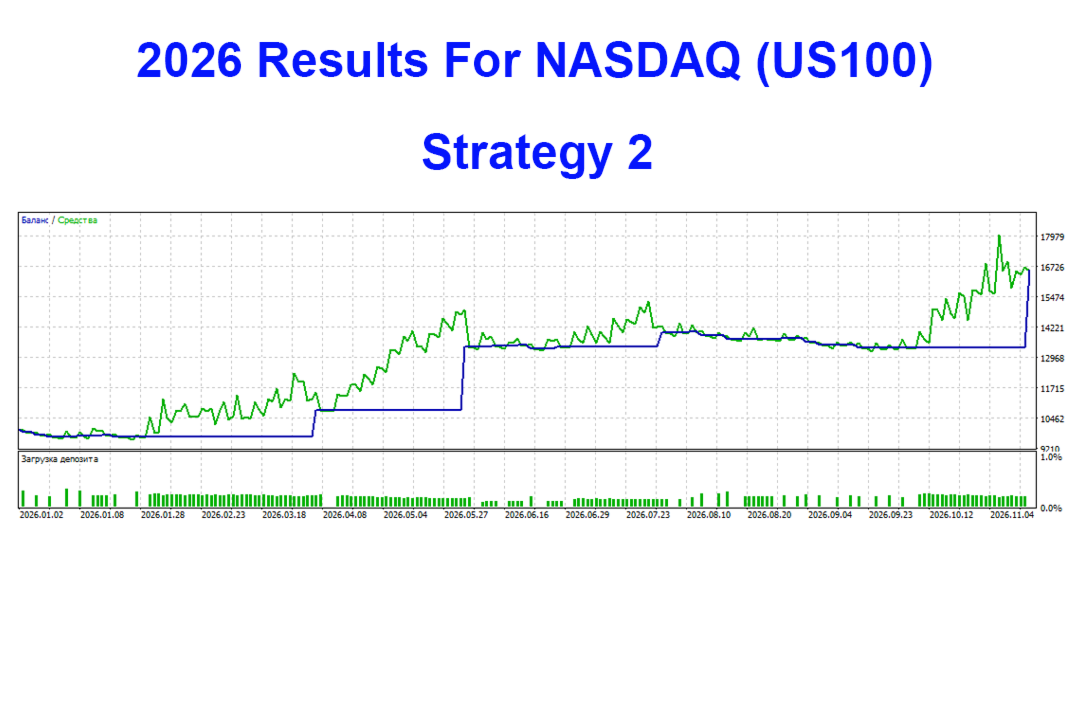
It incorporates two distinct trading systems that can be run on a single account by assigning different "Magic Numbers" to each.
While these systems complement one another effectively, using them simultaneously is not mandatory.
The default settings are well-suited for the NASDAQ index.
Test the "Hidden Gem" EA and evaluate its trading performance for yourself.
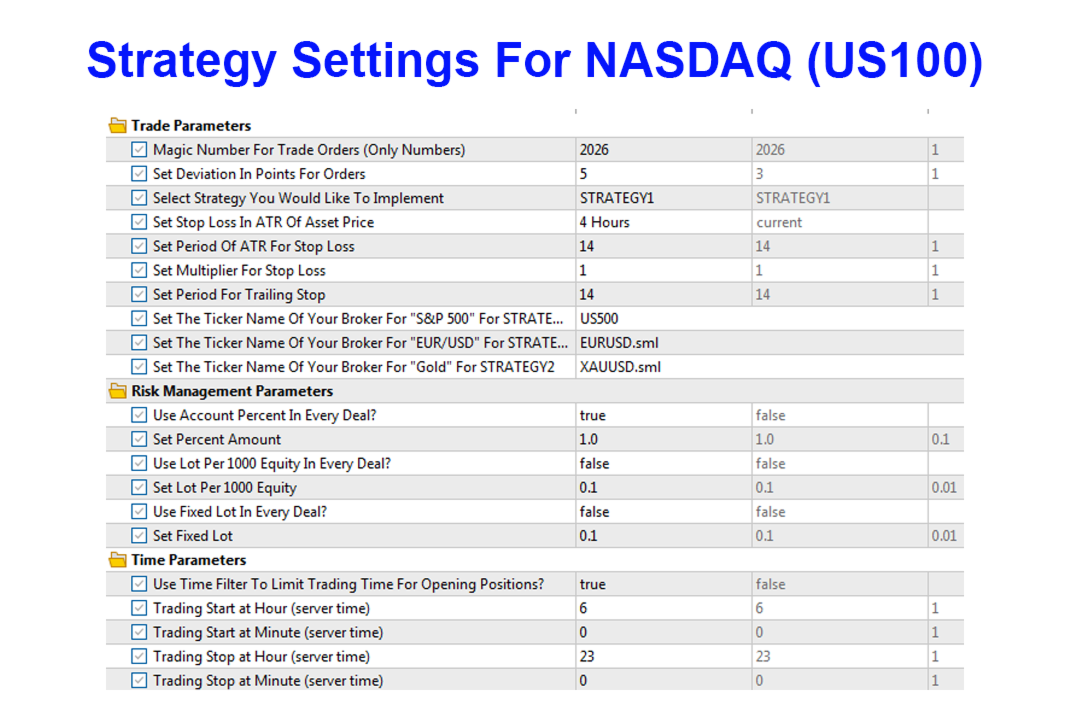
Description of the "Hidden Gem" Expert Advisor parameters:
"Trade Parameters" group
1. "Magic Number For Trade Orders (Only Numbers)" – Sets a unique identifier for the Expert Advisor, allowing it to distinguish its own orders from those placed by other Expert Advisors.
2. "Set Deviation In Points For Orders" – Defines the allowable slippage (in points) when opening a position.
3. "Select Strategy You Would Like To Implement" – Allows you to choose the strategy the Expert Advisor will follow.
4. "Set Stop Loss In ATR Of Asset Price" – Sets the Stop Loss size for open positions based on the asset's ATR (Average True Range). A larger timeframe will result in a larger Stop Loss size.
5. "Set Period Of ATR For Stop Loss" – Specifies the period used to calculate the ATR for setting the Stop Loss.
6. "Set Multiplier For Stop Loss" – A multiplier for the Stop Loss. It is set to 1 by default; you can increase it by setting the value to 2, 3, etc., if desired.
7. "Set Period For Trailing Stop" – The period for the Trailing Stop. You may experiment with different values to see if you can find a setting that performs better than the default.
8. "Set The Ticker Name Of Your Broker For 'S&P 500' For STRATEGY2" – The ticker symbol used by your broker for the "S&P 500." This symbol must be active in your "Market Watch" list. It is used in Strategy #2.
9. "Set The Ticker Name Of Your Broker For 'EUR/USD' For STRATEGY2" – The ticker symbol used by your broker for "EUR/USD." This symbol must be active in your "Market Watch" list. It is used in Strategy #2.
10. "Set The Ticker Name Of Your Broker For 'Gold' For STRATEGY2" – The ticker symbol used by your broker for "Gold." This symbol must be active in your "Market Watch" list. It is used in Strategy #2.
"Risk Management Parameters" Group
11. "Use Account Percent In Every Deal?" – If set to "true," the system will open positions based on a risk percentage of the account balance, calculated according to the size of the Stop Loss. For example, if the risk is set to "5.0," the trading account balance will decrease by 5 percent should the Stop Loss (as defined in the settings) be triggered.
12. "Set Percent Amount" – The risk amount per trade, expressed as a percentage of the trading account balance; decimal values are permitted (e.g., 2.5).
13. "Use Lot Per 1000 Equity In Every Deal?" – If set to "true," this enables a trading mode where the position size is calculated based on a specified lot value per 1,000 units of the trading account currency. For example, if the risk is set to 0.2 lots per 1,000 units of the account currency and the account balance is 5,000, the Expert Advisor will use 1 lot (5,000 / 1,000 * 0.2) for each trade opened.
14. "Set Lot Per 1000 Equity" – The risk size per trade, expressed in lots per 1,000 units of the trading account currency. Fractional values are permitted (e.g., 0.5).
15. "Use Fixed Lot In Every Deal?" – If set to "true," this enables a trading mode where positions are opened using a fixed lot size, as specified in the parameter below.
16. "Set Fixed Lot" – The lot size for each individual trade; non-integer values are permitted (e.g., 0.2).
If none of the options 11, 15, or 13 are set to "true," the Expert Advisor will open positions using the minimum lot size, regardless of the size of your trading account.
"Time Parameters" group
17. "Use Time Filter To Limit Trading Time For Opening Positions?" – If this switch is set to "true," the Expert Advisor will begin trading at the specified start time and will stop opening new positions at the specified end time. Trailing stop adjustments for already open positions will continue to function regardless of these time restrictions. This cycle repeats daily. You can configure the start and end times using the parameters below. The default settings are based on a GMT+2 trading time zone. If your broker uses a different time zone, please adjust the values in the fields provided below.
18. "Trading Start at Hour (server time)" – The hour at which the Expert Advisor begins trading. This is based on the time used by your trading terminal. Only whole numbers from 0 to 23 are permitted.
19. "Trading Start at Minute (server time)" – The minute at which the Expert Advisor begins trading. This is set according to the time in your trading terminal. Integer values from 0 to 59 are permitted.
20. "Trading Stop at Hour (server time)" – The hour at which the Expert Advisor stops trading. This is set according to the time in your trading terminal. Integer values from 0 to 23 are permitted. The stop hour must be later than the start hour.
21. "Trading Stop at Minute (server time)" – The minute at which the Expert Advisor stops trading. This is set according to the time in your trading terminal. Integer values from 0 to 59 are permitted.
If the Expert Advisor is not opening positions, check the "Journal" tab. Any errors that may occur while the Expert Advisor is running are displayed there.