Magic Brake
- Utilities
- Version: 1.0
- Activations: 10

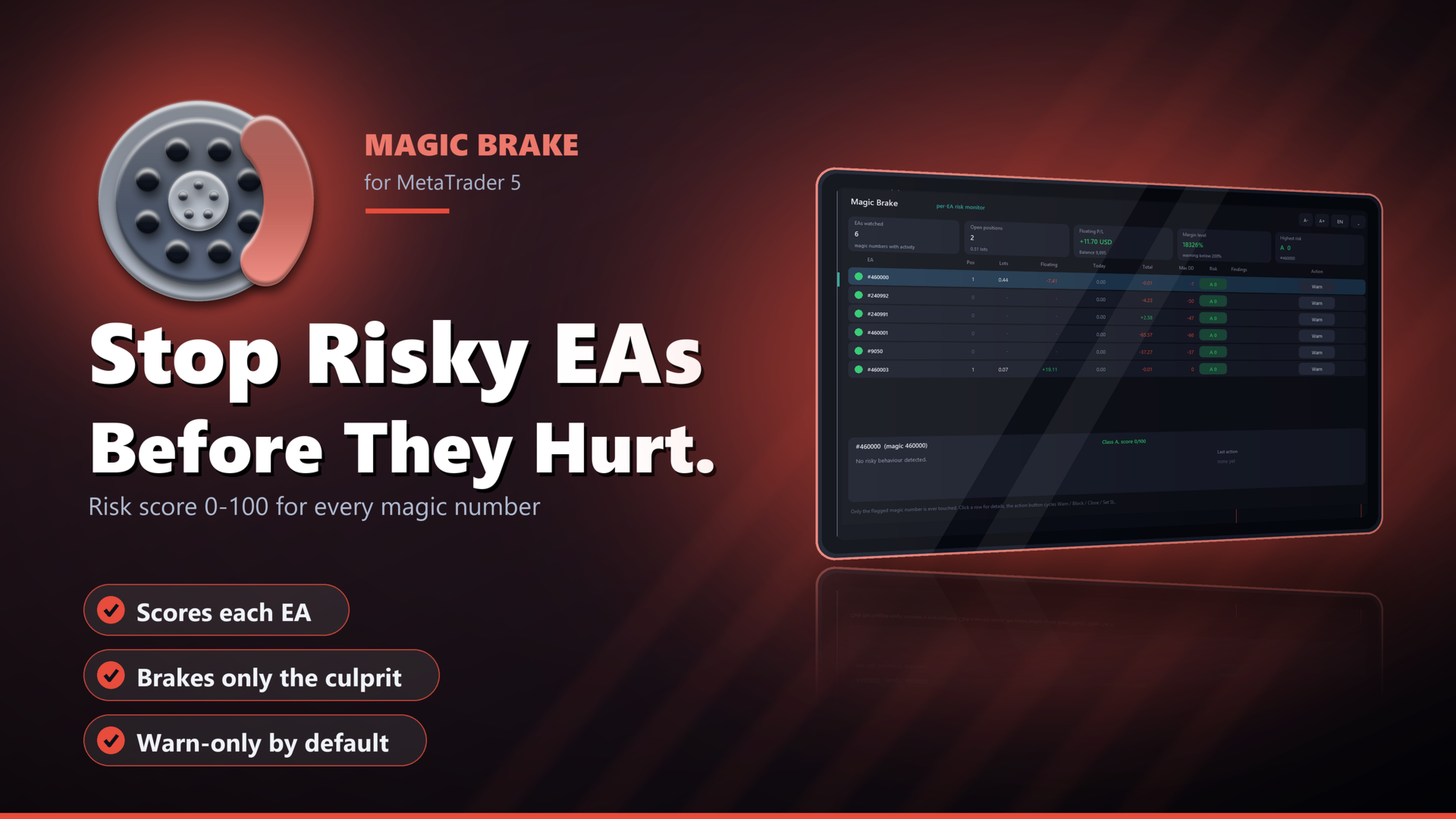
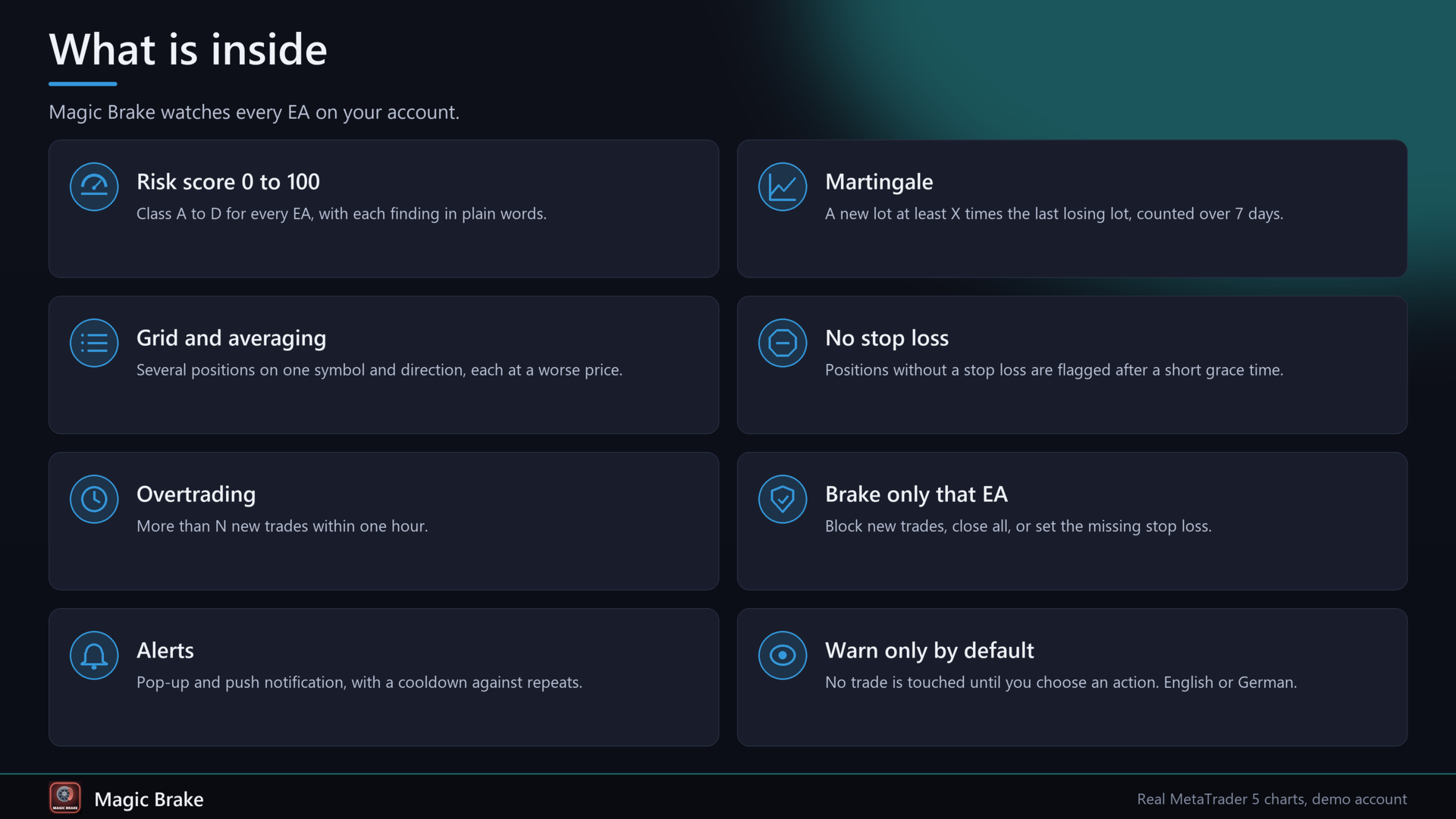
Magic Brake watches every EA on your account, one row per magic number. It scores each EA from 0 to 100, tells you why, and, if you want it to, brakes only the EA that misbehaves: it closes its new trades, closes all of its trades, or sets the stop loss it forgot. Default mode is warn only.
Problems it solves
1. You run five or ten EAs on one account. One of them starts doubling its lot after every loss or piles up a grid, and you only see it when the account equity has already dropped.
2. Some EAs trade without a stop loss. You find out when the position is already deep in the red.
3. Stopping the whole account because one robot is out of line also stops the good ones. You want to hold back just that one.
Functions
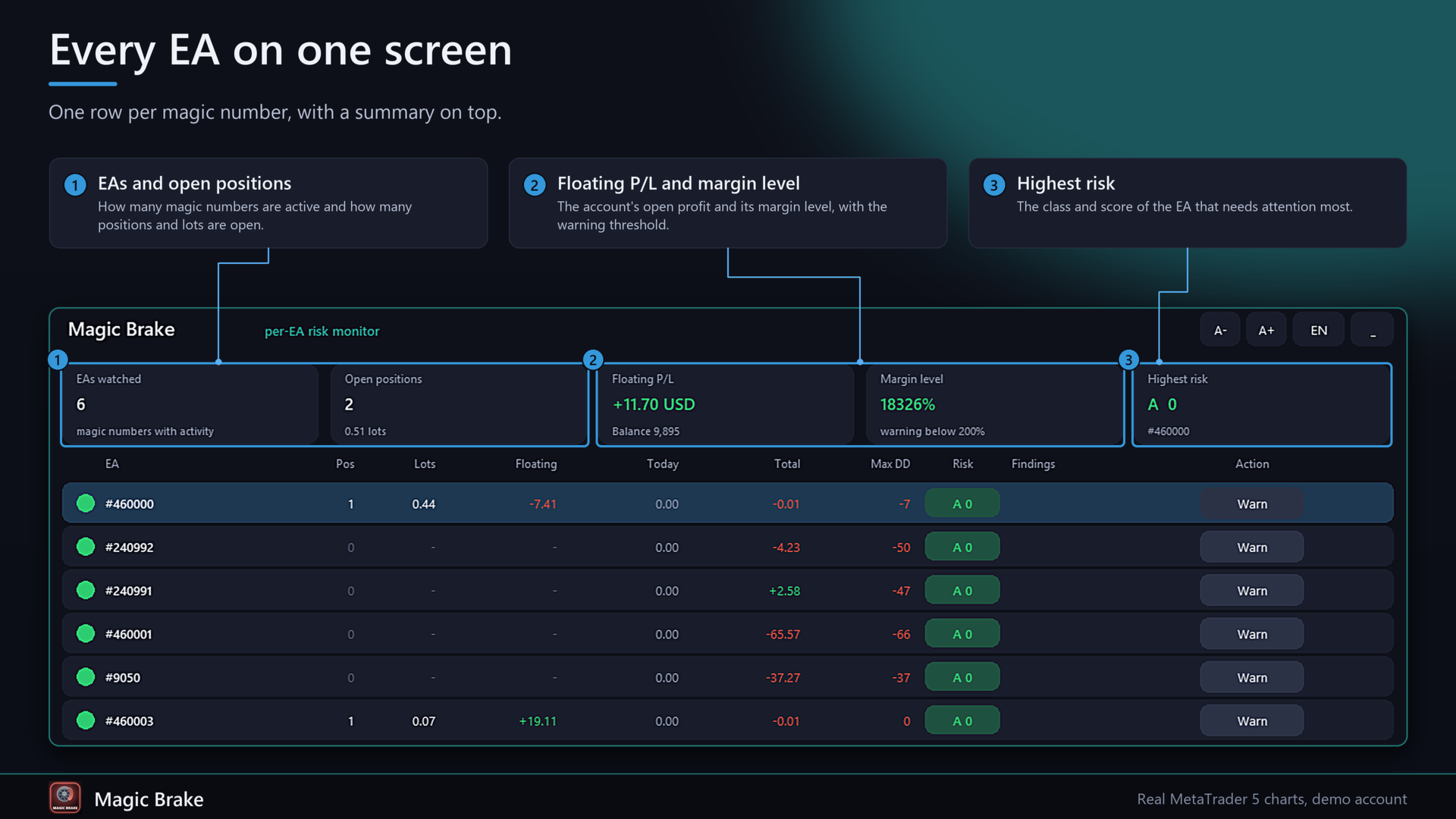
- Per magic number (and manual trades as magic 0): open positions, volume, floating profit, profit today, total profit, maximum drawdown. Profit counts profit + swap + commission + fee of all deals, including the entry commission.
- Martingale: a new position whose lot is at least X times the lot of the last losing position (default 1.5), counted over 7 days.
- Grid / averaging: several positions on the same symbol and in the same direction, each opened at a worse price, together in loss. The text shows the spacing of the first and the last step and says when it grows.
- Positions without stop loss, with a short grace time after opening.
- Overtrading: more than N new trades within one hour.
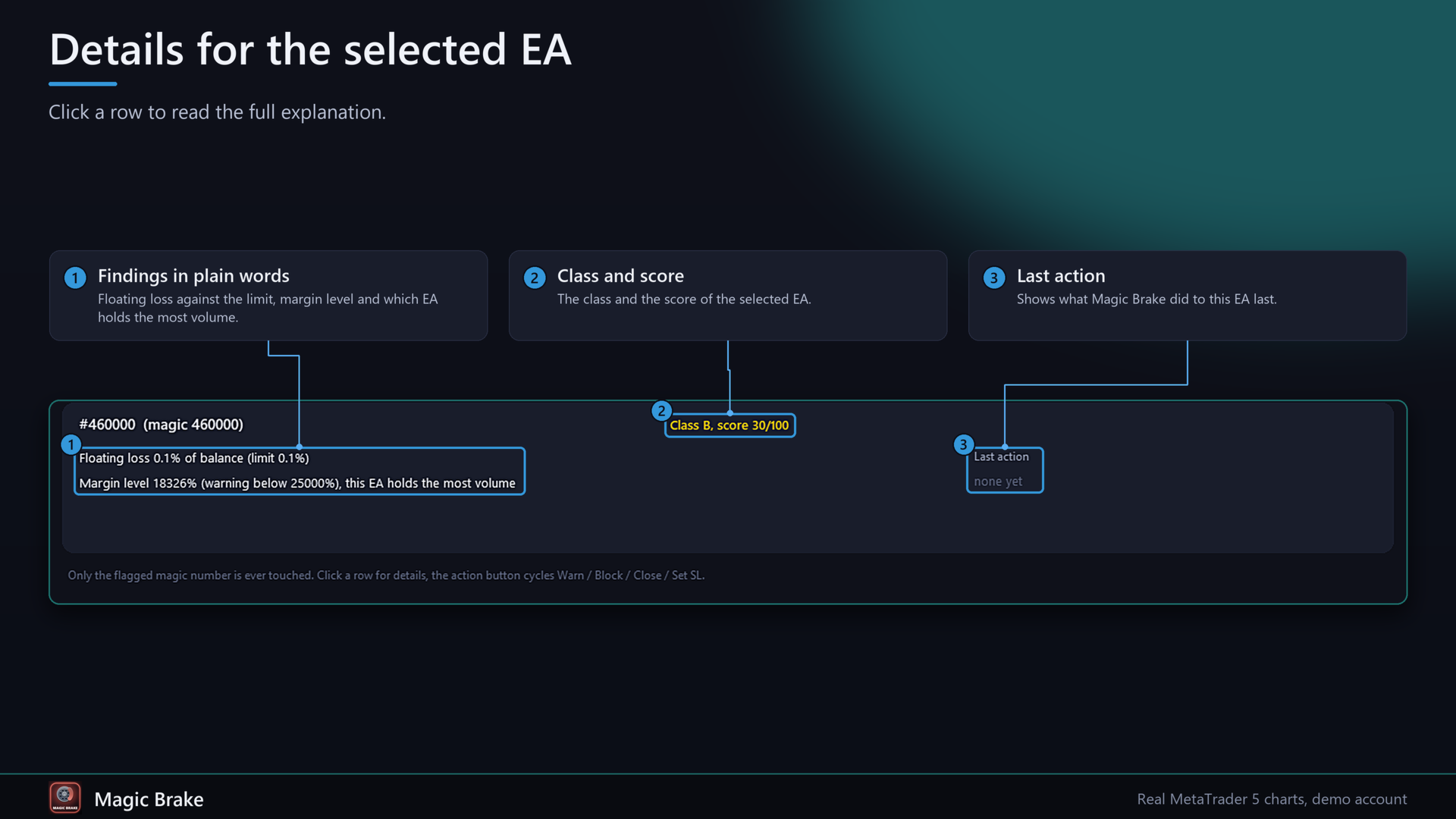
- Floating loss of one EA above X % of the balance.
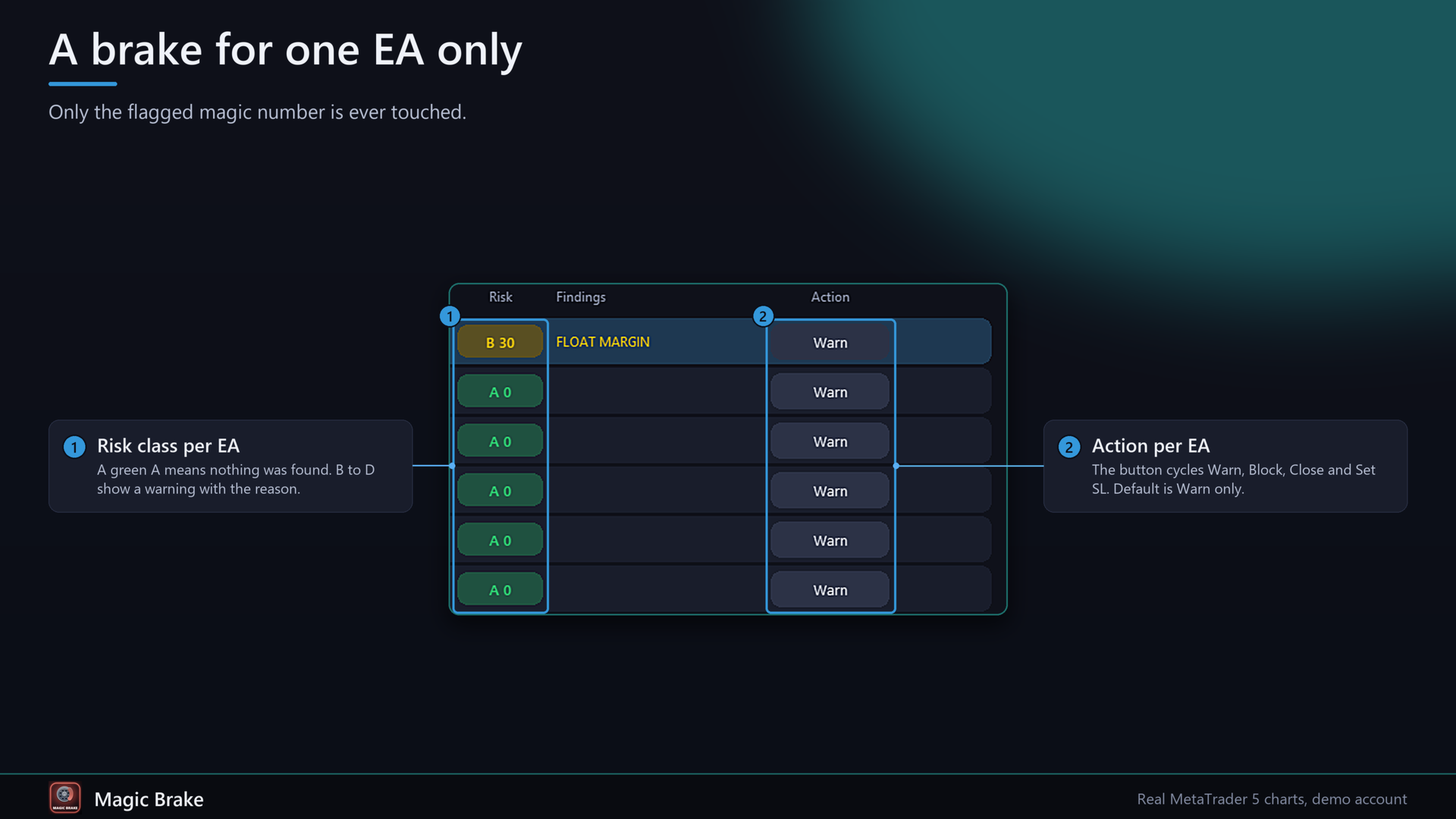
- Margin level warning for the account. The warning is added to the EA that holds the largest volume.
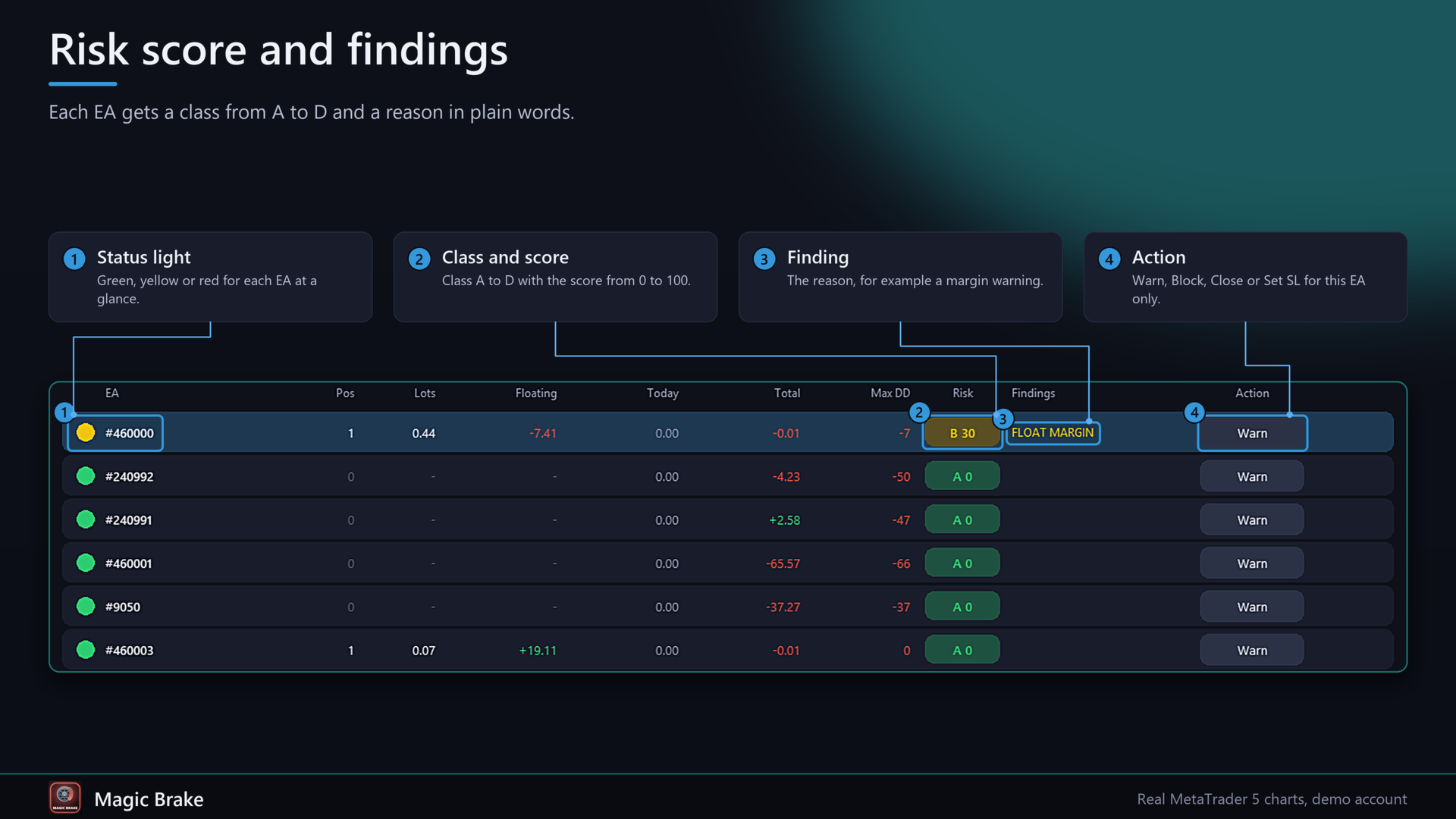
- Risk score 0-100 and class A-D per EA. The panel lists every finding in plain words, in English or German.
- Action per EA, set by a button or by input: warn only, block (new positions of that EA are closed at once), close all (all positions of that EA are closed and the EA stays locked), set SL (missing stop loss is added by points or by ATR). Only the magic number that was flagged is touched. Manual trades are never touched unless you allow it.
- Locks are remembered after a restart. One click on Release lifts a lock.
- Alerts as pop-up and push notification, with a cooldown so the same finding does not repeat.
- Dark panel on the chart: collapsible, A- / A+ size buttons (minimum 80 %), English / German button, mouse wheel for long lists. Names for magic numbers via input, for example 123=Gold;456=Trend.
- Settings, locks and per-EA actions are stored in terminal global variables per account.
- MQL5 only. No DLL, no WebRequest.
Quick start
1. Attach Magic Brake to any chart. Allow algo trading only if you want it to close trades or set stops.
2. Wait a few seconds. Every magic number with a position or with deals appears in the list.
3. Enter names in MagicNames (123=Gold;456=Trend).
4. Leave DefaultMode on Warn for the first days and watch the scores. Then click the action button of an EA, or set ModeOverrides, for example 3307=block;4410=close.
5. For push messages, allow them in the terminal (Tools - Options - Notifications) and switch on AlertPush.
FAQ
Will it close my trades by itself? Not in the default setting. It warns only. An EA is only braked when you set its action to Block, Close or Set SL, and Block and Close act when its score reaches ActionScore (default 60).
What does Block do exactly? Positions of that magic number opened after the lock are closed right away. Positions that were already open stay open. The EA keeps sending orders, so you should still switch it off in the end.
What does Close do? It closes all open positions of that magic number once and then keeps the EA locked, so new ones are closed too.
Do other EAs get touched? No. Every close and every stop change is filtered by the magic number. Manual trades (magic 0) are skipped unless ManageManual is on.
Does it work on a netting account? Positions are grouped per symbol by the broker, so martingale and grid detection are less meaningful there. The risk values still work.
How are martingale hits found? From the deal history: the lot of the next position after a losing close compared with the lot of that close. An EA that scales lots for other reasons can trigger it. Raise MartFactor or MartMinHits then.
Does the score replace my own judgement? No. It is a rule-based check with limits you can change, not a prediction. A calm EA can still lose.
Does it need a DLL or internet? No.
Strategy Tester? It places a few small trades of two magic numbers (7001 steady, 7002 doubling its lot after a loss) so you can see the detection work. Switch it off with TesterDemoTrades.
Past results shown in the panel do not predict future results.
Inputs
Display
- Language: Auto, English, Deutsch.
- PanelScale: panel size in percent (80-200). PanelX, PanelY: position. StartCollapsed.
- MagicNames: names, for example 123=Gold;456=Trend.
- ShowManual: show manual trades (magic 0). HideIdleDays: hide EAs without positions and deals for N days.
Detection
- MartFactor, MartMinHits: lot factor after a loss and number of hits in 7 days.
- GridMinPos: positions needed for the grid finding.
- MaxTradesHour: overtrading limit.
- FloatLossPct: floating loss limit per EA in percent of balance.
- MarginWarn: margin level warning in percent.
- NoSlGraceSec: seconds before a position without SL counts.
Actions
- DefaultMode: Warn, Block, Close, Set SL for every EA.
- ModeOverrides: per EA, for example 123=block;456=close;789=sl;5=warn.
- ActionScore: score at which Block and Close act.
- ManageManual: allow actions on manual trades.
- SLMode, SLPoints, SLAtrMult: how the missing SL is set (fixed points or ATR 14 on H1 times a factor).
- LockHours: release a lock automatically after N hours (0 = manual).
Alerts
- AlertPopup, AlertPush, AlertCooldownMin, RefreshSec.
Strategy tester
- TesterDemoTrades: small demo trades of two magic numbers.