Indicator Auto Trader
- Experts
-
Muhammad Muqeem Korejo
 Hi, I'm Muhammad Muqeem Korejo, an MQL4/MQL5 developer from Pakistan with 1.5 years of trading experience.
I build and fix trading tools for MetaTrader 4 and MetaTrader 5:
• Expert Advisors (EAs) built from your strategy rules
• Custom indicators, alerts and on-chart panels - Version: 1.0
- Activations: 5
Indicator Auto Trader turns an indicator into an Expert Advisor: it reads the buy and sell signals of any indicator you already use (arrow indicators, crossing lines, colour or value buffers, levels, arrows drawn as chart objects) and opens the trades for you. You choose how the signal is read, how big the lot is, where the stop loss and the take profit go, and when the EA must stop. Whatever you type is what the EA uses.
The EA trades what the indicator shows. It does not judge the indicator and does not hold a signal back because the indicator repaints. If an arrow is there on the bar you chose, the EA acts. (See "Please read before you buy".)
Try it first
Try it before you buy: the Market demo runs in the Strategy Tester. Put your indicator in MQL5\Indicators, type its name, set your lot, stop loss and take profit, and look at the trades the EA opens. Or set the mode to Signal Lab: no trade is opened, the EA replays the signals on past bars and reports win rate, profit factor and drawdown in R. No profit is promised.
How the signal is read
- Two arrow buffers: one for buy, one for sell.
- Two lines: buy when line A crosses above line B, sell the other way.
- One buffer with values: buy and sell when it equals the values you type (for example colour 0 and 1, or +1 and -1).
- One buffer with a level: buy above a level, sell below a level.
- Arrows drawn as chart objects: found by a part of the name, by the arrow code or by the colour.
- The signal bar: the last closed bar (the EA acts when a new bar opens), or the forming bar (the EA acts the moment the signal shows).
- Reverse the signals, trade buys only or sells only.
- The inputs of the indicator can be typed as a list, or in 6 slots that the Strategy Tester can optimise.
- An indicator that is already on your chart: choose "The indicator already on this chart" and the EA reads it with the settings it already has (type a part of its name if the chart has several). Live charts only, not in the Strategy Tester.
- Auto Buffer Finder: the EA scans the indicator and writes in the journal which buffers look like buy arrows, sell arrows, lines or values, and suggests the settings. You can let it use the suggestion.
- To try the EA without an indicator, choose the built-in demo (a cross of two moving averages).
- Confirming indicators: up to 3 more indicators must agree with the signal (each one read as arrows, two lines, a value or a level). Its latest signal must be within the number of bars you type.
Lot, stop loss and take profit - you decide
- Lot: a fixed lot (any value, rounded to the lot step of the broker), a percent of the balance or of the equity, a money amount, or a lot that grows with the balance. Maximum lot and the minimum-lot rule are inputs.
- Stop loss: none, points, ATR multiple, the low / high of the signal bar, or the lowest low / highest high of the last N bars.
- Take profit: none, points, a reward / risk ratio of your stop loss, or an ATR multiple.
- Stop loss and take profit from the indicator: if your indicator draws its own stop and target as price values in a buffer, the EA uses those prices.
- Up to 3 partial take profits (profit in points, percent of the lot to close), and the stop moves to break-even after the first one.
- Break-even, trailing stop (points or ATR, start, step) and "close after N bars".
- Entry: market order, a stop order beyond the signal bar, or a limit order for a pullback, with an expiry in bars.
- If the stop is closer than the broker allows, you choose: use the broker minimum or skip the trade. The journal says what happened.
Protection for your account (0 = off)
- Daily loss, daily profit target and maximum drawdown from the peak equity.
- Maximum trades per day, and stop for the day after N losing trades in a row.
- Spread filter, trading hours, weekdays, trend filter (EMA and a higher timeframe EMA), ADX minimum.
- News filter with the MT5 economic calendar (live trading only: the calendar does not exist in the Strategy Tester).
- Close everything on Friday at a time you choose.
- Flat-market filter and too-wild filter: the ATR of the last bar (in points) must be inside the limits you type.
- Trade only in a session of a real city (London, New York, Frankfurt, Sydney, Tokyo or UTC) in its local time; summer time is handled.
- Basket: close all trades when the total profit or the total loss reaches a money amount or a percent of the balance.
- A broker-side stop loss on every trade you ask for. Planned stops are stored and set again if the broker refuses them in the order.
- No martingale, no grid, no averaging.
Signal Lab - look at the indicator before you trade it
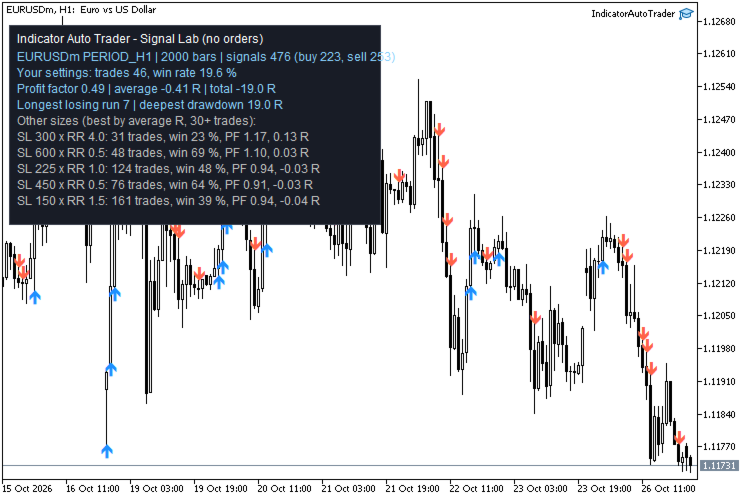
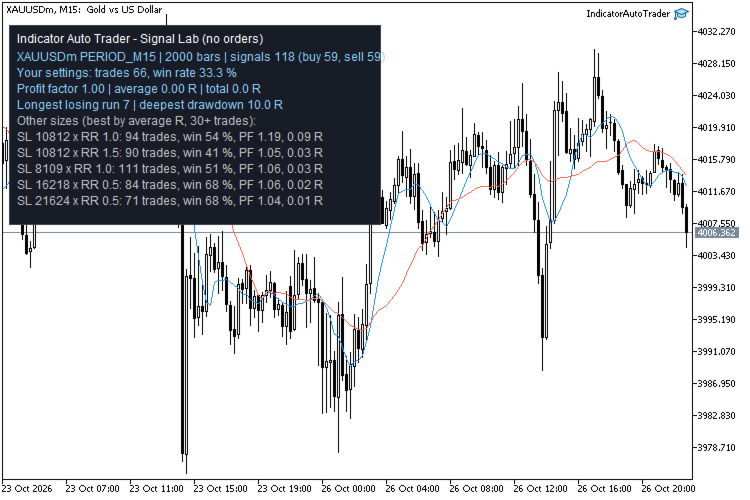
Set the mode to Signal Lab (on a chart, or in the Strategy Tester) and the EA opens no trade. It replays the signals of the indicator on past bars with YOUR stop loss and take profit and writes in the journal: number of signals, trades, win rate, profit factor, average result in R, the longest run of losses and the deepest drawdown in R. It also tests other stop loss and take profit sizes and lists the 8 sizes with the highest average result (at least 30 trades). On a chart the report is shown on the panel. A size that looks good on past data is not a promise.
Panel and alerts
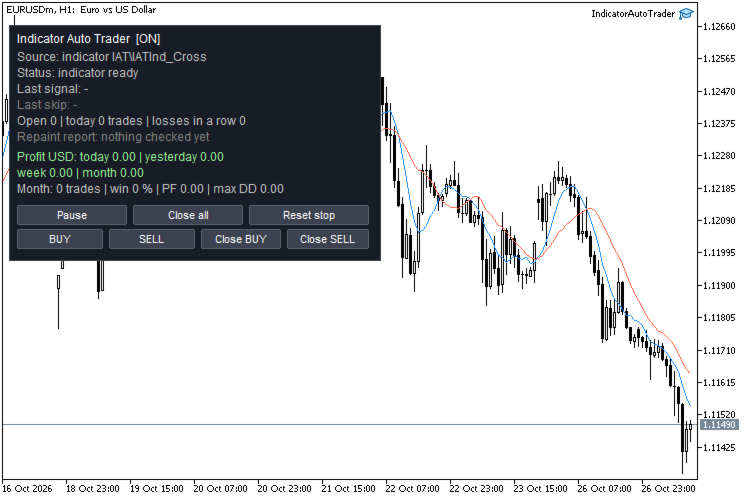
- Status, last signal, the reason why the last signal was skipped, open trades, trades today.
- Result of this EA: profit today, yesterday, this week and this month; this month: trades, win rate, profit factor and the deepest drawdown.
- Marks on the chart: every signal gets a small text, green "opened" or orange "skipped: reason". Hover to read it.
- Buttons: BUY and SELL (a manual trade with your lot, stop loss and take profit), Close BUY, Close SELL, Pause / Resume, Close all, Reset stop.
- Alerts and push notifications for signals, trades and stops.
- The journal explains every entry and every skipped signal.
How it was tested
Strategy Tester runs on EURUSD, XAUUSD and GBPUSD (1-minute OHLC model), each run compared trade by trade with an independent model written in Python: every signal, entry time, side, lot, stop loss, take profit and exit (about 24,800 checks in 45 runs, 0 differences in the final runs). Also tested with forced broker answers: a requote on the first try (every order retried once), invalid stops (opened without stops, stops set right after), and a "timeout" answer for an order that was executed (the EA found its position and sent nothing twice). Tested: all signal modes, indicator inputs passed to the indicator, all lot modes, all stop loss and take profit modes (points, ATR, signal bar, swing, ratio), ATR trailing, alerts, hedging with 3 positions, reverse and sell-only, partial take profits, break-even, trailing stop, close after bars, stop and limit orders, spread / hours / weekday / EMA filters, maximum trades, losses in a row, Friday close, Signal Lab (same numbers as the independent replay, also when the indicator is read from the chart), confirming indicators, stop loss and take profit read from indicator buffers, the basket close, the flat-market filter, sessions in London and New York time with summer time, the statistics on the panel (compared with an independent sum of the deals), the manual BUY / SELL buttons (every trade has your lot, stop loss and take profit), the chart marks, and an indicator that repaints (the EA traded the arrows as they showed and kept every trade when the arrows disappeared).
Please read before you buy
- The EA trades whatever the indicator shows. A repainting indicator can show an arrow and remove it later; the EA has already traded it, and it never closes a trade because an arrow disappeared. If you do not want this, use the last closed bar and check your indicator first. The journal has a repaint report that only informs you; it never stops a trade.
- The EA is as good as the indicator you give it. It does not make a bad indicator good. No profit is promised.
- Signals are read from indicator buffers or from arrows drawn as chart objects. Indicators that draw arrows in another way cannot be read.
- Your indicator must be in the MQL5\Indicators folder of your terminal. In the Strategy Tester the EA can use an indicator only if the file is on your computer.
- Signal Lab replays the history as the indicator shows it today. A repainting indicator looks better in Signal Lab than it will trade.
- The news filter works in live trading only.
- Test on a demo account first.
Setup in two minutes
1. Put your indicator in MQL5\Indicators. Set Signal source to "Indicator buffers" and type its name (the path inside MQL5\Indicators, without .ex5).
2. Let Signal Lab or the Auto Buffer Finder tell you the buffers, or look in the Data Window (Ctrl+D). Set the signal mode and the buffers.
3. Type your lot, stop loss and take profit. Attach the EA to a chart and allow algorithmic trading.
Questions
- Does it work on a netting account? The code handles it (one position per symbol, the opposite signal closes the position first). The tests were run on a hedging account, not on a netting account.
- Can it use several indicators? Yes, as confirmation: one main indicator gives the signal and up to 3 more must agree. To trade two different indicators separately, use another chart with another magic number.
- Can I optimise it? Yes: the indicator inputs can be set in 6 slots that the Strategy Tester can run through.
- Why did it not trade? The panel and the journal show the reason of the last skipped signal.