Trading Lines EA
- Experts
- Version: 1.20
- Updated: 15 March 2026
- Activations: 5

!!! ATTENTION !!!
This Expert Advisor (EA) was developed to be used as a trading tool, not as an autonomous trading robot. Although the EA also has this functionality, as can be seen in the tests, it is not accurate enough to operate autonomously, so I DO NOT RECOMMEND ITS USE AS A TRADING ROBOT.
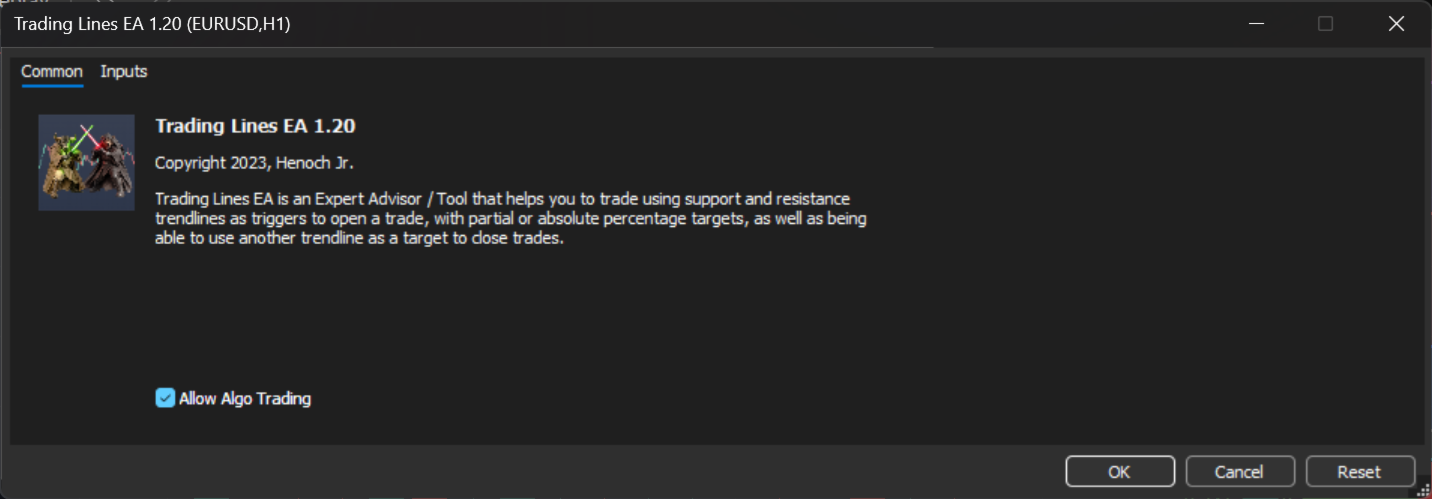
Trading Lines EA is an Expert Advisor / utility that helps traders execute trades, mainly based on support and resistance levels.
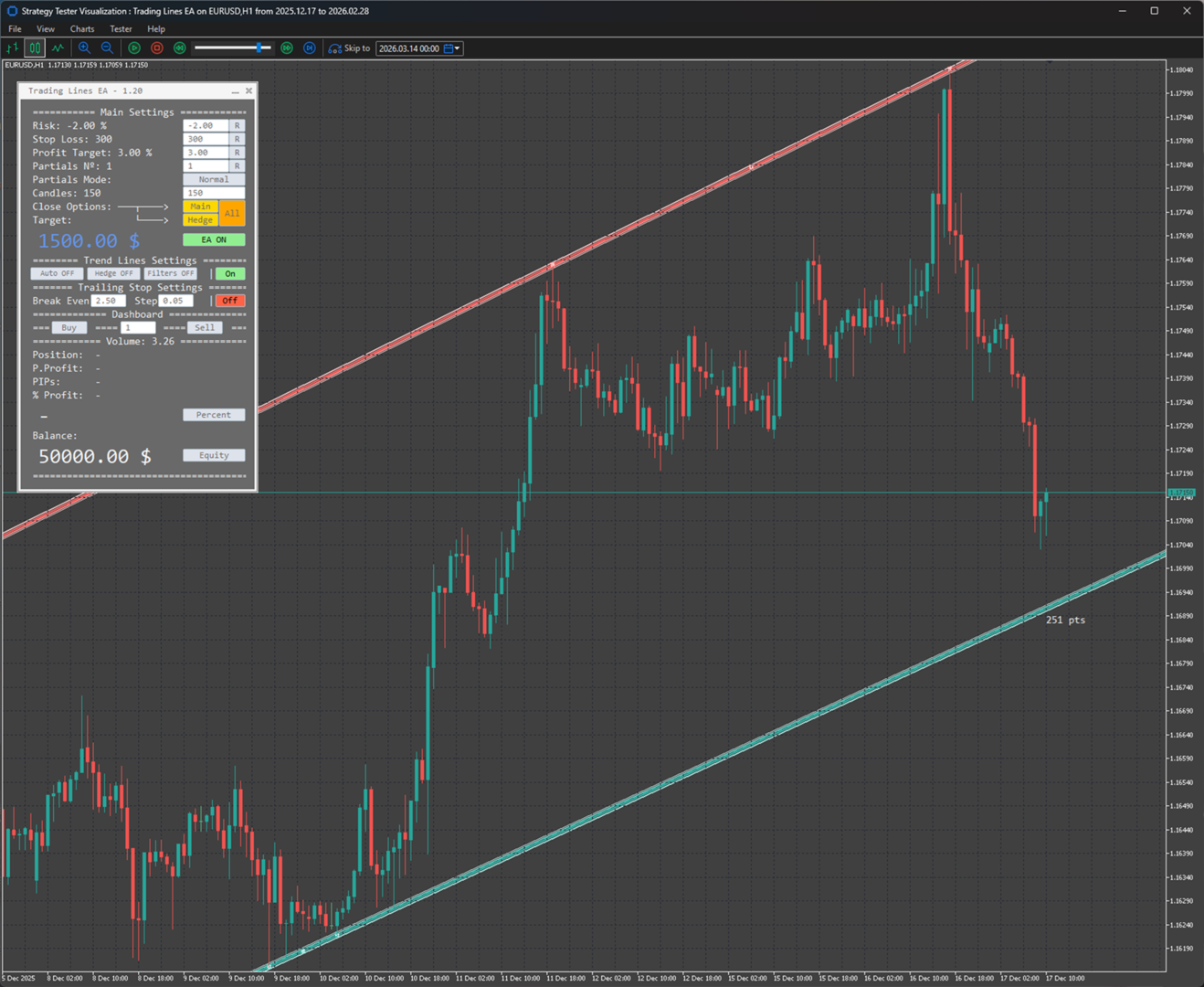
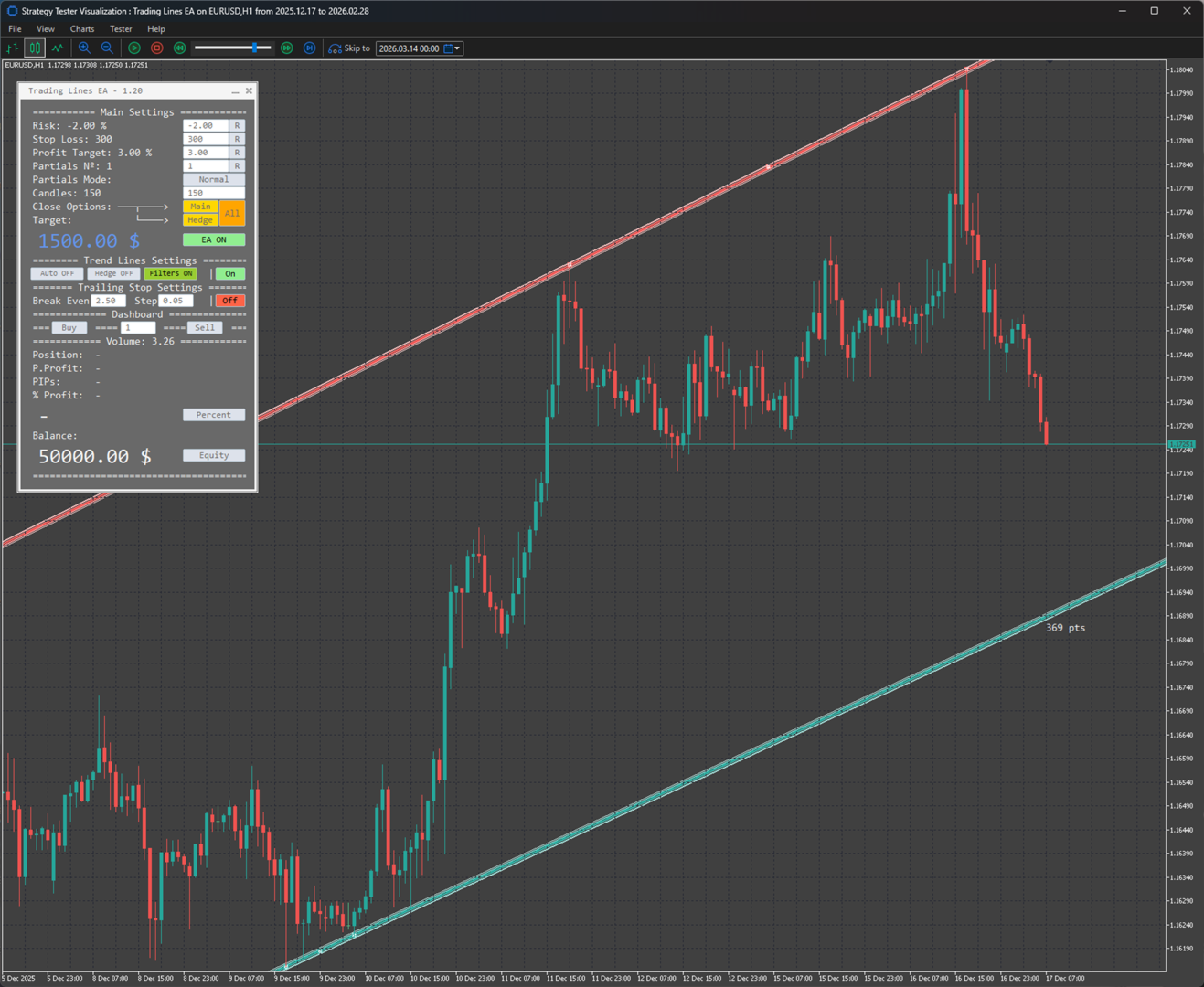
Panel fields and functions:
-
Risk (%) → Percentage risk per trade, used to calculate the lot size. Includes a reset button to restore the value defined when the EA was loaded;
-
Stop Loss (points) → Stop Loss in points, also used to calculate the lot size. Includes a reset button;
-
Profit Target (%) → Percentage profit target per trade. When the defined value is reached, the position is closed automatically. Includes a reset button;
-
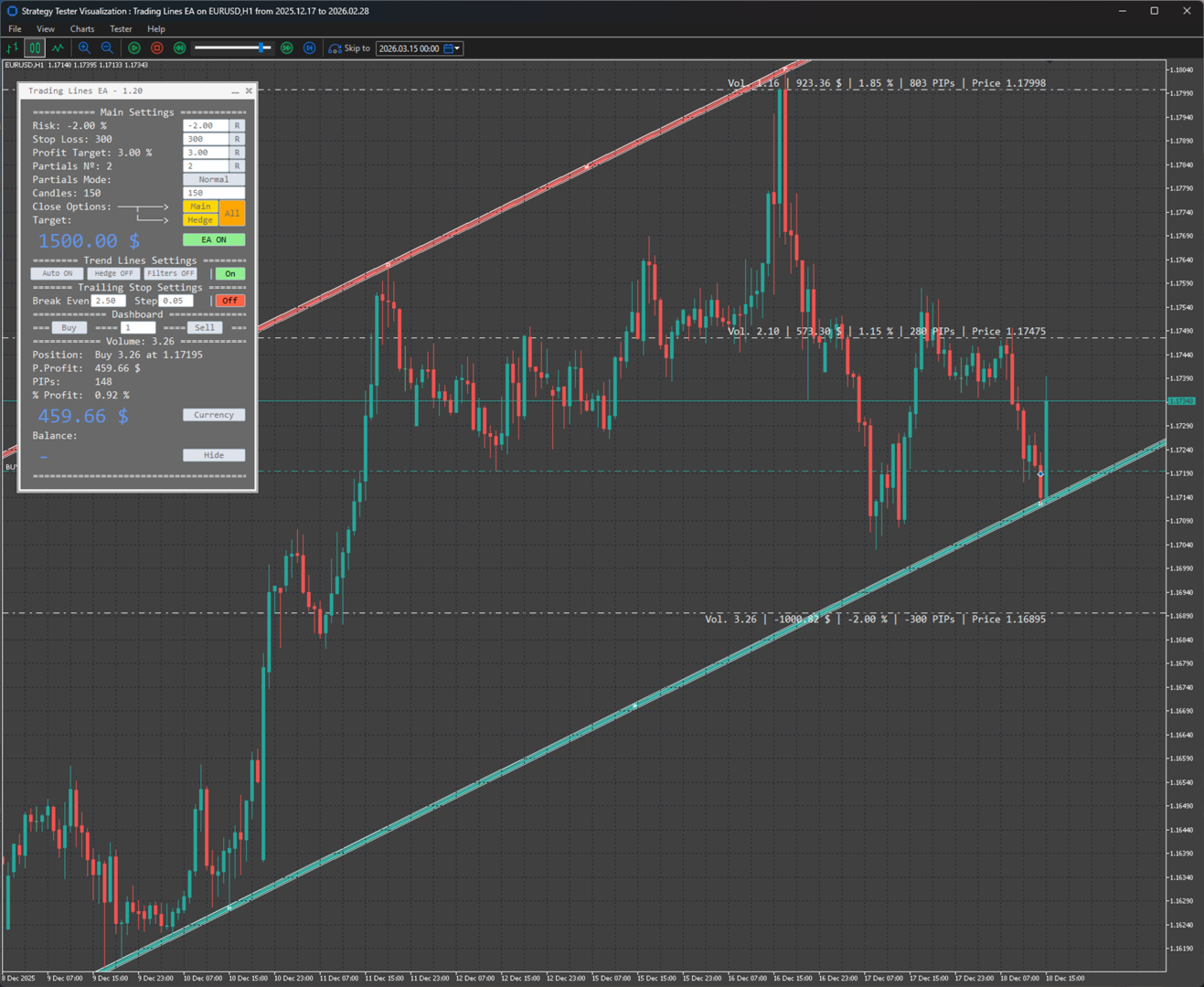
Partials Number → Number of partial closes for each trade. If greater than 1, the position will be closed partially according to the partial mode;
-
Partials Mode → Safe, Normal, and Aggressive modes define the distance and lot size of partial closes;
-
Candles → Value used to automatically calculate the Buy and Sell trend lines when automatic mode is enabled;
-
Close Options → Main (closes the main position), Hedge (closes the hedge position), and All (closes both). See Hedge details below;
-
Target → Displays the monetary value of the target based on balance and percentage target;
-
EA Button → EA ON / EA OFF (enables or disables all EA logic);
-
Auto Button → Auto ON / Auto OFF (enables or disables automatic drawing of Buy and Sell lines);
-
Hedge Button → Hedge ON / Hedge OFF (enables or disables hedge logic);
-
Filters Button → Filters ON / Filters OFF (enables or disables filter logic);
-
Lines Button → On / Off (enables or disables line logic; trades only occur when active);
-
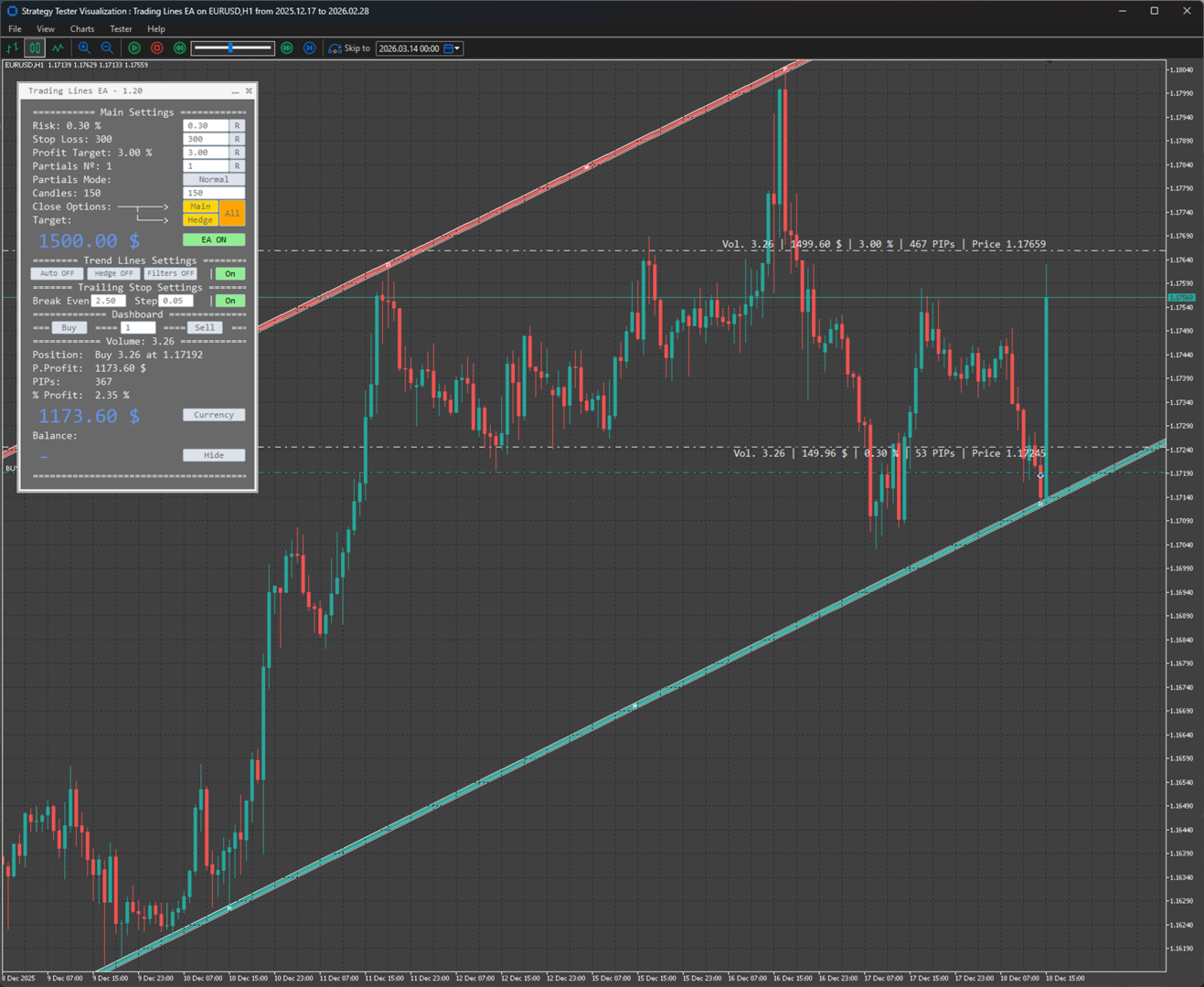
Break Even → When this percentage is reached, the trade risk automatically moves to 0%, including broker commission;
-
Step → After Break Even is reached, if profit reaches Break Even + Step, the risk moves to the Step value and continues in this pattern (Trailing Stop);
-
Break Even / Trailing Stop Button → On / Off (enables or disables this logic);
-
Buy Button → Executes a buy order;
-
Sell Button → Executes a sell order;
-
Spread → Displays the current spread of the symbol;
-
Position → Shows information about the open position;
-
P.Profit → Monetary profit of the current position;
-
PIPs → Profit in points of the current position;
-
% Profit → Percentage profit of the current position;
-
Profit Button → Switches between monetary, points, or percentage profit display;
-
Balance Button → Toggles between hiding the balance, showing position equity, or showing total account balance.
Trading Lines EA also includes:
-
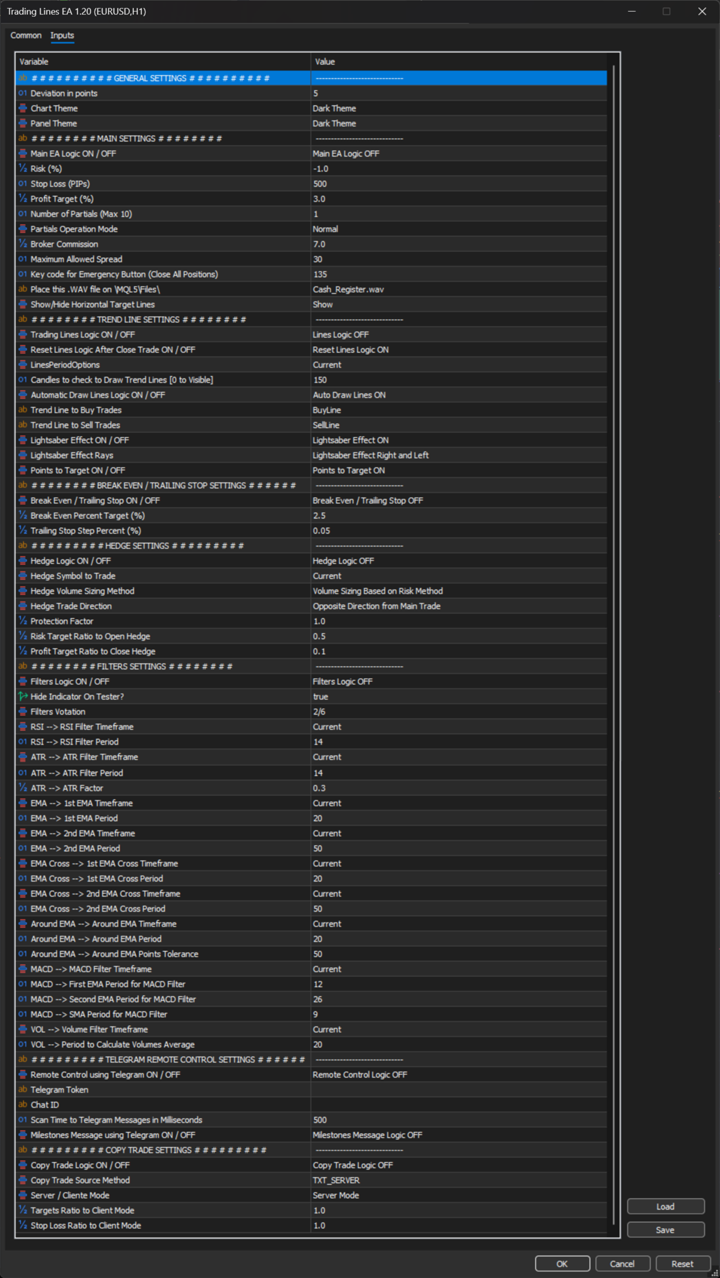
Panel and chart color customization options;
-
Custom keyboard emergency button for fast position closing;
-
Optional sound alert when executing buy or sell orders;
-
Option to hide or display trade target lines;
-
Option to reset line logic (Lines Off) after a position is closed, preventing unintended new trades;
-
Ability to choose the timeframe used for automatic Buy and Sell line calculations;
-
Optional “lightsaber” visual effect (Star Wars style) for Buy and Sell lines;
-
Option to display or hide the number of points remaining until the Buy or Sell lines are reached.
Hedge Logic:
-
Ability to select the symbol used for hedging;
-
Hedge lot size calculation options;
-
Option to define the direction of the hedge trade;
-
Protection factor (affects hedge position size);
-
Target risk ratio for hedge activation (e.g., if risk = −2% and value = 0.5, the hedge opens at −1%).
Filter Logic:
-
Trades are allowed only when filters are enabled and the voting condition is valid;
-
Voting system using 6 filters. Example: if 2/6 indicate Buy and the price reaches the Buy line, the trade is executed (same logic for Sell);
-
Available filters: RSI, ATR, two EMAs, EMA crossover, EMA proximity, MACD, and Volume.
Additional features:
-
Remote control via Telegram, allowing management of most EA functions and receiving status updates of open trades;
-
Built-in Copy Trade feature for use with two terminals on the same computer.
Note¹: It is recommended to use additional indicators to assist decision-making, such as EMAs (50, 100, and 200 periods) and Bollinger Bands.
Note²: For simulation purposes, trend lines are drawn based on the highs and lows of the two days prior to the simulation start date. During normal use, they can and should be adjusted according to the user's strategy. Frequent changes in displayed information occur only for demonstration purposes.