Neuro 5
- Experts
- Version: 1.1
- Updated: 22 October 2026
- Activations: 5

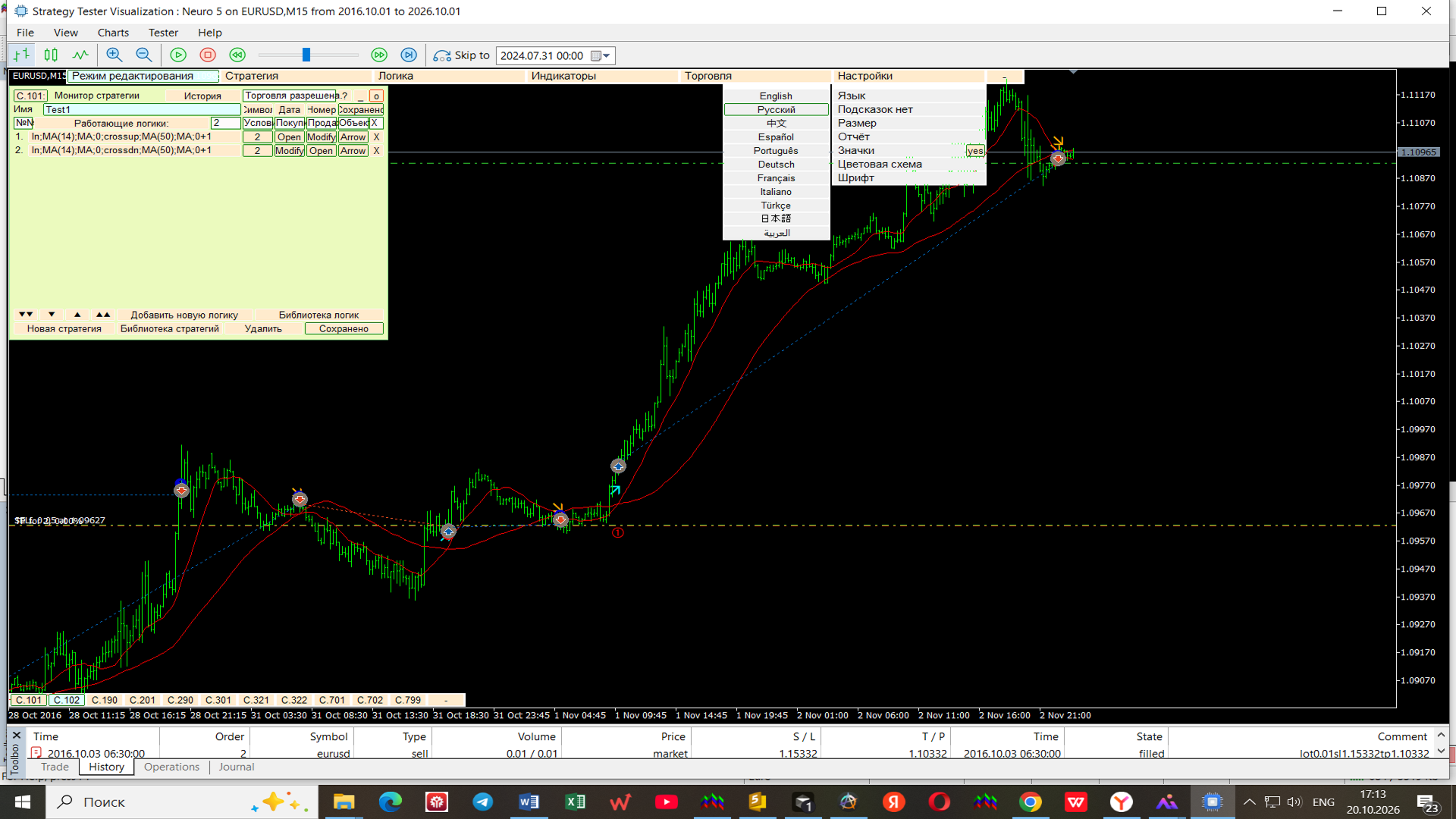
Neuro 5 is a visual strategy builder for MetaTrader 5. You assemble a trading system from technical indicators, set the comparison conditions, and attach trade parameters to each signal without writing program code.
The product is a working Expert Advisor with a panel interface. It does not guarantee profit. The result depends on the strategy you build, on market conditions and on the conditions of your broker.
What the program does
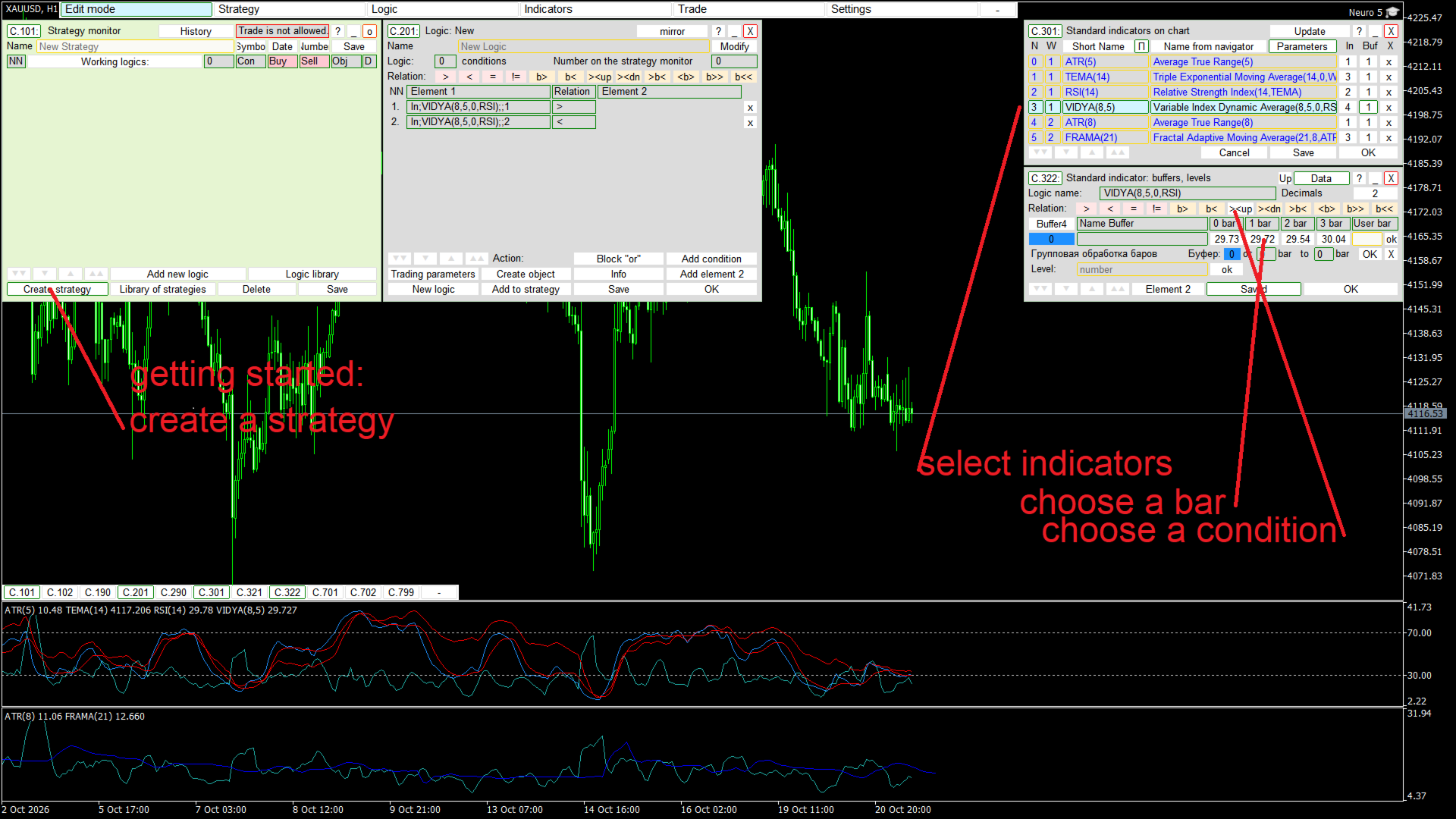
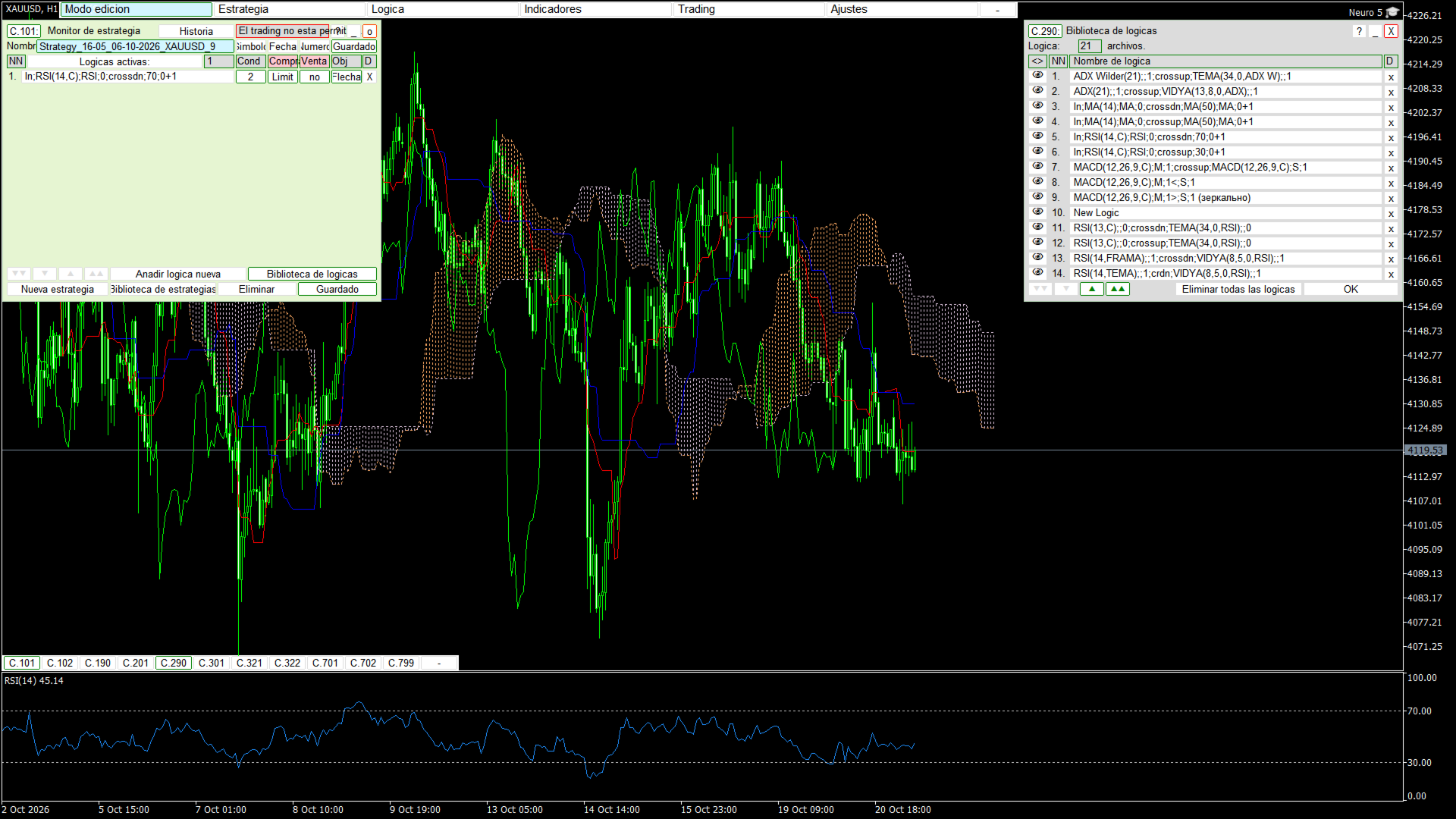
When Neuro 5 is attached to a chart, a header panel, a tray and a strategy monitor appear. From the header you open the strategy monitor and the strategy library, the logic constructor and the logic library, the list of indicators on the chart, the trade parameters with an order monitor and a template library, and the interface settings.
The tray at the bottom left holds eleven buttons and gives direct access to the main panels. A neutral button opens a panel, an active button hides it. Both the header and the tray can be collapsed, so the panels do not cover the chart while you work.
How a strategy is built
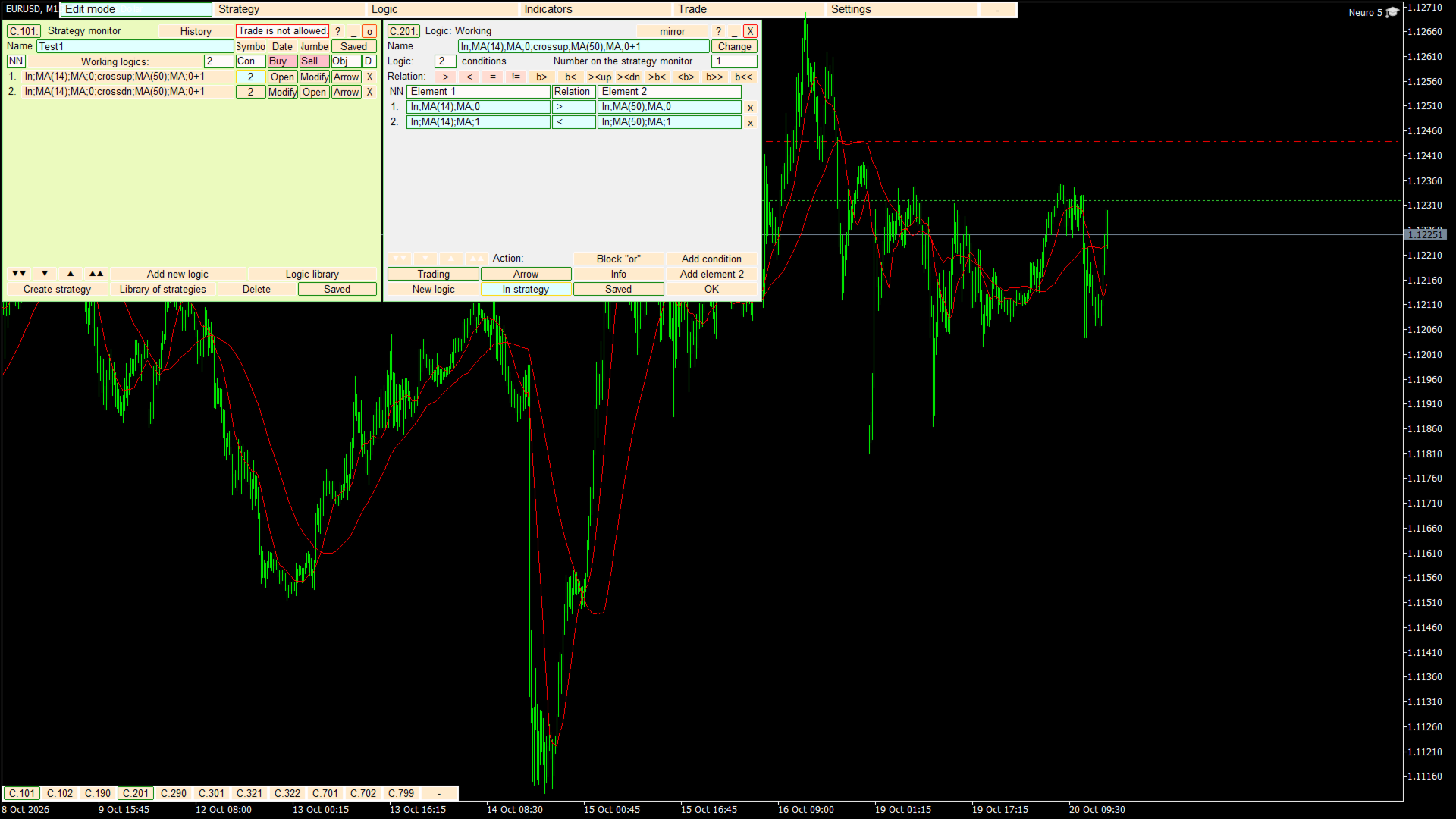
A strategy is a named set of logics. Each logic contains conditions. A condition compares two elements: an indicator buffer with a given timeframe, shift and parameters, or a fixed numeric level. Comparison signs include greater, less, equal, crossing and direction.
When the conditions of a logic are met on a bar, the logic produces a buy or a sell signal. Each signal is linked to a trade command: a market entry, a pending order of Limit, Stop or Stop Limit type, a close, a modification, or a close together with a modification. Each logic has its own Magic Number, so the Expert Advisor distinguishes its own positions and orders.
A strategy may contain up to 32 logics, and a logic may contain up to 32 conditions. Logics of one strategy can be made mirrored, when the trade parameters of the second logic repeat the first one in the opposite direction.
Indicators
The constructor works with the 38 technical indicators supplied with MetaTrader 5. Among them are Moving Average, MACD, RSI, Stochastic Oscillator, Bollinger Bands, Ichimoku Kinko Hyo, ATR, CCI, Parabolic SAR, Alligator, Adaptive Moving Average, Envelopes, Force Index, Money Flow Index, On Balance Volume and others.
In addition, 14 indicators from the Indicators/Examples folder are included in the Expert Advisor as resources and do not require separate installation: ZigZag, ZigZag Color, Ultimate Oscillator, Rate of Change, Volume Rate of Change, Price and Volume Trend, Price Channel, Detrended Price Oscillator, Mass Index, Chaikin Volatility, Accumulation Swing Index, Heiken Ashi, Williams Accumulation/Distribution and Bill Williams ZoneTrade.
Arbitrary custom indicators from the Indicators folder are not used as logic elements. The program compares the short name and the full name of a chart indicator with the names of the supplied set. If an indicator is not in the set, it is marked in the list and is not offered for the logic.
Indicators on the chart
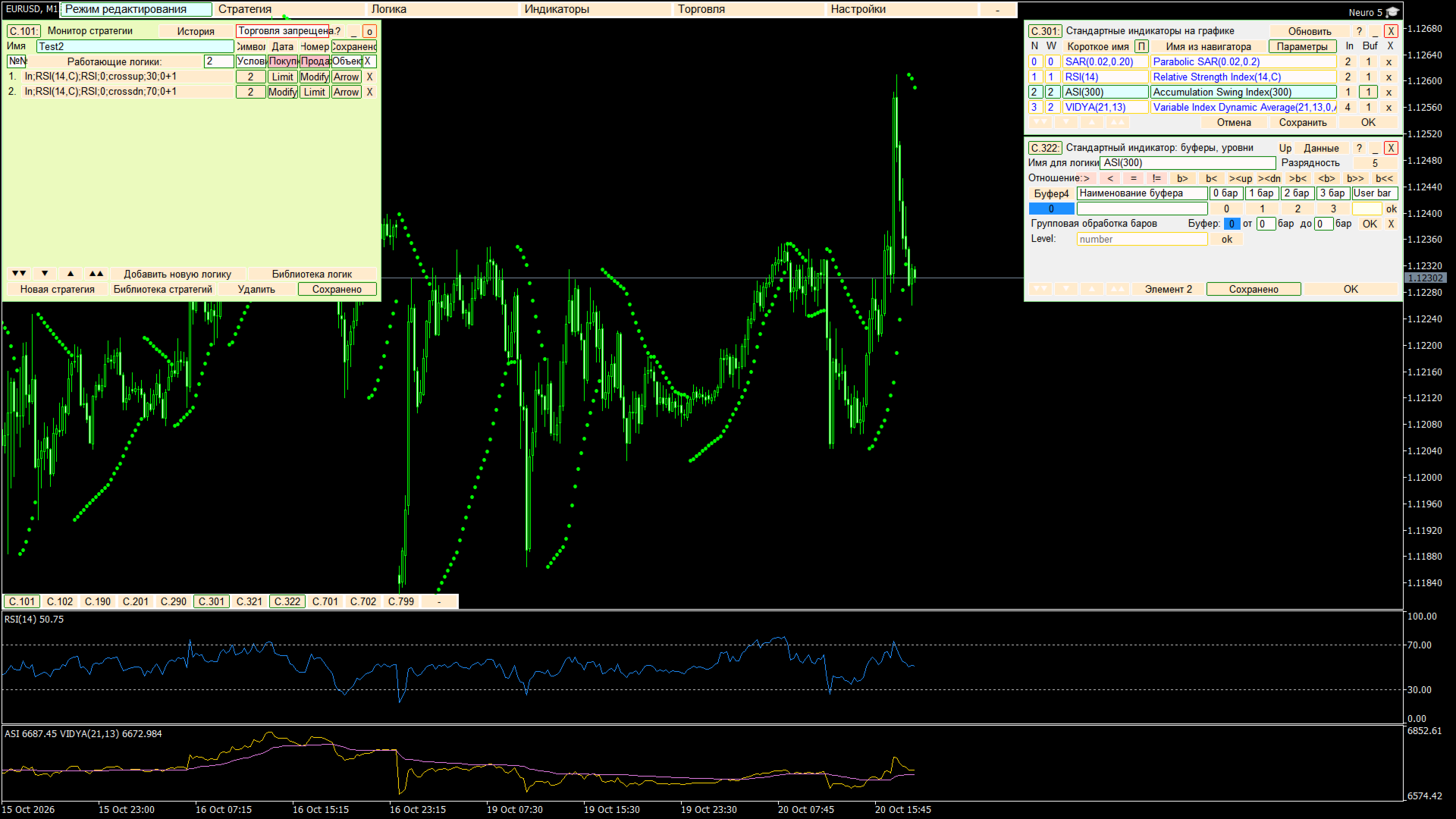
The indicator panel does not place indicators by itself. It scans all chart windows and shows what is already there: the row number, the window, the short name, the name from the Navigator, the input parameters and the buffers. From a row you open the parameter card or the buffer and level card, and from there a condition goes back to the logic constructor.
A separate panel adds trend indicators into a subwindow and places the included Examples indicators on the chart. For some indicators the applied price can be the handle of another indicator of the same subwindow, which lets you build chains of calculations.
Example strategies
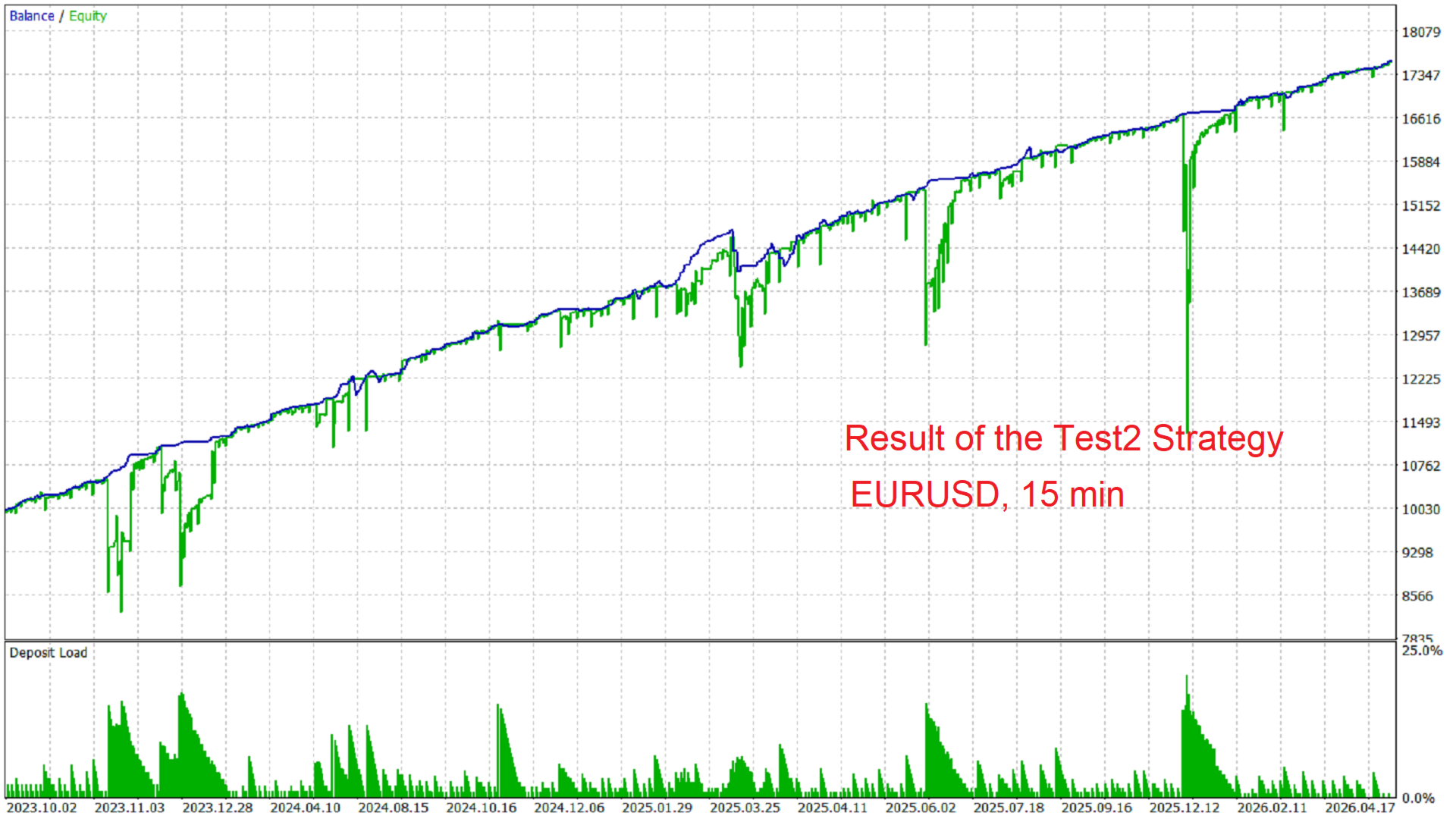
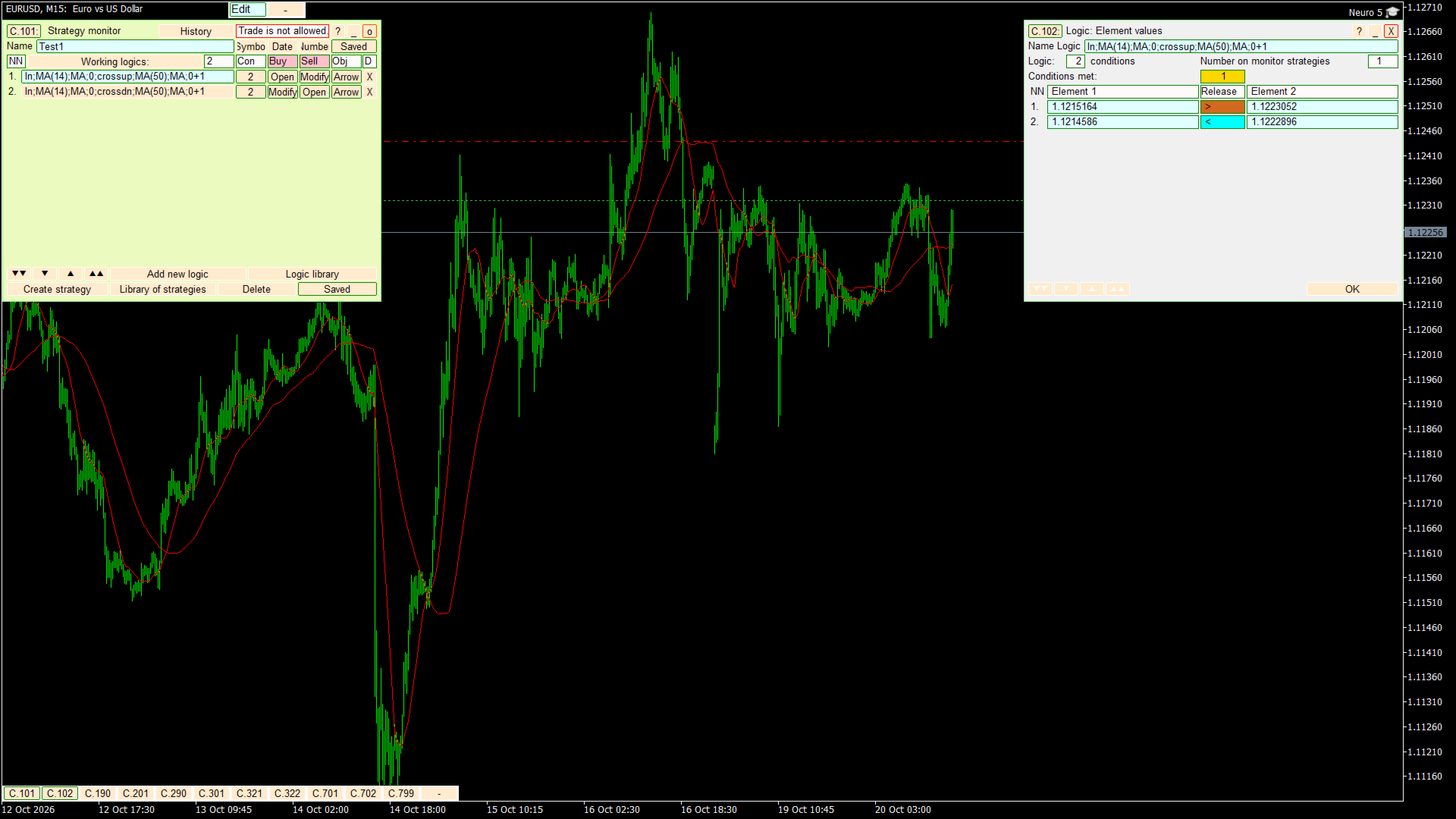
On the first start the program puts two example strategies into the library. Test1 is a crossing of two moving averages with periods 14 and 50. Test2 is RSI crossing the 30 and 70 levels. These examples show how the interface works. They are not trading recommendations and they are not selected for any particular symbol or timeframe. Example strategies are restored at every load and cannot be overwritten.
Trade parameters
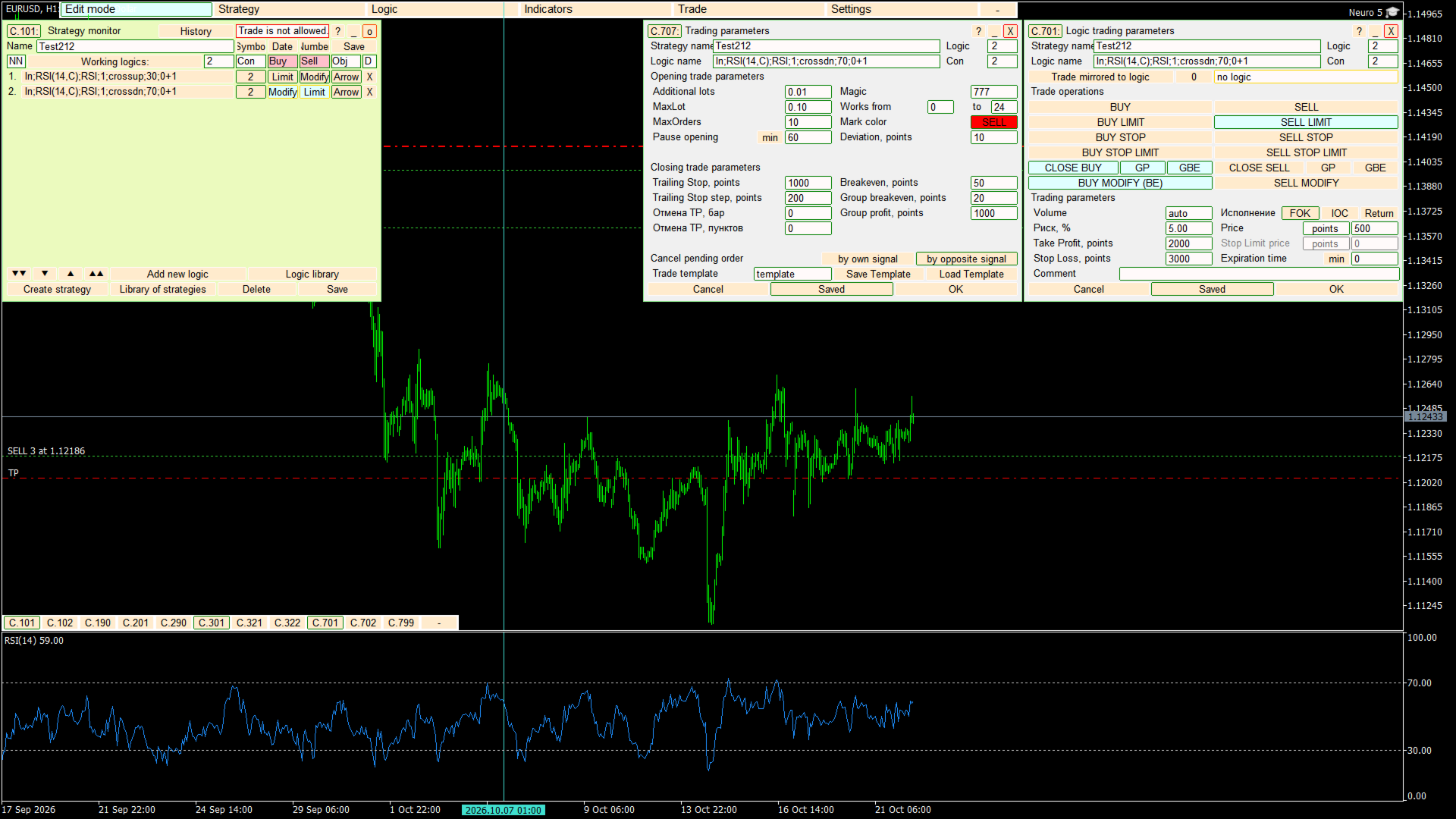
For each logic you can set the lot and the additional lot, the risk in percent, the maximum lot and the maximum number of orders, the pause between entries, Take Profit and Stop Loss, a trailing stop, a breakeven, a group breakeven and a group profit, the Magic Number, the working hours, the slippage and the colors of trade marks.
For pending orders you can set the price in points, the Stop Limit price, the filling type FOK, IOC or Return, the expiration, the order comment and the rules for cancelling a pending order by its own or by the opposite signal. Trade templates can be saved in a library and applied to other logics.
Settings and files
The interface is translated into eleven languages: English, Russian, Chinese, Spanish, Portuguese, German, French, Italian, Turkish, Japanese and Arabic. In the settings you choose the language, turn tooltips on or off, switch the panel scale, allow or forbid the drawing of icons, pick a color scheme and a font, and select where to write the test report.
Working files are stored in the common terminal folder, in the Neuro5 directory. It holds strategies, the logic library, saved indicator parameter sets, test reports and the saved interface settings. The folder is created on the first start.
Tester
The same Expert Advisor runs on a live chart and in the Strategy Tester. In visual mode the chart and the panels are shown. In non-visual mode only the strategy is calculated and the panels are not built. After a run, with the report enabled, a CSV file is created with the run data, the logics, all trade parameters and the standard tester statistics.
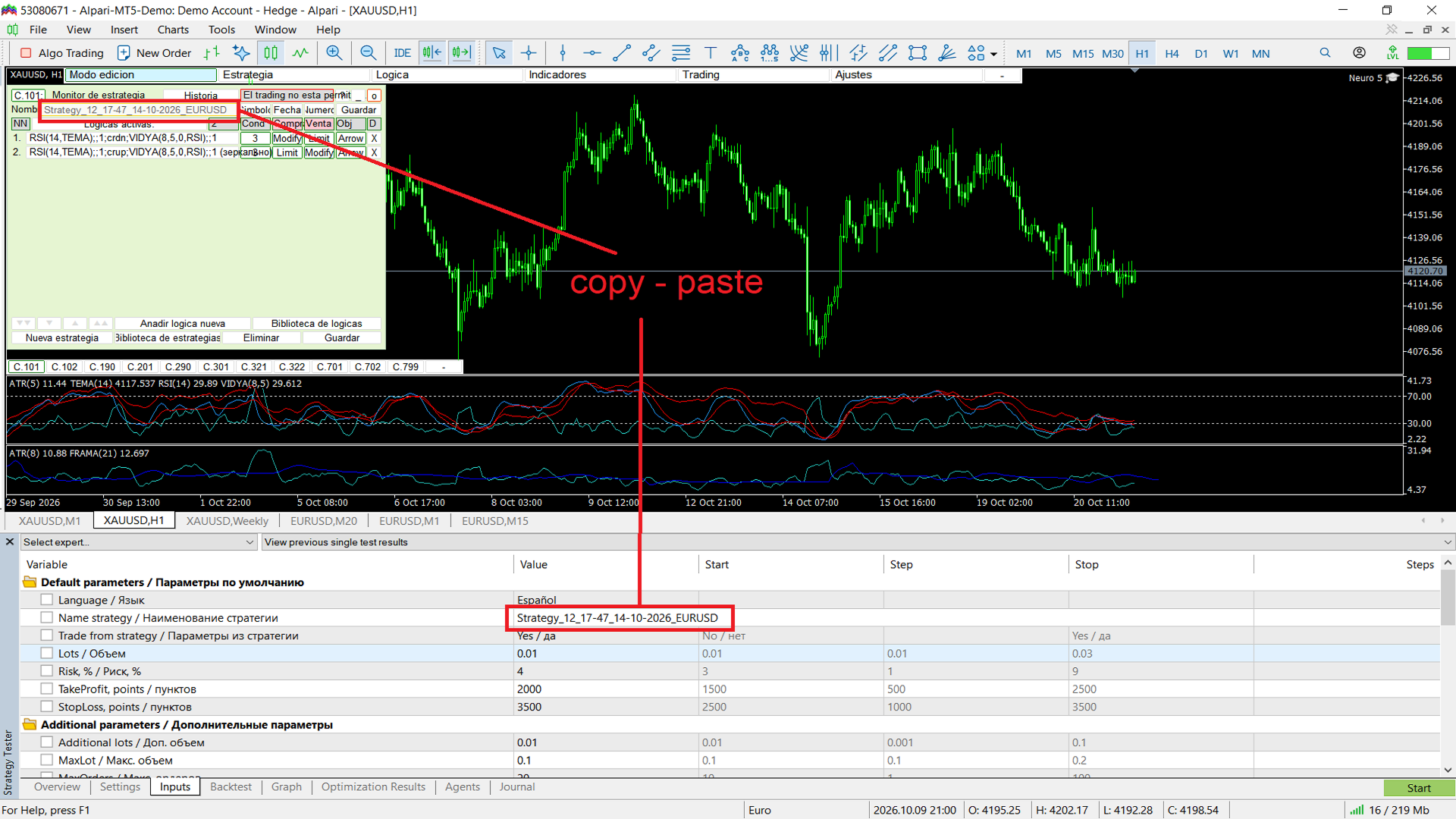
While the trade numbers are taken from the strategy files, the inputs of the properties window do not replace them. To let the optimizer change the trade settings, switch the Trade from strategy input off.
How to start
Attach Neuro 5 to a chart of the symbol and the timeframe you need and enable algorithmic trading. The example strategy Test1 is loaded automatically. In Edit mode build the logics, read the indicators from the chart and set the trade parameters, then save the strategy under your own name. Before live trading check the system in the Strategy Tester.
Input parameters
The inputs set the starting values. While Trade from strategy is set to yes, the lot, the stops and the pending order fields are taken from the strategy files and not from the inputs.
Default parameters
· Language — interface language of the panels.
· Name strategy — name of the strategy loaded at start, Test1 by default.
· Trade from strategy — take the trade numbers from the strategy files or from the inputs.
· Lots — lot size.
· Risk, % — risk in percent instead of a fixed lot.
· TakeProfit, points — Take Profit in points.
· StopLoss, points — Stop Loss in points.
Additional parameters
· Additional lots, MaxLot, MaxOrders — additional lot, maximum lot, maximum number of orders.
· Pause opening, Pause unit — pause between entries and its unit.
· Magic number — Magic Number of the orders.
· Works from, Works to — working hours.
· Buy mark color, Sell mark color — colors of the trade marks.
· Slippage, points — allowed slippage.
· Trailing level, Trailing step — trailing stop distance and step in points.
· Breakeven, points — breakeven distance in points.
· Group breakeven, Group profit — group rules in points.
· Cancel TP bars, Cancel TP points — conditions for cancelling Take Profit.
Pending orders
· Price, points — pending order price offset in points.
· Stop Limit, points — Stop Limit price in points.
· Filling — filling type FOK, IOC or Return.
· Expiration, Expiration unit — order expiration and its unit.
· Comment — order comment.
· Cancel pending own, Cancel pending opposite — cancel a pending order by its own or by the opposite signal.
· History depth, bars — number of bars used by the History button, 1000 by default.
Risk notice
Trading in financial markets involves the risk of loss. Results of any example, screenshot or tester report do not predict future results. Neither the description nor a successful automatic Market check guarantees profit or error-free operation. Use only the money you can afford to lose.
Support
Questions and error reports should be sent through the comments of the product page or through the mql5.com messaging system. Please state the symbol, the timeframe, the mode, tester or live chart, and the steps that lead to the issue.