NexGenAURUM
- Indicators
- Version: 1.0
- Activations: 10

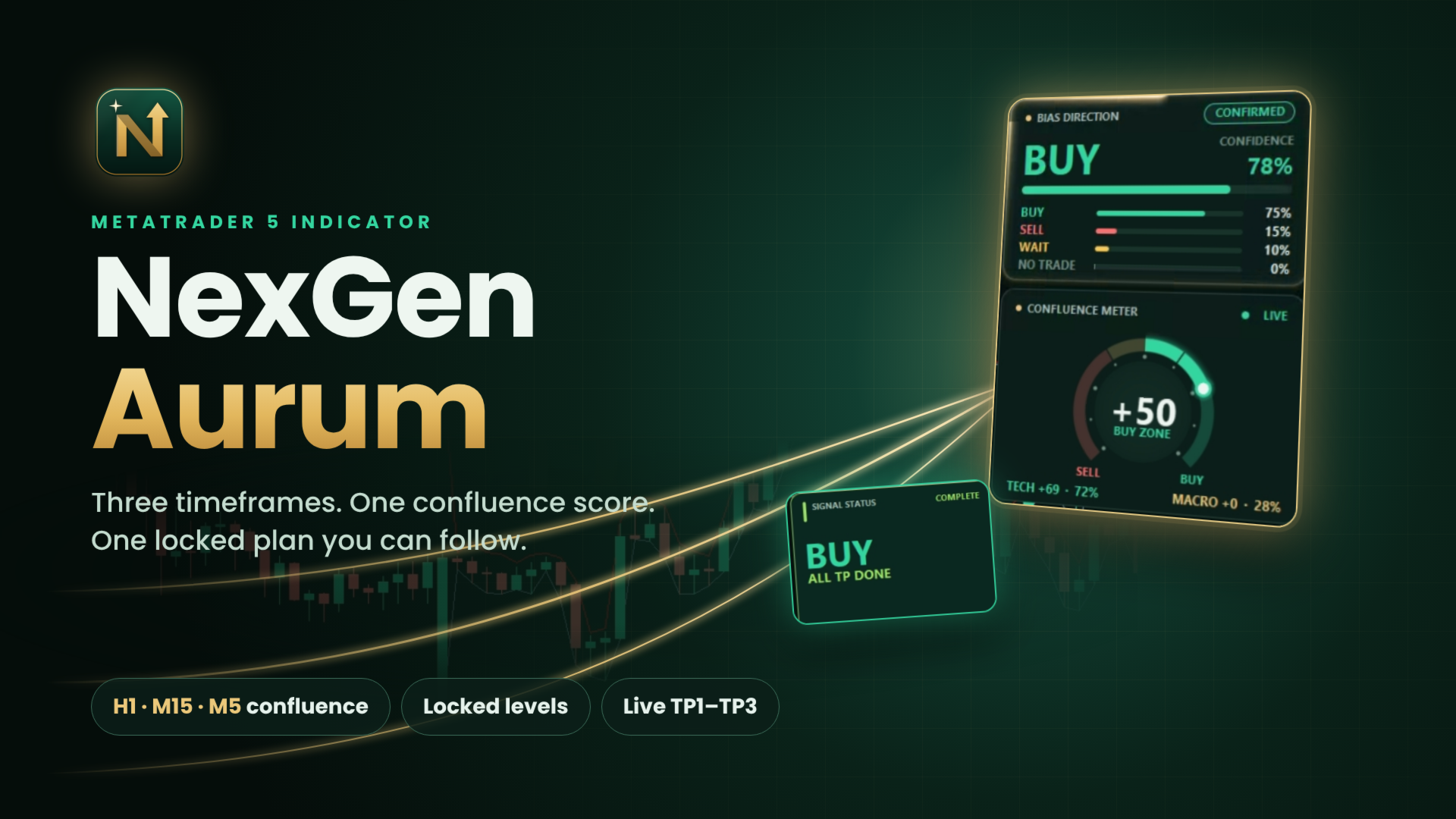
Multi-timeframe confluence dashboard for MT5. Turns trend, structure, momentum and macro context into one bias score, then locks a clear entry zone, invalidation and three targets with a live lifecycle.
Full description:
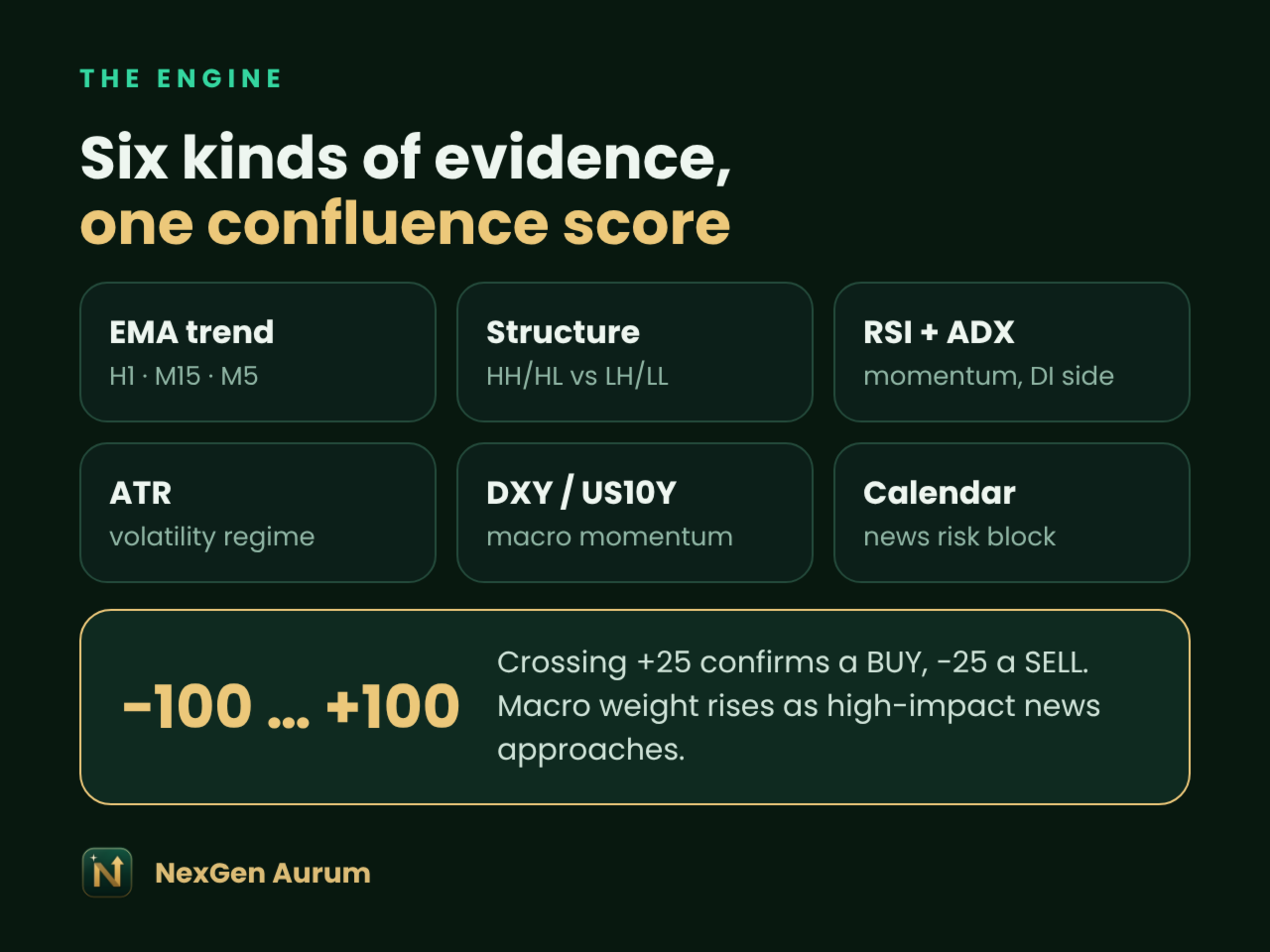
NexGen Aurum reads the market the way a disciplined trader does: it checks several timeframes and several kinds of evidence before it commits to a direction. Every signal is a weighted confluence score, not a single crossover.
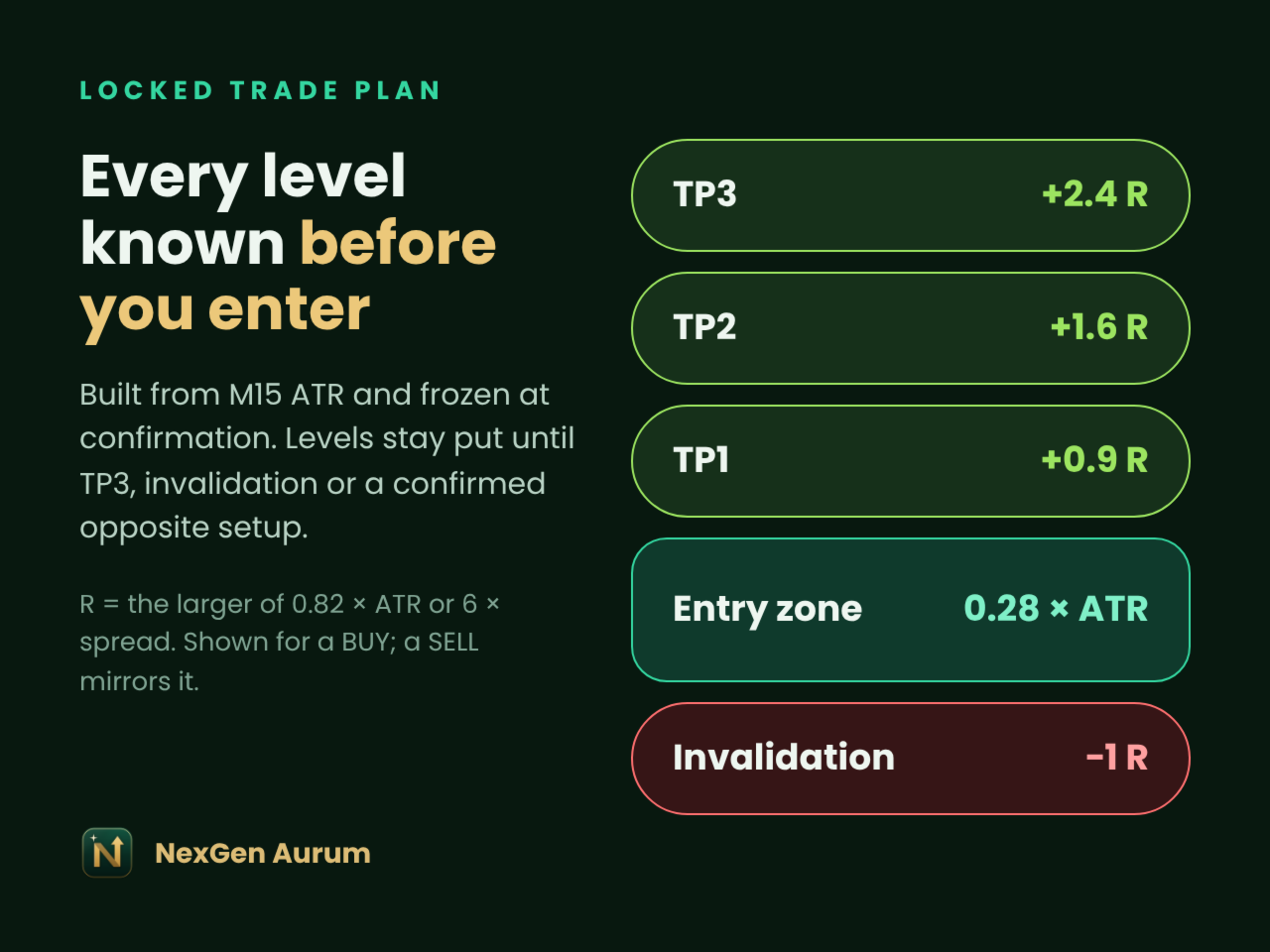
When the score crosses your BUY or SELL threshold, the setup is confirmed and its levels are frozen on the chart: entry zone, invalidation and TP1 / TP2 / TP3. Locked levels do not move or repaint while the setup runs. The dashboard then follows the setup tick by tick — entry touched, each target reached, or invalidation — and tells you clearly when it is finished.
Key features
- Confluence score from −100 to +100 — EMA trend on H1, M15 and M5, market structure (HH/HL vs LH/LL), RSI, ADX with DI direction and ATR volatility.
- Optional macro layer — DXY and US10Y momentum (symbol names auto-detected) and the MT5 Economic Calendar; macro weight rises as high-impact news approaches.
- News risk block — NO TRADE state before high-impact events.
- Locked trade plan — entry zone, invalidation and three ATR-based targets, frozen at confirmation (2.4 R at TP3).
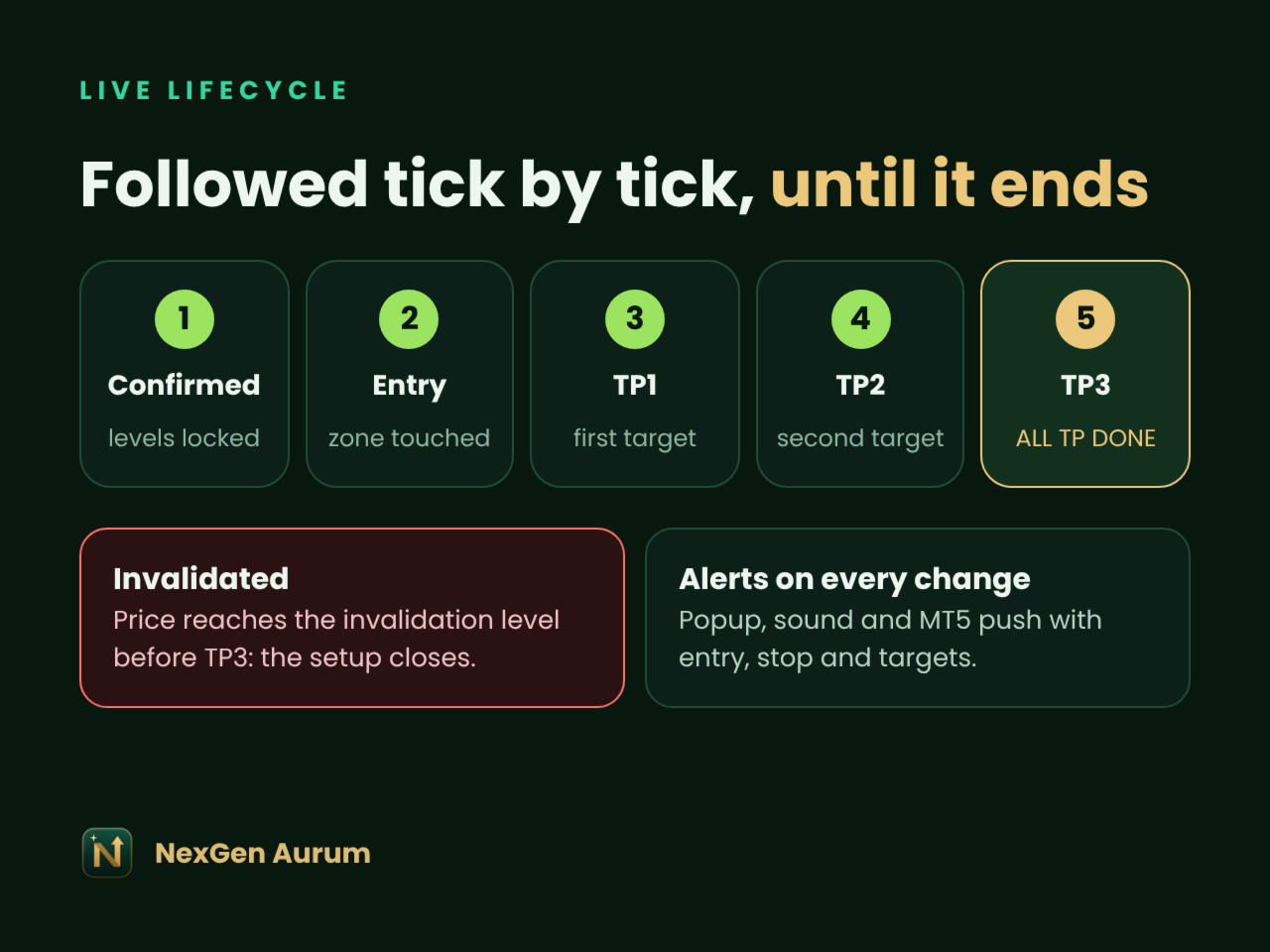
- Live lifecycle — Confirmed → Entry → TP1 → TP2 → TP3, or Invalidated, checked on every tick.
- Confluence ring meter — animated gauge showing the score against your thresholds.
- 30-day signal statistics — signals, TP hits and SL hits recorded on your chart, per symbol and timeframe.
- Rounded card dashboard — royal-emerald and champagne-gold theme, insight column on the left, signal column on the right, floating market bar, glowing entry band and neon setup card. Ivory light theme included.
- Alerts — popup, sound and MT5 push on new BUY, SELL or NO TRADE.
- EA integration — setup data in terminal global variables and custom chart events.
- Performance safe — closed-bar analysis on a timer; Safe mode skips calendar calls that can slow a terminal.
What you get: the NexGen Aurum indicator for MetaTrader 5, free updates through the Market and this user guide.
Recommended: XAUUSD or major FX pairs, chart timeframe M15, screen 1600 px wide or more.
nputs reference
Defaults are tuned for XAUUSD on M15; most users only change the theme and alerts.
| Group | Input | Default | What it does |
|---|---|---|---|
| Appearance | Colour theme | Dark | Royal emerald & gold, or ivory light theme |
| Appearance | Apply matching chart colours | true | Recolours candles and background; restored on removal |
| Appearance | Right chart margin % | 0 (auto) | Space right of the live candle so level labels clear the signal column |
| Appearance | Panel corner radius | 14 px | Roundness of every card and chip; 0 gives square corners |
| Appearance | Watermark opacity % | 6 | Logo behind the candles, 0–40 |
| Visual effects | Running light / neon glow | true | Animated gold light around the signal card |
| Visual effects | Animation step (ms) | 150 | Raise to 250+ on slower PCs |
| Visual effects | Glowing entry band | true | Band exactly between the two entry lines |
| Visual effects | Neon setup card / ALL TP DONE card | true | Centre-chart cards for the active and the completed setup |
| Technical engine | Fast / Slow EMA | 20 / 50 | Trend filter on H1, M15 and M5 |
| Technical engine | RSI / ADX / ATR period | 14 / 14 / 14 | Momentum, trend strength and volatility on M15 |
| Technical engine | BUY / SELL threshold | +25 / −25 | Combined score needed to confirm a setup |
| Setup levels | Lock levels after confirmation | true | Entry, invalidation and TP stay frozen until the setup ends |
| Setup levels | Opposite signal starts new setup | true | A confirmed opposite direction replaces the running setup |
| Setup levels | Max risk % / max spread | 0.75 / 30 | Shown in the risk card; spread turns red above the limit |
| Macro & news | Auto-detect DXY / US10Y | true | Finds your broker's symbol names |
| Macro & news | Safe mode | true | Skips MT5 Economic Calendar calls to keep the terminal fast |
| Macro & news | NO TRADE block (min) | 30 | Minutes before a high-impact USD event (Safe mode off) |
| Alerts | Popup / Sound / Push | true / true / false | Fires on new BUY, SELL or NO TRADE |
| Performance & integration | Analysis / dashboard cadence (s) | 5 / 5 | How often closed-bar analysis and cards refresh |
| Performance & integration | Check TP / invalidation every tick | true | Lifecycle reacts instantly to price |
| Performance & integration | Global variables / chart events | true / 9001 | Data for your own companion EAs |
User guide
Attach NexGen Aurum to a maximised M15 chart and the dashboard builds itself in a few seconds.
Install and first run
- Buy or rent NexGen Aurum in the MQL5 Market and click Install; it appears under Navigator → Indicators → Market.
- Open a chart of the symbol you trade (XAUUSD recommended) and set the timeframe to M15.
- Drag NexGen Aurum onto the chart, keep the defaults and press OK.
- Maximise the chart window: the full dashboard needs about 1600 px of width.
- Optional: enable push notifications under Tools → Options → Notifications with your MetaQuotes ID, then turn on Push notification in the inputs.
Reading the dashboard
- Left column — brand card, Why this bias (the reasons behind the score), economic calendar and latest USD release, DXY / US10Y and the last completed setup, the signal timeline and 30-day statistics.
- Floating market bar — symbol and timeframe, live price and daily change, H1 / M15 / M5 trend pills, spread, volatility and news state.
- Right column — bias direction with confidence and probabilities, the confluence ring meter with technical vs macro weight, market regime with bar-close countdown, market structure and risk settings.
- On the chart — glowing entry band, a solid line for every level, aligned price labels next to the live candle and a neon card with the active setup.
- Bottom strip — signal status card, level tiles (setup, entry, price, invalidation, TP1–TP3), RSI / ADX / ATR / volume / spread / session cards, setup progress and the locked trade plan.
Signal lifecycle
A confirmed setup moves through Confirmed → Entry → TP1 → TP2 → TP3. If price reaches the invalidation level first, the setup closes as Invalidated. A confirmed opposite setup replaces a running one, and the old one is recorded at its best result. After TP3 a neon ALL TP DONE card appears in the centre of the chart until the next setup.
Alerts
Alerts fire once per state change — a new BUY, a new SELL or a NO TRADE news block — and carry the entry zone, invalidation and TP1–TP3.
FAQ and risk disclaimer
Does it repaint? Locked levels never move while a setup runs. The bias score is recalculated on closed bars every few seconds, as a live dashboard should.
Which symbols and timeframes? Any symbol. Levels are built from M15 data, so M15 is the recommended chart timeframe; H1 and M5 feed the trend and structure checks.
My broker has no DXY or US10Y. The macro layer stays neutral and the technical engine works on its own.
Why does the news state say SAFE? Safe mode is on by default because MT5 Economic Calendar calls can slow a terminal. Turn it off under Macro & news to use calendar events and the NO TRADE block.
The 30-day statistics are empty. Statistics are recorded only while the indicator runs; earlier setups are not back-filled.
Does it trade for me? No, it is an indicator. Your own EA can read the published global variables or chart events.
Can I use it in the Strategy Tester? Yes, in visual mode. Calendar data is not available in the tester, so the macro layer uses DXY / US10Y only.
Risk disclaimer. Trading leveraged products carries a high risk of loss. NexGen Aurum is an analysis tool, not financial advice, and past signals do not guarantee future results. Test on a demo account first and risk only money you can afford to lose.