保存图表图像

在 MQL 程序中,往往需要记录程序自身及交易环境的当前状态。通常,我们会将各类分析指标或金融指标输出至日志中实现这一目的,但有些情况用图表图像显示会更清晰,例如在交易发生时。MQL5 API 包含一个可将图表图像保存为文件的函数。

bool ChartScreenShot(long chartId, string filename, int width, int height,
ENUM_ALIGN_MODE alignment = ALIGN_RIGHT)

会根据文件名称filename(最长 63 个字符)中扩展名的不同,将指定图表的截图保存为 GIF、PNG 或 BMP 格式。截图将自动保存到 MQL5/Files目录中。

参数 width和 height 用于设置图像的宽度和高度(以像素为单位)。

参数alignment用于控制图形的哪一部分会被包含到文件中。值 ALIGN_RIGHT(默认)表示截取最新价格区域(这相当于终端在截图前自动执行了按下End键的翻页操作)。值 ALIGN_LEFT 确保截图中包含从当前左侧可见的第一根柱线开始的图表内容。因此,如果需要截取图表中特定位置的截图,必须先通过手动操作或调用 ChartNavigate函数定位图表位置。

如果成功,函数 ChartScreenShot返回 true。

让我们在脚本ChartPanorama.mq5中测试此函数。其任务是保存从当前左侧可见柱线到当前时间的图表副本。先将图形的起始点向后移动到所需的历史深度,你便可以获得一个相当长的全景图。在这种情况下,你无需考虑选择何种图像宽度。不过请注意,过长的历史数据会需要生成超大尺寸的图像,可能超出图形格式或软件的处理能力。

图像的高度将自动确定为当前图表的高度。

void OnStart()
{
   // the exact width of the price scale is not known, we take it empirically
   const int scale = 60;
   
   // calculating the total height, including gaps between windows
   const int w = (int)ChartGetInteger(0, CHART_WINDOWS_TOTAL);
   int height = 0;
   int gutter = 0;
   for(int i = 0; i < w; ++i)
   {
      if(i == 1)
      {
         gutter = (int)ChartGetInteger(0, CHART_WINDOW_YDISTANCE, i) - height;
      }
      height += (int)ChartGetInteger(0, CHART_HEIGHT_IN_PIXELS, i);
   }
   
   Print("Gutter=", gutter, ", total=", gutter * (w - 1));
   height += gutter * (w - 1);
   Print("Height=", height);
   
   // calculate the total width based on the number of pixels in one bar,
   // and also including chart offset from the right edge and scale width
   const int shift = (int)(ChartGetInteger(0, CHART_SHIFT) ?
      ChartGetDouble(0, CHART_SHIFT_SIZE) * ChartGetInteger(0, CHART_WIDTH_IN_PIXELS) / 100 : 0);
   Print("Shift=", shift);
   const int pixelPerBar = (int)MathRound(1.0 * ChartGetInteger(0, CHART_WIDTH_IN_PIXELS)
      / ChartGetInteger(0, CHART_WIDTH_IN_BARS));
   const int width = (int)ChartGetInteger(0, CHART_FIRST_VISIBLE_BAR) * pixelPerBar + scale + shift;
   Print("Width=", width);
   
   // write a file with a picture in PNG format
   const string filename = _Symbol + "-" + PeriodToString() + "-panorama.png";
   if(ChartScreenShot(0, filename, width, height, ALIGN_LEFT))
   {
      Print("File saved: ", filename);
   }
}

我们也可以使用 ALIGN_RIGHT 模式,但需强制禁用右侧边距偏移,因为该偏移会根据图像尺寸重新计算,导致最终效果与屏幕显示存在显著差异(右侧缩进会变得过大,因为它按宽度百分比指定)。

以下是在 XAUUSD,H1 图表上运行该脚本后的日志示例。

Gutter=2, total=2
Height=440
Shift=74
Width=2086
File saved: XAUUSD-H1-panorama.png

考虑到导航到的历史数据并非非常久远,我们获得了以下截图(以缩小到四分之一的副本形式呈现)。
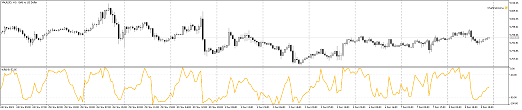
图表全景

图表全景