
MQL5.community - User Memo
 182 218
 12
12

Welcome to MQL5.community developed by MetaQuotes Software Corp.!
You can now not only read articles and download MQL5 programs, but you can also join discussions on the forum, leave comments on articles and source codes, rate MQL5 programs and share your own developments in the Code Base, and even publish articles for a decent fee (see Become an Author at MQL5.com!).
MQL5.com services are constantly advancing, so we hope you will become our regular visitor. In order for your communication to be useful and comfortable, we ask you to adhere to some basic rules.
1. Profile Setup
2. Messages Editor
3. Favorites
4. Personal Messages
5. Service Desk
6. Jobs and Payments
7. Market
8. Signals
9. RSS
10. Rating
11. MQL5 Storage
1. Profile Setup
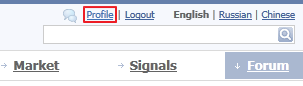
Right after authorization at MQL5.community, go to your profile. To do this, simply click the Profile link in the upper-right corner.
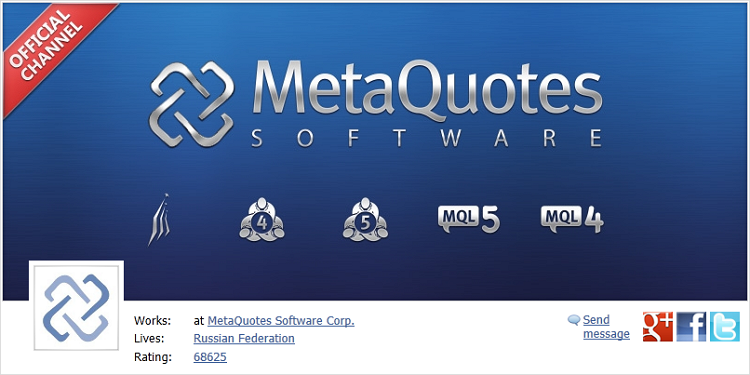
Here, in your profile, you can add your personal information as well as adjust security settings and MQL5.community appearance. Add your favorite avatar, and if this is not enough, you can also add a large picture or drawing that will highlight your personality.
In the Edit menu, in the About me section, you will find that you can add information about yourself in English, Russian and Chinese simultaneously, as these languages are officially supported in MQL5.community.
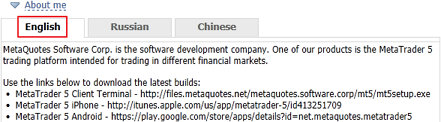
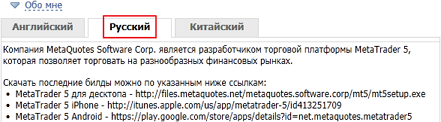
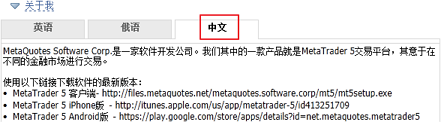
Depending on the selected interface language of MQL5.community, other users will see this text in your profile in the corresponding language.
In the Contacts section, you can add your favorite instant messenger number (ICQ, Skype and so on), a hyperlink to your website or homepage, and your account in various social networking services. Also, specify your MetaQuotes ID used for receiving notifications from MetaQuotes services to your MetaTrader 5 mobile terminal.
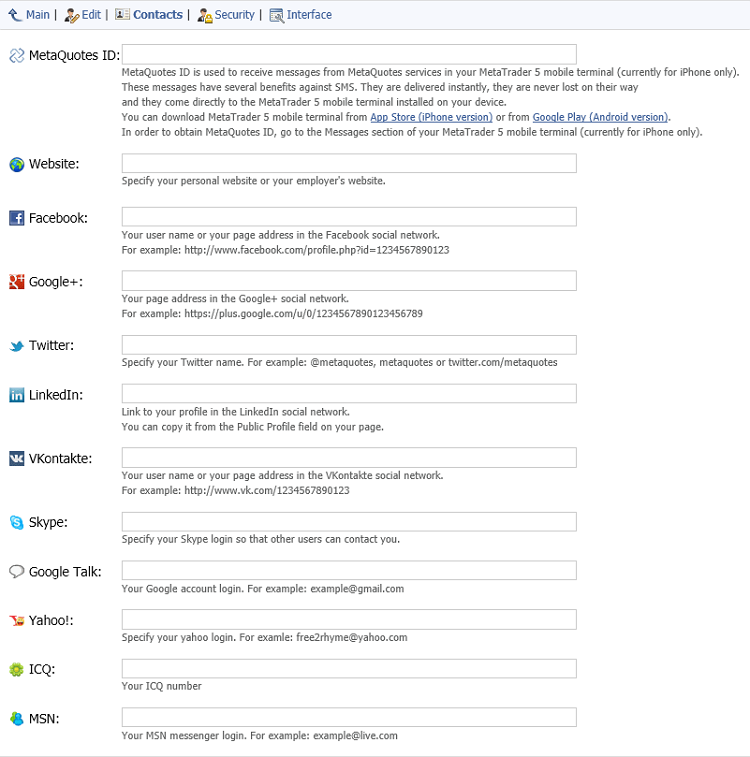
Your contacts in the popular social networks, Twitter and Skype are displayed as handy button links in your profile.

If your comments, articles or scripts are of interest to other MQL5.com visitors, they will definitely look at your profile and see the link to your website. Although, please note that posting links to your website in every comment as an advertisement is not welcomed. We may consider this as spam behavior, which is a violation of the rules.
Please, also be sure to check the Security section.
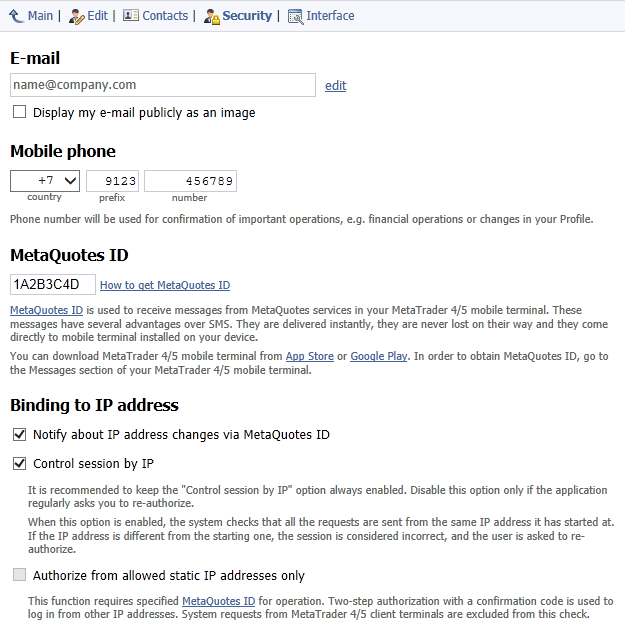
Here, you can adjust the following security settings of your MQL5.com profile.
Make your e-mail available as a picture (in order to protect it from "spambots"), since it is not visible to other visitors by default.
Add your mobile phone number that will be used for confirmation of important operations. (Other users will never see it.)
Specify your MetaQuotes ID to receive notifications on your mobile device. (You can read more about this technology in MetaQuotes ID in MetaTrader Mobile Terminal.)
Enable the Control session by IP option to take control over IP addresses during sessions.
Enable the Authorize from allowed static IP addresses only option to enable two-step authorization using notifications via MetaQuotes ID, as well as to specify the list of addresses which do not require confirmation via MetaQuotes ID for authorization purpose. If the list of trusted IP addresses is not filled out, you will always be prompted to confirm authorization. We also do not recommend you to add dynamic IP addresses in this list, because they will change often, and you still have to enter the verification code.
Enable the Notify about IP address changes via MetaQuotes ID option if you want to know about each authorization from a new IP address. If you do not need such a security level, you can disable this option.
Protect your profile from hacking by turning on Control session by IP.
Change your current password.
All changes in security settings must be confirmed with a password.
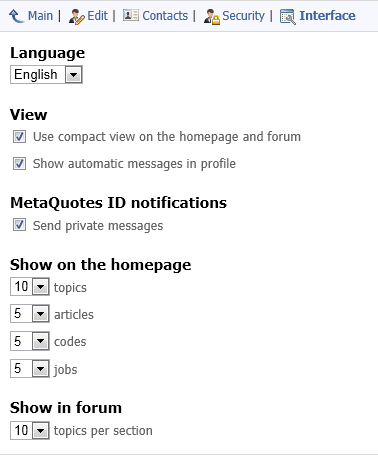
In the Interface section, you can adjust the look and feel of MQL5.community, as well as language of notifications.
2. Messages Editor
All your texts in Forum, Articles and Code Base are edited in a single environment with a convenient and easy-to-use interface. Let us take a look at its capabilities.
- You can switch between the visual and HTML text representations by clicking the
 button. This button changes its name to
  while viewing the HTML, and it returns you to the visual view of the text. This function allows you to make your text most structured and formalized.
 -
The drop-down list where you can select one of the three languages in which your message will be automatically translated by the Google Translate service.

- The
 (Ctrl+Z) and
  (Ctrl+Y) buttons are intended for canceling the last action and redoing the last canceled action, respectively.
 - The
 button is intended to make a bulleted list. (Every item in the list starts with a bullet.)
 - The
 button is intended to make a numerical list. (Every item in the list has an index number.)
 - The
 button is intended to decrease the rank of the element in the list.
 - The
 button is intended to increase the rank of the element in the list.
 - The
 button (Ctrl+H) is intended for inserting a horizontal line into text.
 -
The
 button (Ctrl+K) is used for adding links into messages. The Link window appears as soon as you click this button (shown next).
In the Link field, you should specify the address of the link and then click the Insert button.
- The
 button (Alt+U) is used for adding other users to join a discussion. It inserts a link to a user: "@name" to a message. The user receives an appropriate push notification on their mobile device.
The
 button (Ctrl+Alt+I) is used for inserting images into messages. When pressed, it opens the standard file selection window. Find a necessary file and click Open. In the Title field, you can specify a comment that will be displayed as a pop-up help if you move the mouse cursor over the image.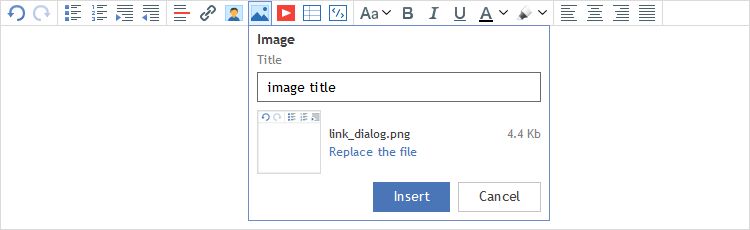
When you insert images, please stick to a few good rules:
All figures should be of excellent quality, that is best ensured using the PNG format. You can also use the GIF format with an appropriate image quality. Do not use JPG format for your screenshots.
All images must not exceed 750 pixels in width. If you insert an image of greater width, on saving it will be automatically reduced with significant loss of quality.
Make screenshots immediately in the right size. Do not try to reduce size of large pictures in graphical editors. In almost all cases of resizing, image quality become worse.
Figures should not contain anything extra and must be easily understood at a glance. Exclude from image everything that is not related to it directly - readers should immediately grasp the idea of image. Believe us, no one will study large block diagrams and charts clogged with icons.
-
In HTML mode, it is prohibited to insert external links to images (HTML tag "src"). It is also prohibited to insert text, containing such images.
When you try to save text that contains external links to images, such links will be automatically deleted. This is done to ensure safety of MQL5.community members.
-
Using the
 button (Ctrl+Alt+T), one can add a table into a message text. The Table window will appear as soon as you the button (shown next).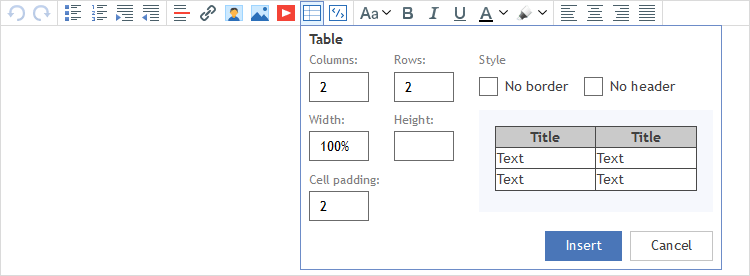
In order to create a table, you should fill out the following fields.
- Columns. The number of columns in the table.
- Rows. The number of rows in the table.
- Style. The type of the table. There are three options available: Standard, No Border and No Header. In order to choose the necessary one, left-click on the down-arrow button at the end of this field. Then, select the necessary option from the list.
- Width. The width of the table measured in percentage to the width of the message window.
- Height. The height of the table measured in pixels.
- Cell padding. The distance between the text and the internal border of cells in the table.
The table preview is located in the right part of the window, under the Style field. In order to add the table to the text of your message, click the Insert button. If you want to break adding the table, click the Cancel button.
The
 button of the object-insertion menu is intended to insert the source code into the text of the message. An empty window in which to paste the code appears as soon as you click this button. To finish adding the code, click the Insert button. To cancel the operation, you should click the Cancel button.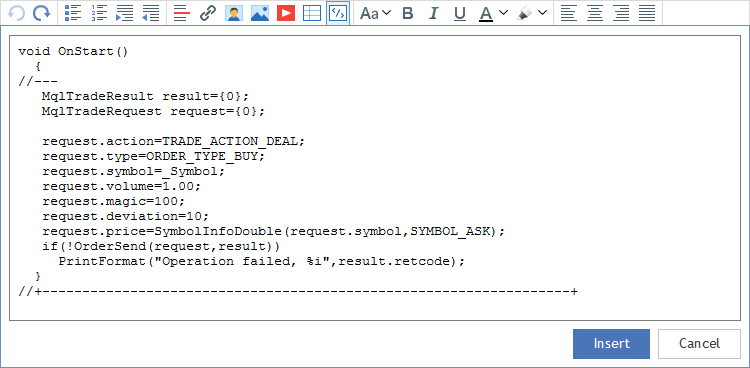
A source code inserted this way will be nicely formatted using a monospace font that aids comprehension of this kind of information.
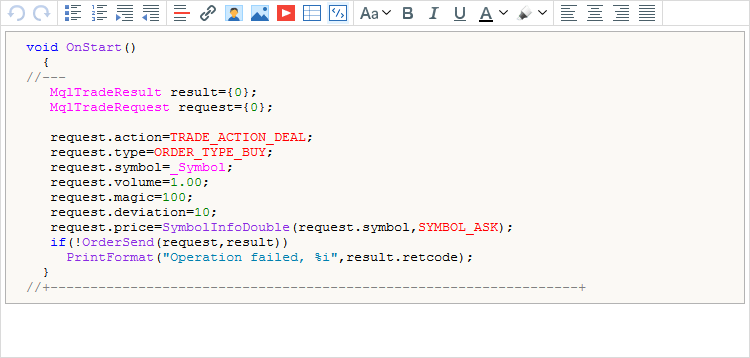
Formatting the code with bold in order to highlight the meaning of certain pieces is not recommended. The fact is that in different operating systems and browsers monospaced fonts are displayed differently. For example, Windows Vista uses the Consolas monospace font, of which the 10-point bold size can hardly be distinguished from the 10-point normal size.
-
The
 button of the object-insertion menu is used for adding a video to your message: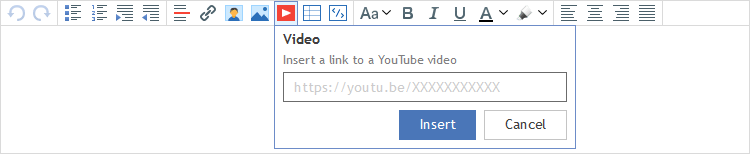
- The Style field (Normal text by default) is intended for changing the text style. The list of available styles will open as soon as you click the down-arrow button at the end of the field. The options are Normal text, Heading, Quotation, Warning, Code, Strikeout, Important and Small.
- The
 button (Ctrl+B) makes the selected text bold.
 - The
 button (Ctrl+I) makes the selected text italic.
 - The
 button (Ctrl+U) makes the selected text underlined.
 - The
 button changes the color of the font. In order to change the font color, you should click the down-arrow button located on the right side of the "Font color" button. The color-selection window will appear as soon as you click it. To choose the color, click the square with the necessary color in this window.
 - The
 button changes the background color of your message. Choose the background color scheme in the same manner as you select font color, described above.
 - The group of text-alignment buttons are left justify
 (Ctrl+L), center justify
  (Ctrl+E), right justify
  (Ctrl+R) and block justify
  (Ctrl+J). In order to align the text, select the necessary part of it and click one of the four buttons.
 - The
 button pastes content from "pocket". Pocket is a special clipboard that allows you to conveniently exchange data between different sections of the MQL5.community website: Forum, Signals, Market, Jobs, as well as Charts. You must first put some content into pocket using the contextual command "to pocket".
 - The
 button cancels text formatting with styles.
3. Favorites
In order to quickly view interesting forum topics you can add them to your favorites in your profile. Click the star icon to the right of topic title.
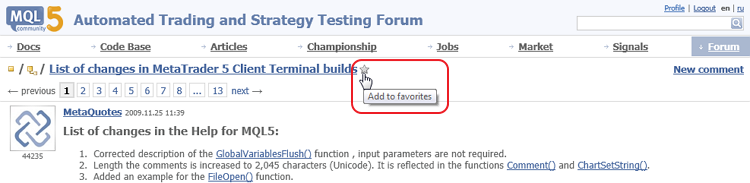
Removing a topic from your favorites is also simple. Click the star icon again. Or, browse to your profile then to Main tab of Favorites section; in this case, you can cancel subscription from several topics simultaneously.
4. Personal Messages
At MQL5.community, you can privately communicate with other members via personal messages. If someone has sent a message to you, you will spot that by a blinking icon to the left of your profile.
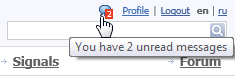
Click this icon to read the personal message addressed to you. All dialogues between users are gathered in a single window. It is impossible to create two, three or more different chats with one person; they will be automatically merged into one chain related to a particular user. Therefore, all your correspondence with John will be located in one place, while all your correspondence with Jack will be stored elsewhere. No "Inbox/Outbox" division, no chat subjects—everything is now structured in a more easy and convenient way, like in modern smartphones.
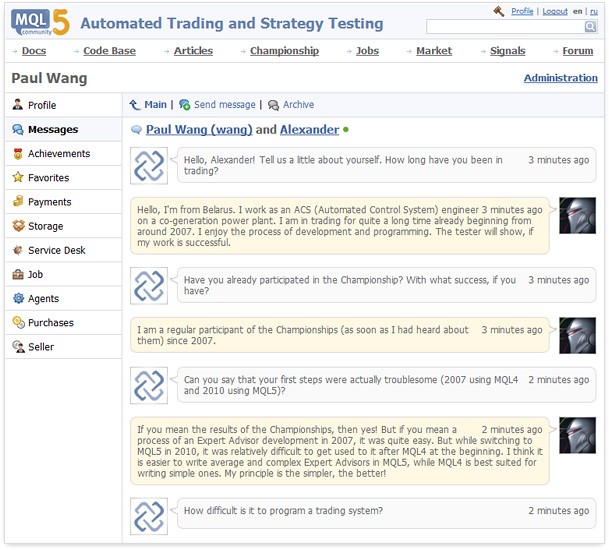
Chat page comments are updated in real time. If you send a message to users, they can immediately see it if they are in the chat page at the moment. Otherwise, they are notified of the new chat comment. Everything is quite simple and clear.
The chat window allows you to type texts using the standard messages editor with the ability to preview and attach a file to a message. When you click on the cross in the upper right corner, a message is not deleted completely but relocated to the archive instead. You can restore archived messages at any time.
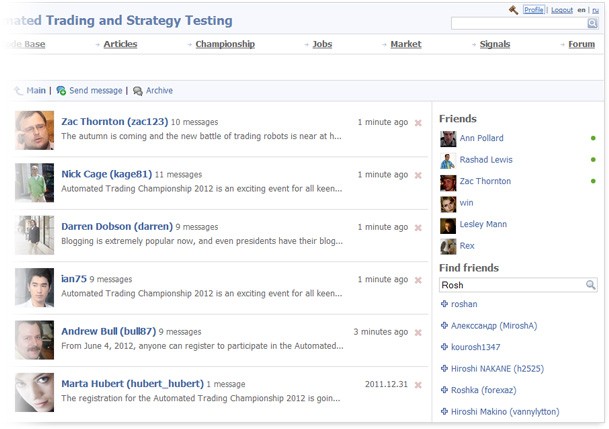
All user profiles have the Add to friends field. The list of the community members who have become your friends is located to the right of the Messages section of your profile. Just select a user from the list, and the chat window will appear. The friends list also allows you to easily see their online status. If a person is online, a green circle is located near his/her name. Otherwise, no pointers are present.
The new messaging system is arranged as a chat window that can be opened by clicking the appropriate icon in the upper right corner. The chat window allows you to view and answer incoming messages without leaving MQL5.community regardless of your current location on the website.
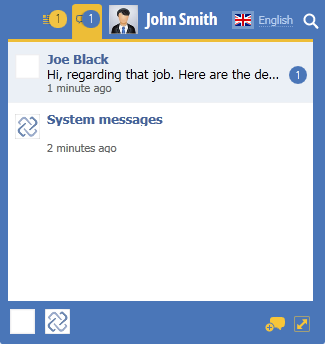
You can also set the timer for automatic deletion of old messages. Select the desired period, so that all older messages are deleted automatically.

If the timer is enabled only by one of the dialog participants, the messages are hidden only for that user, while the second one can still see them.
If the timer is enabled by both participants, the messages are deleted beyond recovery.
If any of the dialog participants enables/disables the timer, an appropriate system notification appears in the chat. The timer helps you to dispose of old messages while keeping your correspondence privacy safe.
5. Service Desk
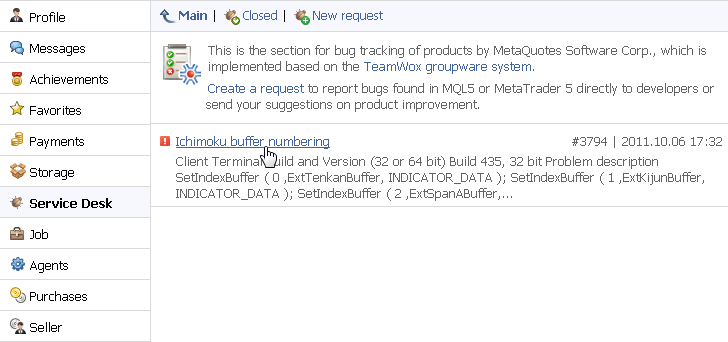
This profile section is intended for effective interaction with MetaQuotes Software Corp. professionals concerning found errors and resolutions. If you have found an error in MetaTrader programs, in the MQL5.community website or want to suggest developers to implement some desired functionality, go to the Service Desk section in your profile.
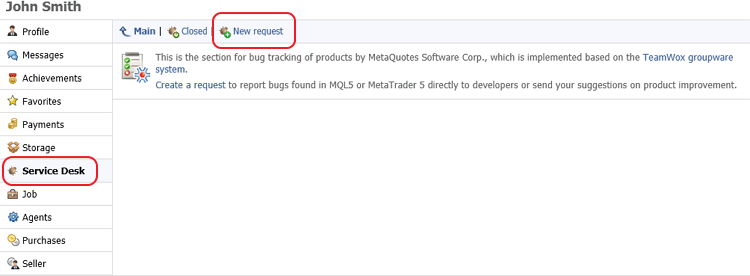
Click New request, enter the Title of your request, select the product to which your request refers.
- MetaTrader 5 MQL - Select this if you have any questions about the MQL5 programming language.
- MetaTrader 5 Client - Select this if you are facing difficulties working with MetaTrader 5 client terminal.
- Finance - Select this if you have any questions about the MQL5.community internal payment system.
- mql5.com site - Select this if you have questions about the MQL5.community website.
Next, select the request category: choose Errors if you want to report about found error, or choose Suggestions if you want to suggest some functionality. For the Finance section, the categories are Complaint and Question.
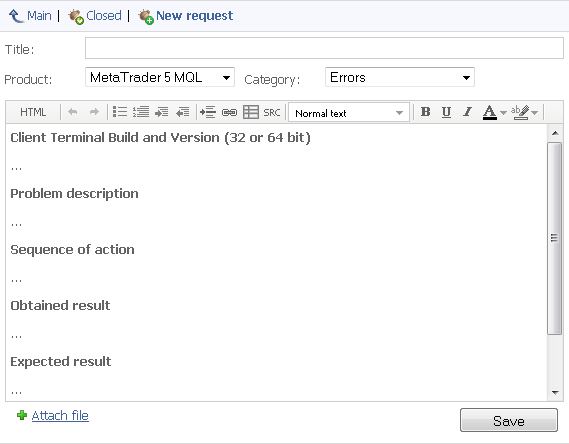
Once the category is selected, please describe your request in detail using the familiar WYSIWYG HTML editor. Screenshots and MQL4/MQL5 source codes are highly welcome, since they can help us to reproduce an error.
It is desirable that your request will clearly cover the following topics.
- Brief description of a problem.
- Description of user actions (clarifying screenshots, pieces of source code).
- Description of achieved result (if something goes wrong).
- Descriptions of desired result (the way you think it should work).
- Attached source code files.
This order of error description allows our developers to quickly process your request, locate the error in the source code and fix the problem.
Your request will arrive to the TeamWox groupware of MetaQuotes Software Corp., where it is always considered by competent professionals. After a while, you will get the answer on the service desk main page in your profile. If necessary, you can join the discussion with MetaQuotes Software Corp. experts by making full use of the Messages Editor possibilities.
6. Jobs and Payments
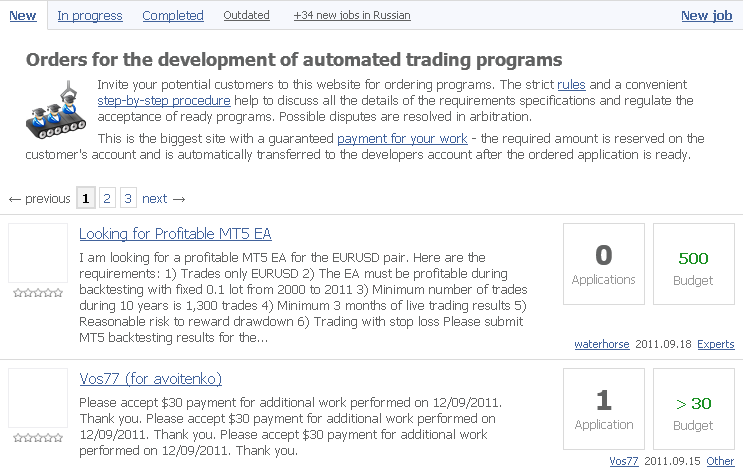
Do not miss the Jobs section. Using this service, you can order a program, that best fits your trading strategy. If you are an MQL programmer, you can also find profitable propositions for extra income. Both customer and programmer are secured from each other's possible negligent actions. You can find out in detail how the Jobs service works, by reading How to order a trading robot in MQL5 and MQL4.
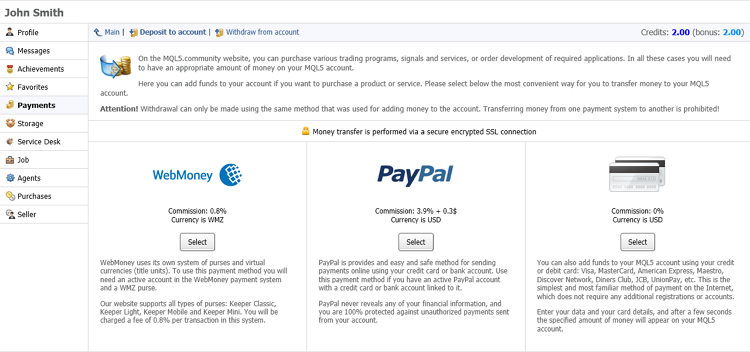
All users registered at MQL5.community have the Payments section available in their profiles. Here, you can deposit to your account to be able to pay different services, or withdraw money that you have earned. MQL5.community Payment System describes in detail all aspects of our payment system: depositing and withdrawing money, as well as ways of earning and spending.
7. Market
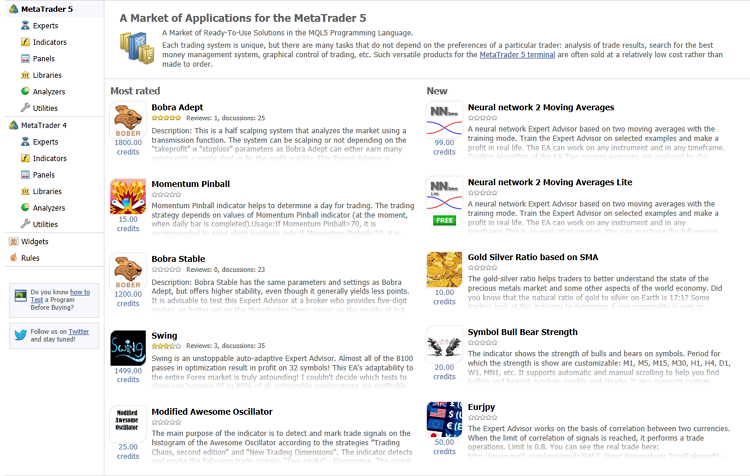
Market is an app store for the MetaTrader 5 trading terminal that can be purchased or downloaded for free. All the products are divided into categories: experts, indicators, trade panels, various scripts and utilities. Among this variety of ready-made solutions, you will find a tool that meets your specific needs for trading in financial markets.
Market is also an opportunity for professional developers to make money by selling their own programs. For this you need to gain the "Seller" status by passing the special registration procedure.
Downloading an app from Market is easy: open an application page you're interested in, click the Download button if it is a free product or Demo for a paid application. Demo versions allow you to estimate the functionality of a paid MQL5 program on historical data in Strategy Tester.
After making sure that paid product is suitable for you, click Buy button. Money for purchase will be charged from your account in the MQL5.community payment system.

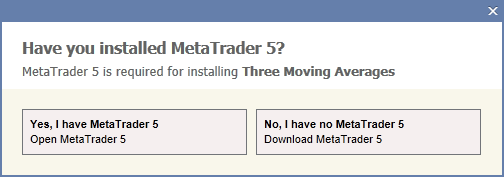
When you download a free application or demo version of a paid product through the MQL5.community site, you will be prompted to either open it directly in the MetaTrader 5, or to download and install the terminal if you have not already done so.
After purchase, a secure version of the Product is automatically created, which allows using it only on the equipment (computer hardware and operating system), from which a purchase request was sent. The purchase of the Product is registered in your account. Additionally you can activate an application you've purchased on two other computers.
For your convenience, we have prepared a series of articles that cover in details all the questions on how to work with the Market service:
- How to Buy a Trading Robot in MetaTrader AppStore?
- How to Test a Trading Robot Before Buying
- How to Post a Product in the Market
- How to Write a Good Description for a Market Product
- Securing MQL5 code: Password Protection, Key Generators, Time-limits, Remote Licenses and Advanced EA License Key Encryption Techniques
- Why Is MQL5 Market the Best Place for Selling Trading Strategies and Technical Indicators
- How Secure Is It to Buy MQL5 Market Products?
8. Signals
Signals is a service through which you can copy trades of other traders into your MetaTrader 4 and MetaTrader 5 trading terminals. Not all traders have the time to constantly monitor quotes, many newcomers feel insecure before making trading decisions. Signals offer another way to earn for those who invest and those who manage other people's capitals.
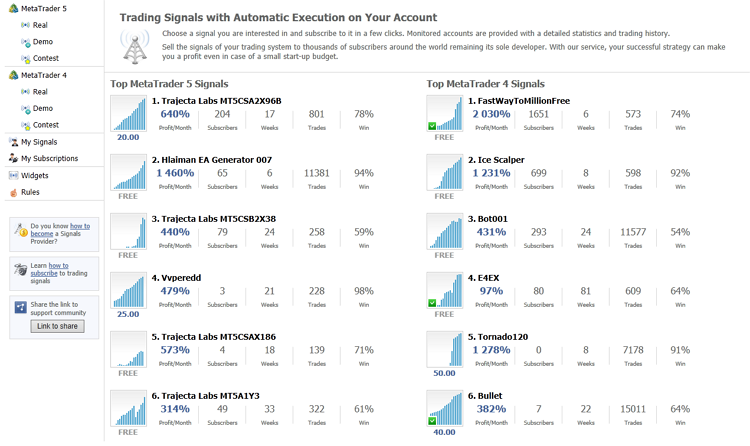
On the website select a signal you like and click Subscribe.
Next, you need to confirm the subscription. You can do it either in the trading terminal, or directly on the MQL5.community website.
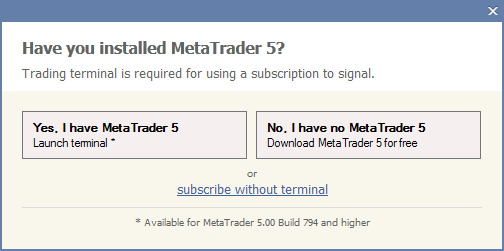
In both cases, you have to specify your MQL5.community login and password on the Community tab of client terminal settings.
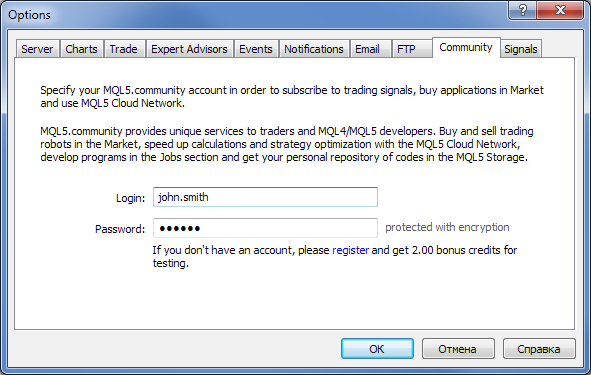
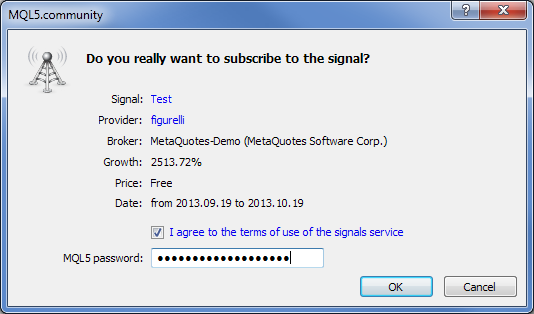
In the first case (via terminal) you need to confirm your subscription by entering the password of your MQL5.community account. Subscription via terminal by default is arranged for the period of one month starting from the current date.
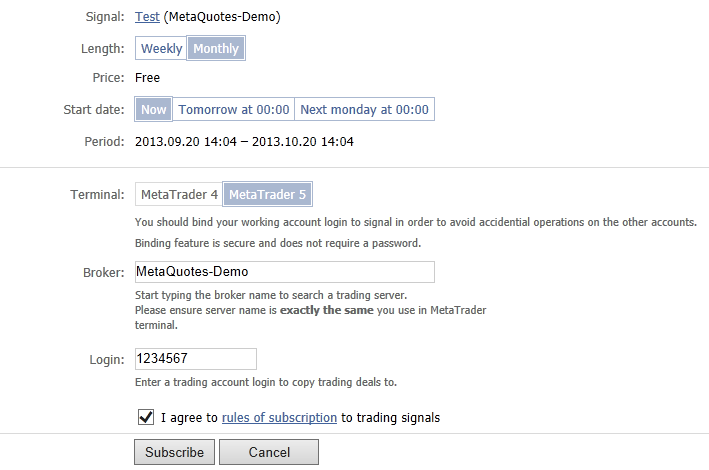
In the second case (via the MQL5.community website) you need to specify your broker's server name and your trading account. When you subscribe through the site, you can specify the duration (month or week) and the start date of subscription for selected signal.
All that is left to do is to enable copying of trades from signal provider to which you have successfully subscribed. Turn on the appropriate checkboxes in the terminal settings and adjust your money management.
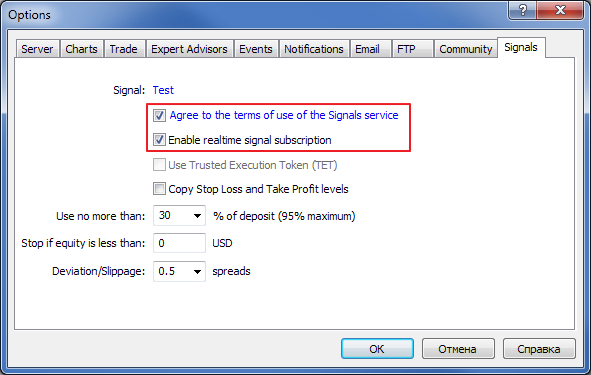
That's it - you are now subscribed to the signal, trades are being successfully copied. As you can see, nothing complicated.
Signals is also an opportunity to make extra money for experienced traders. Register your trading account as a signal, set the subscription fee, make trades and get profit from your subscribers. To be able to create paid subscription, you need to gain the "Seller" status by passing the special registration procedure.
For your convenience, we have prepared a series of articles that cover in details all the questions on how to work with the Signals service:
- Frequently Asked Questions about the Signals service
- Trading Signals in MetaTrader 5: A Better Alternative to PAMM Accounts!
- General information on Trading Signals for MetaTrader 4 and MetaTrader 5
- How to Subscribe to Trading Signals
- How to Become a Signals Provider for MetaTrader 4 and MetaTrader 5
- MetaTrader 4 and MetaTrader 5 Trading Signals Widgets
9. RSS
On MQL5.community, there is a handy feature that allows you to read news in RSS format. RSS is a way of representing information that allows you to read news of chosen websites in chronological order. One of the main differences between RSS and a newsletter is that, with RSS, news comes right after its publication. The power of RSS is that it allows you to aggregate desired news from different sites at once. So you can read news in one environment, thus saving your time.
On MQL5.community, the following RSS feeds are available.
- Code Base
Russian: https://www.mql5.com/ru/code/rss
English: https://www.mql5.com/en/code/rss - Articles
Russian: https://www.mql5.com/ru/articles/rss
English: https://www.mql5.com/en/articles/rss - Forum
Russian: https://www.mql5.com/ru/forum/rss
English: https://www.mql5.com/en/forum/rss - Jobs
Russian: https://www.mql5.com/ru/job/rss
English: https://www.mql5.com/en/job/rss
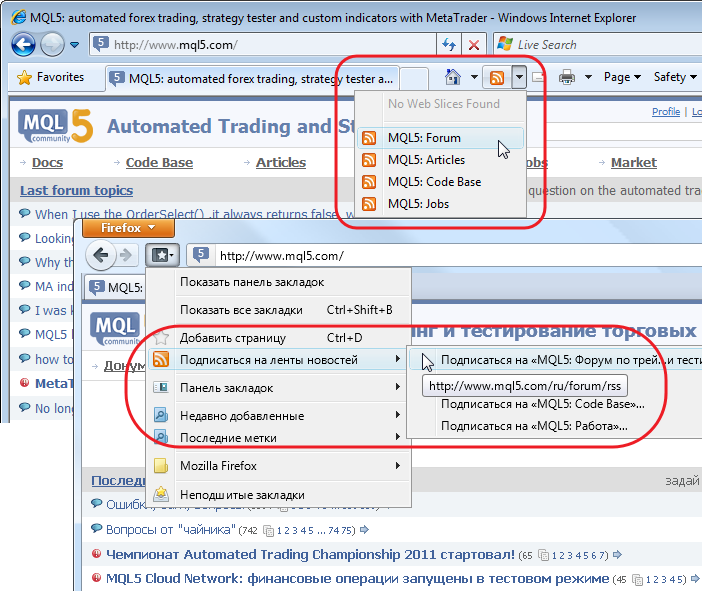
To subscribe to these feeds, go to mql5.com main page and click the  RSS icon. All modern browsers support this feature, and Google Chrome allows you to read RSS via the Google Reader service.
10. Rating
Every MQL5.community member has a special criteria for their involvement in the development of the community called rating. Each new user's rating after registration at www.mql5.com is equal to zero, and over time it can be increased (or decreased).
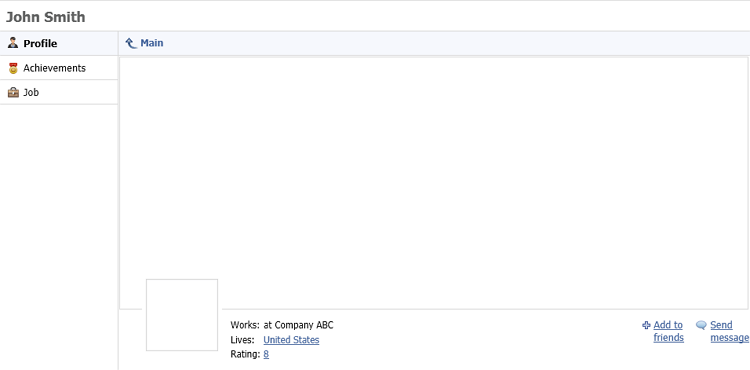
A user's rating is displayed in that user's profile as well as in all the user's messages on the MQL5.com website, beneath the avatar. Here is an example of MQL5.community newcomer's rating: the user has registered, filled out some fields in his profile and then read a few topics on the forum.
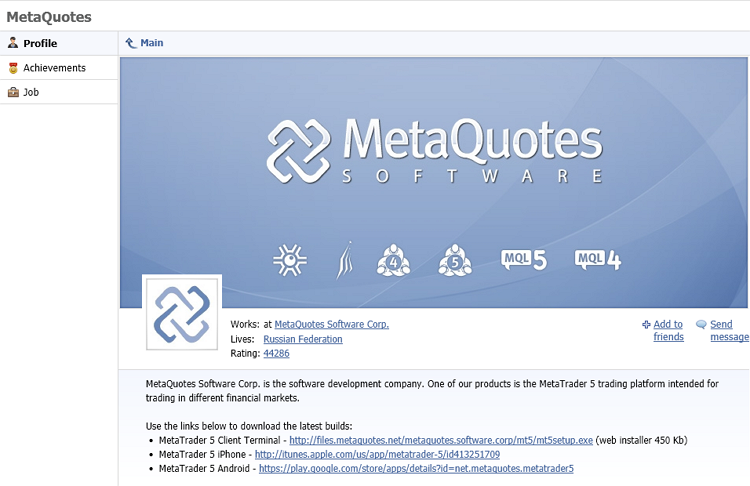
And now, take a look at the advanced user profile with high rating.
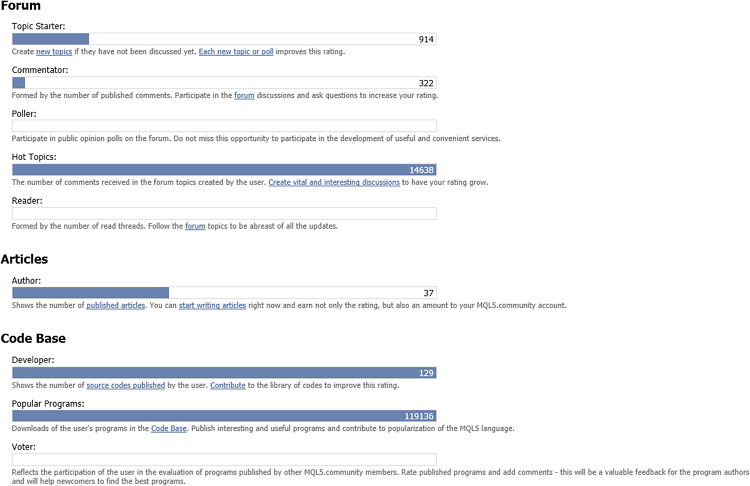
Rating reflects the user activity on the www.mql5.com website. Be sure to check out the Achievements section that shows the details of how rating is being composed. This information is public; if you want, you can see how other MQL5.community users earned their ratings.
Why rating is so important? User rating has the following practical applications.
As soon as your rating becomes five or greater, you can post links to external resources in your messages.
As soon as your rating becomes 20 or greater, you can complain against another user whose behavior hurts you.
11. MQL5 Storage—Source Code Storage
Every registered MQL5.community user is given the opportunity to securely store MQL5 programs source codes on a remote server absolutely for free. This service, based on a free centralized version control system Subversion 1.7, has the following benefits.
Your source code is stored safely on a remote server. In case of hard disk or computer failure, your local copy of codes can be quickly restored from the storage.
You can access your storage from any computer. Simply authorize in the MetaEditor with your MQL5.community account.
Storage keeps track of every version of your MQL5 program files, and you can refer to any revision you want.
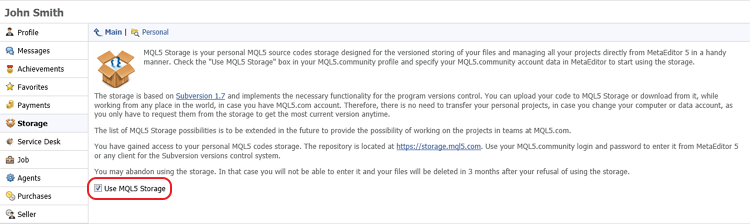
Getting started with MQL5 storage is very easy. First of all, go to the Storage section of your profile, and turn on the Use MQL5 Storage checkbox.
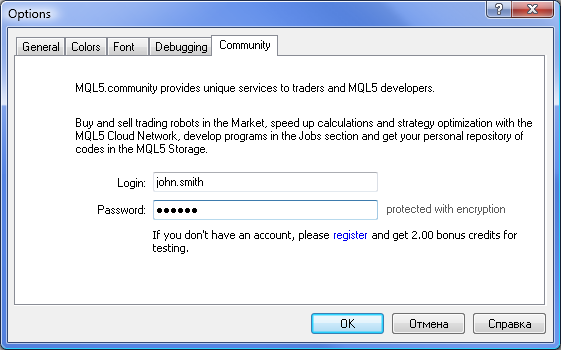
Now, open the MetaEditor options and specify your login and password to authorize MQL5.community.
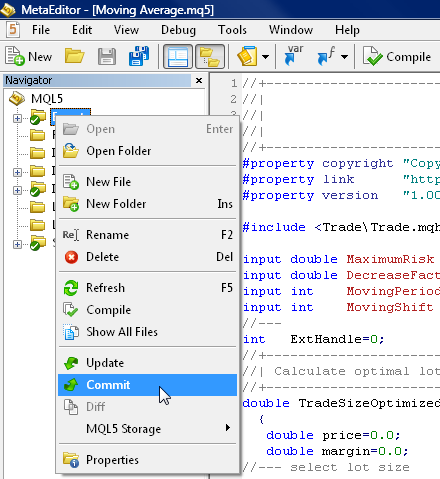
Now, you can add your source codes to the storage! To do this, use the Navigator context menu. Add \MQL5 directory subfolders you need, commit the changes, and now your source codes will be stored securely on a remote server.
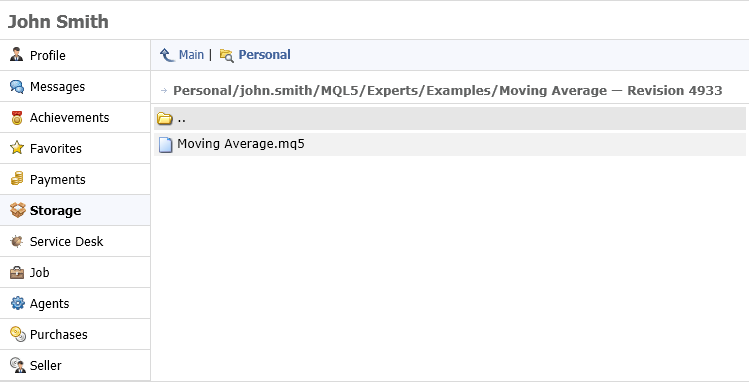
In addition to the MetaEditor interface, you can access the latest version of any file in the storage via your MQL5.community profile, and as mentioned, from any computer, from anywhere in the world! To do this, in the Storage section, click Personal. After confirming authorization on the local computer, you will have access to your source code.
You can find detailed information about how the MQL5 storage service works in the MetaEditor documentation in the MQL5 storage section.
New Features
We have described the key possibilities opened to you at MQL5.community, and this article will be augmented as the new services advance. In Docs, you will find MQL5 language reference information. In Code Base, you can download ready-to-use programs, and Articles will help you solve various problems.
We wish you good work!
Publisher MQL5.community
Translated from Russian by MetaQuotes Ltd.
Original article: https://www.mql5.com/ru/articles/24
 The Order of Object Creation and Destruction in MQL5
 How to Export Quotes from МetaTrader 5 to .NET Applications Using WCF Services
 Custom Indicators in MQL5 for Newbies
 Easy Stock Market Trading with MetaTrader

- Free trading apps
- Over 8,000 signals for copying
- Economic news for exploring financial markets
You agree to website policy and terms of use
Don't confuse "Trading account" with the "MQL5 Community account".
I will assume you are talking about a "trading account", so then contact your broker. Only they can provide you with details about withdrawing your funds.
though i have changed my password but still login failed "incorrect login / password"
Your username is "moazzamiqbal", not "Moazzam Iqbal".