
Payments and payment methods
 694 118
 422
422

The MQL5.community website offers unique fee-based services as well as an opportunity to earn additional profit. From this article, you will find out how payments for MQL5 services are performed, how the earned money can be withdrawn, and how the operation security is ensured.
- Security of operations
- Top up MQL5 Services
- Withdraw from account
- How to profit from MQL5 services
- How to purchase services and trading applications
You can top up your MQL5 account and pay for the available services using bank cards and other popular payment systems. All payments are made in US dollars.
Attention! MQL5 services do not provide access to financial market trading and therefore funds cannot be deposited to real trading accounts here.
The payment system was originally launched alongside the MQL5.community site for paying fees to article authors. A lot of additional services for traders have been launched on the MQL5.com website since then:
- Market — buying and selling trading applications written in the MQL4 and MQL5 languages.
- Signals — copying successful traders' deals, provided with a monitoring option and comprehensive trading statistics.
- Virtual Hosting — a native VPS solution for 24/7 failure-free operation of MetaTrader trading terminals.
- Freelance — the largest freelance service for ordering MQL4 and MQL5 trading robots and technical indicators.
- MQL5 Cloud Network — additional resources for the accelerated optimization of trading strategies by using thousands of testing agents.
1. Security of operations
The MQL5.com website does not store payment details or card numbers. The payment data entered by the user is sent over a secure channel to the payment system selected by the user.
How are recurring payments performed, if you have agreed to enable such payments? The payment system verifies the data entered during the payment. In case of a successful verification, the system generates a special payment token and shares it only with the MQL5.com website. The payment system can accept this encrypted payment identifier only from the MQL5.com site, only over secure channels and only from a specific IP address. Therefore, to complete a recurring payment, we only transfer a token to the payment system, based on which the system identifies the buyer's payment details.
The MQL5.com website makes secure automatic payments without storing or processing your payment details. Furthermore, even if the token is leaked, it cannot be illegally used on other websites.
All one-time operations or new payment methods in recurring payments require confirmation by a code sent via SMS or Telegram to a phone number specified in the Security section of your profile. A phone number can be saved in the profile upon confirmation which is performed by entering a verification code. A phone number can only be changed by entering verification codes which are sent to both the old number and the new one. All these measures enable the highest level of your MQL5 account security and protection against unauthorized transactions.
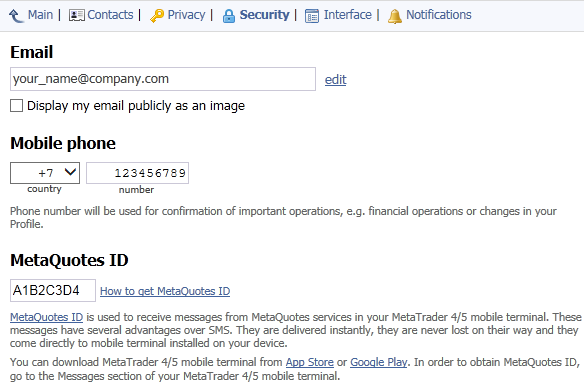
A withdrawal limit is additionally set for security reasons. The default daily limit is one withdrawal operation not exceeding USD 1000. The MQL5.com website administration can increases the withdrawal limit in special cases for successful sellers and signal providers.
2. Top up MQL5 Services
MQL5.community users can top up their MQL5 account and pay for the available services by using different payment methods. Please note that some of these methods cannot be used for withdrawals.
Money can be withdrawn to a bank card and additional available payment systems. Please note that only the earned amount can be withdrawn. The withdrawal methods available for your account are determined automatically based on your geographical location. You can view them in the Payments section of your profile. Some payment systems may have top-up/withdrawal restrictions depending on the country.
If you have erroneously topped up your MQL5 account, please contact us via Service Desk.
You can top up MQL5 services on the MQL5.com website in just a few steps:
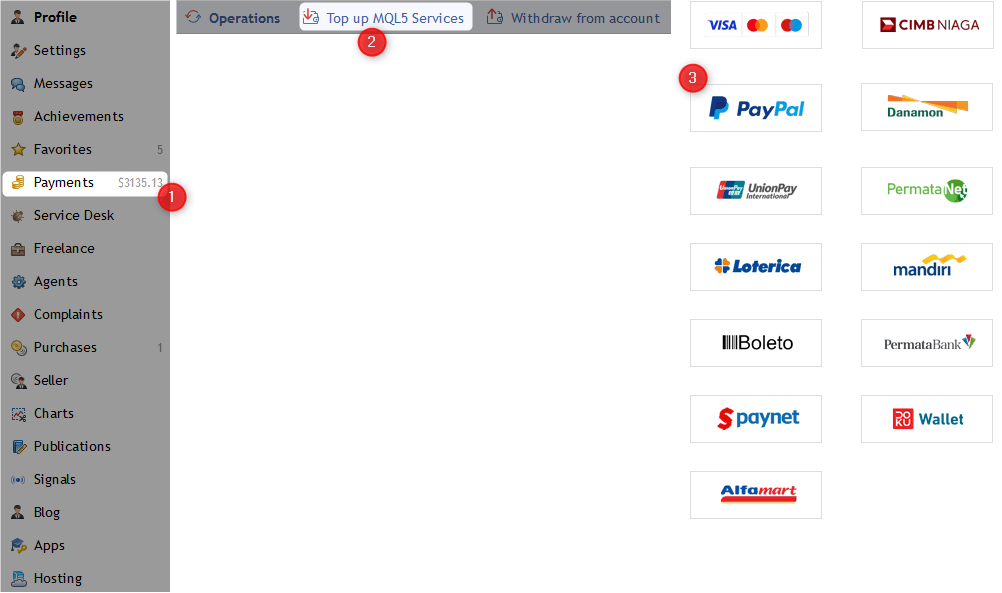
1. Log into the MQL5.community, open your profile and navigate to the Payments section.
2. Select "Top up MQL5 Services".
3. Next, select one the supported payment systems by clicking on the appropriate button.
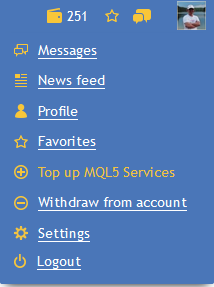
Quick top up options can also be accessed from any page of the MQL5.community website. To access the option, hover the mouse cursor over your profile in the upper right corner and click "Top up MQL5 Services".
The MQL5.com website does not store your payment details or card numbers. When you top up MQL5 Services, purchase a product on the Market or subscribe to a Signal, the data is verified by the selected payment system.
Below are the top-up examples using a bank card.
2.1. Top up from a bank card
You can top up your MQL5 Services account using credit and debit cards issued by Visa, Mastercard, JCB, UnionPay and other systems.
1. Open the top-up page and selected a preferred method.

2. Specify the desired top-up amount in US dollars and confirm the operation. If you pay from a non-dollar bank account, currency will be converted automatically.
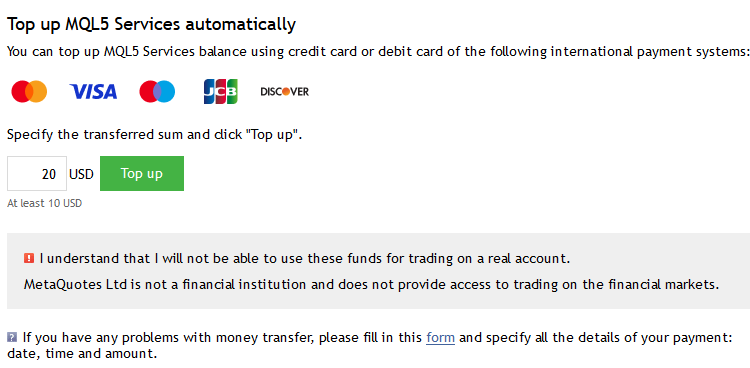
3. This will open a payment conformation page, from which you will be redirected to the appropriate payment system website
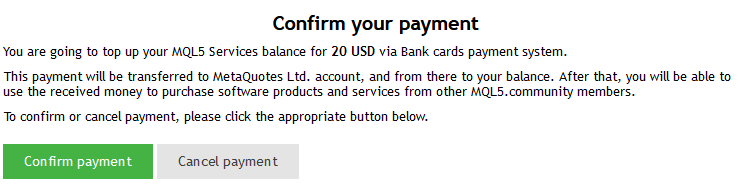
Specify your details and card data. Confirm the transaction from your bank account. In case of a successful transaction, the appropriate amount is immediately added to your MQL5 account.
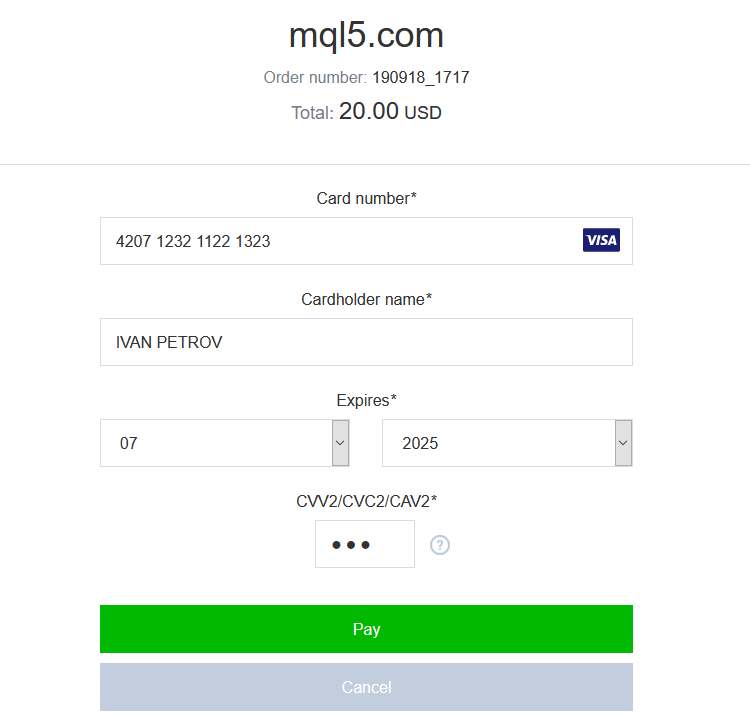
Note: the MQL5.com website does not store your payment details or card numbers. Transaction verification for a top-up operation, a Market purchase or a Signal subscription, is performed on the payment system side.
4. The Payments section provides a complete history of your payments (date, number and type of operation, the payer, the beneficiary and the amount). The Payer field contains the last digits of a card number and its owner, while the Beneficiary field displays your name or MQL5.community login. The same data is indicated in the transaction description. The transaction amount is displayed in blue at the end of the line.

5. Now, you can pay for the services using these funds. For more details please visit the section How to purchase services and trading applications.
2.2. Top up MQL5 Services using other payment systems
In addition to the above top-up methods, the MQL5.com website supports popular South American, African and Asian payment systems. Users from these regions can select appropriate options and follow instructions for convenient top-up operations. All operations are secure, and transactions are completed automatically.
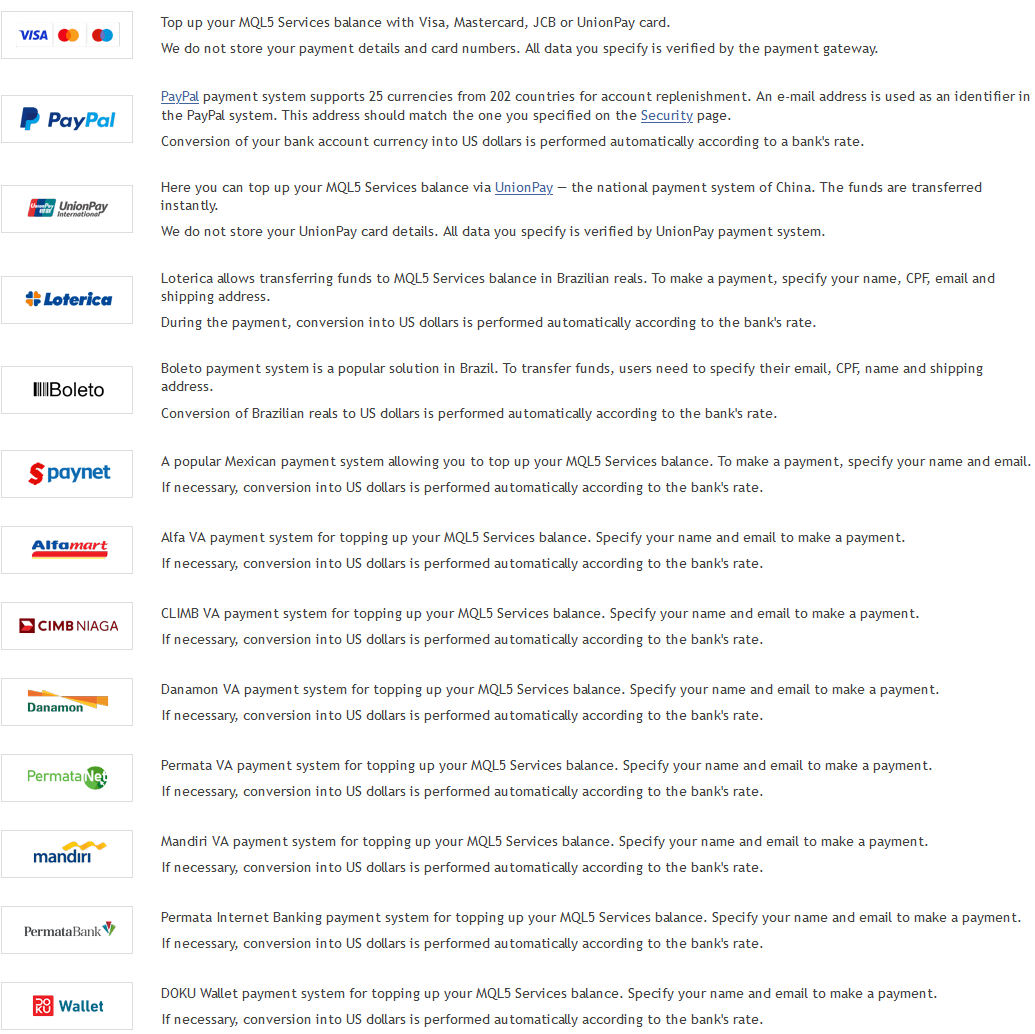
Note: the MQL5.com website does not store your payment details or card numbers even if you select the quick top-up method. Transaction verification for a top-up operation, a Market purchase or a Signal subscription, is performed on the payment system side.
3. Withdraw from account
| Problem | Solution |
|---|---|
| No earned money on the account | Start earning with MQL5.community services |
| Withdrawal is allowed not more often than once per twenty-four hours | Wait for twenty-four hours and try withdrawal again |
| No Verified User status | Complete a few simple steps to Register as a Seller |
| Financial operations are blocked | Please contact Service Desk to solve this problem |
Please note that only the earned amount is available for withdrawal.
MQL5 Services top-ups can only be spent in the community, while back withdrawals are not supported. If you have erroneously topped up your MQL5 account, please contact us via Service Desk.
The following preliminary steps are required for withdrawal with any of the supported methods:
1. Log into the MQL5.community, open your profile and navigate to the Payments section.
2. Click "Withdraw from account" in the section menu.
3. Next, select a payment system for withdrawal.
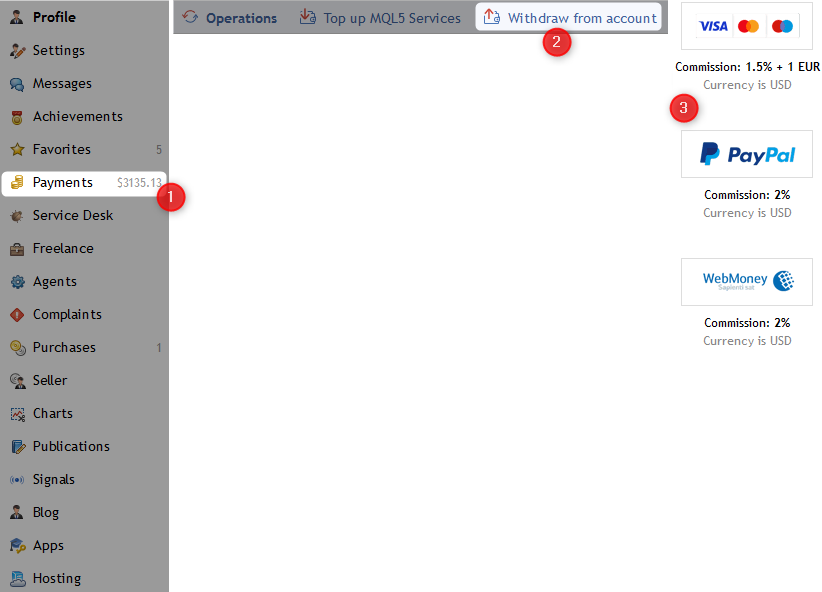
Quick withdrawal options can also be accessed from any page of the MQL5.community website. To do this, hover the mouse cursor over your profile in the right upper corner and select "Withdraw from account".
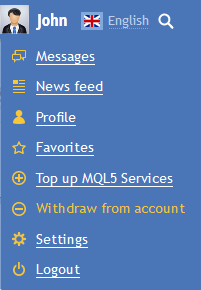
Next, we will take a closer look at step-by-step instructions for withdrawing funds to a bank card or via WebMoney.
3.1. Withdrawals to a bank card
Let us consider an example of how money from an MQL5 account can be withdrawn to a card.
1. Open the withdrawal page, make sure that the earned amount is available on your account and select withdrawal to a card.

2. Specify the withdrawal amount and the details of the card to which you want to transfer funds. Then click "Withdraw".
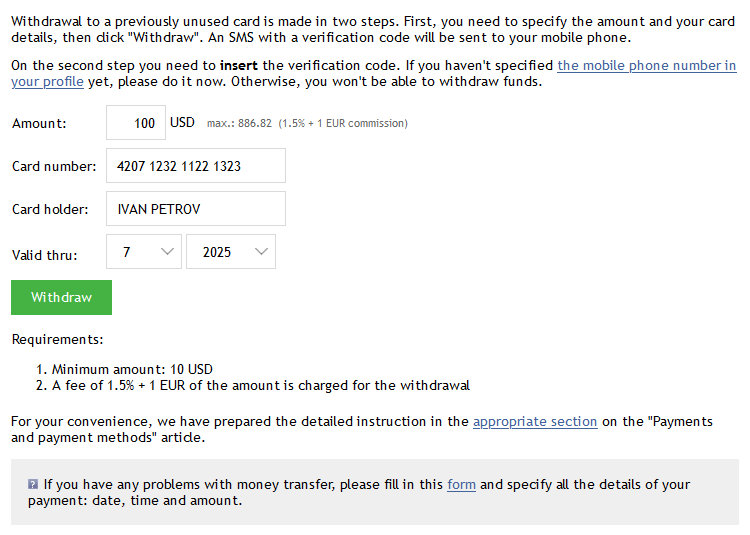
3. Confirm the withdrawal using the confirmation code sent via SMS on your mobile phone number specified in your profile. The transaction will appear in the payment history as a withdrawal to your card. Your name (or login if the name is not available) will be specified in the Payer field, and a few digits of your card number will be indicated in the Beneficiary field. The amount will be displayed in red.

To withdraw funds to a trusted card, specify the amount and select the desired card from the drop-down list. SMS confirmation is not required in this case.
If you specify a previously used card as a new one, SMS confirmation will be activated again, even though this card is already in the trusted list.
3.3. Withdrawals via WebMoney
Let us consider an example of withdrawing from an MQL5 account via WebMoney.
1. Open the withdrawal page, make sure that the earned amount is available on your account and select withdrawal via WebMoney.

2. Specify the withdrawal amount (including the 2% commission) and a Z purse to which you wish to withdraw the money. Then click "Withdraw".
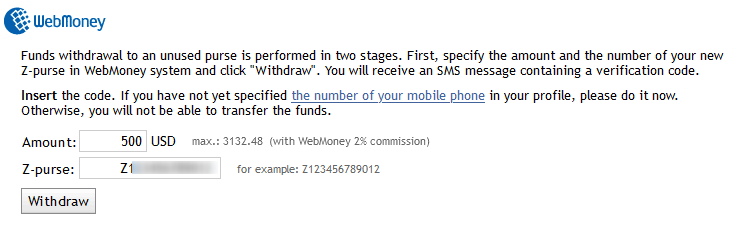
3. Confirm the withdrawal using the confirmation code sent via SMS on your mobile phone number specified in your profile. The transaction will appear in the payment history as a withdrawal to your Z purse. Your name (or login if the name is not available) will be specified in the Payer field, and the MQL5 WebMoney Accountant bot will be indicated in the Beneficiary field. The amount will be displayed in red.

4. How to earn money in the MQL5.community
The MQL5.community provides to successful traders and trading robot developers excellent opportunities to earn money. These include the following services:
-
Freelance. Develop trading applications ordered by other traders. The Freelance service is completely secure for both parties. The customer and the programmer are protected from unfair actions throughout the entire order implementation process.
-
Articles. Write articles devoted to MQL5 programming and creation of automated trading systems. The author's fee starts from USD 200. Please visit the forum discussion at Become an Author at MQL5.com for more details.
-
Market. Sell MQL5 and MQL4 applications. Register as a Seller and post your apps in the Market.
-
Signals. You can trade manually or using a trading robot and sell your account signals. Earn extra profit from Signal subscription, in addition to financial market trading revenues.
-
MQL5 Cloud Network. Install remote testing agents and allow them to participate in MQL5 Cloud Network. The earned money can be withdrawn or spent in the Market, Signals or Freelance.
5. What can be purchased in the MQL5.community
MQL5.community features unique trader services. You can order trading robots from professional developer, rent a virtual server for your platform, quickly optimize trading strategies and download ready-made trading applications from the Market.
-
Freelance. If you have a trading strategy, but you do not know how to program in MQL5 or MQL4, find a suitable developer who can implement your idea in a ready-to-use application. Top 10 developers (ranked by the number of completed orders) are featured in the Freelance home page.
-
Market. This is one of the most attractive MQL5.community services for traders. Here you can purchase (or download for free in some cases) ready-to-use MQL5 programs: Expert Advisors, indicators, control panels and other applications. For your convenience, the Market service is integrated into the MetaTrader 4 and MetaTrader 5 client terminals. Log in using your MQL5.community account to be able to purchase application directly from the MetaTrader user interface.
-
Signals. If you do not have a profitable trading system, you can start repeating successful traders' deals. By performing deals based on trade signals from monitored accounts with a good history, you can reduce risk compared to trading on your own without a proven strategy. This is often the easiest way for beginners to invest their capital.
-
MQL5 Cloud Network. If your need additional testing power to optimize your strategy, you can rent idle CPU power of other MQL5.community members.
-
Virtual Hosting. Rent a virtual hosting server for your MetaTrader trading terminals using MQL5.community account funds. For further details concerning the VPS service please read the article How to Prepare a Trading Account for Migration to Virtual Hosting.
Translated from Russian by MetaQuotes Ltd.
Original article: https://www.mql5.com/ru/articles/302
 How to Add New UI Languages to the MetaTrader 5 Platform
 Using Self-Organizing Feature Maps (Kohonen Maps) in MetaTrader 5
 The Player of Trading Based on Deal History
 Using WinInet in MQL5. Part 2: POST Requests and Files

- Free trading apps
- Over 8,000 signals for copying
- Economic news for exploring financial markets
You agree to website policy and terms of use
$10 was deposited by mistake. How can I withdraw?
Only the Service Desk can help, but generally you can't withdraw non earned funds from your MQL5 account.