
MQL5 Wizard: Creating Expert Advisors without Programming
 60 006
 13
13

Introduction
When you create automated trading systems it is necessary to write algorithms of analyzing market situation and generating trading signals, algorithms of trailing your open positions, as well as systems of money management and risk management.
Once the modules' code is written the most difficult task is to assemble all parts and to debug the source code of trading robot. Here the key role is played by the architecture of modules interaction: if it is built poorly, the majority of time will be spent on finding and correcting errors, and if you replace the algorithm of any module it will lead to rewriting the entire source code.
In MQL5 using the object-oriented approach significantly eases writing and testing of automated trading systems.
MetaQuotes Software Corp. has developed classes to implement trading strategies. Now you can generate Expert Advisors code automatically directly in MetaEditor by selecting the required Trade Signals (currently there are 20 of them), Trailing (4) and Money Management (5) modules. By combining these modules you can get many variants of ready-to-use trading systems.
You can also use your own classes with implementation of any of these modules. Create them by your own or order them via the Jobs service.
In this article we will consider automatic generation of Expert Advisor's source code using MQL5 Wizard. And there will be nothing to program!
1. Creating Trading Robot Using MQL5 Wizard
Expert Advisor's source code is generated using MQL5 Wizard in MetaEditor.
Basic classes of trading strategies are located in the '\<client_terminal_directory>\MQL5\Include\Expert\' folder. Ready-to-use algorithms of trade signals classes, classes of trailing open positions and classes of money and risk management are located in the Signal, Trailing and Money sub-folders. MQL5 Wizard parses files in these folders and uses them to generate Expert Advisor's code.
To launch MQL5 Wizard you need to click "New" button on the toolbar or select "New" from the "File" menu (or simply press Ctrl+N):
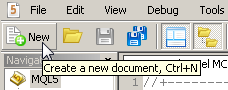
Fig. 1. Launching MQL5 Wizard
Then select the type of the program you want to create. In our case select the "Expert Advisor (generate)" option:
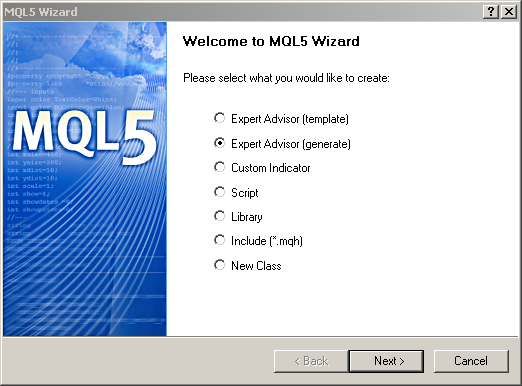
Fig. 2. Selecting the Type of Program
Step 1. General Properties of Expert Advisor
Next opens the dialog box, where you can set the general properties of Expert Advisor:
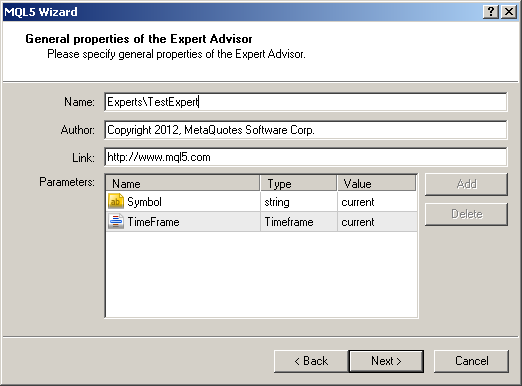
Fig. 3. General Properties of Expert Advisor
Specify the name of your Expert Advisor, the author's name and the link to your web-site in the "Name", "Author" and "Link" fields (respectively).
Expert Advisor also has the following input parameters:
- Symbol (the string type) - Work symbol for Expert Advisor.
- Timeframe (the timeframe type) - Work timeframe for Expert Advisor..
On the next step select the type of trade signals, on which the expert will trade.
Step 2. Select the Module of Trade Signals
Algorithm of opening and closing positions is determined by the module of trade signals. Trade signals modules contain rules of opening/closing/reversing positions.
The Standard Library has ready-to-use Modules of trade signals:
- CSignalAC - The module of signals based on market models of the indicator Accelerator Oscillator.
- CSignalAMA - The module of signals based on market models of the indicator Adaptive Moving Average.
- CSignalAO - The module of signals based on market models of the indicator Awesome Oscillator.
- CSignalBearsPower - The module of signals based on market models of the oscillator Bears Power.
- CSignalBullsPower - The module of signals based on market models of the oscillator Bulls Power.
- CSignalCCI - The module of signals based on market models of the oscillator Commodity Channel Index.
- CSignalDeM - The module of signals based on market models of the oscillator DeMarker.
- CSignalDEMA - The module of signals based on market models of the indicator Double Exponential Moving Average.
- CSignalEnvelopes - The module of signals based on market models of the indicator Envelopes.
- CSignalFrAMA - The module of signals based on market models of the indicator Fractal Adaptive Moving Average.
- CSignalITF - The module of filtration of signals by time.
- CSignalMACD - The module of signals based on market models of the oscillator MACD.
- CSignalMA - The module of signals based on market models of the indicator Moving Average.
- CSignalSAR - The module of signals based on market models of the indicator Parabolic SAR.
- CSignalRSI - The module of signals based on market models of the oscillator Relative Strength Index.
- CSignalRVI - The module of signals based on market models of the oscillator Relative Vigor Index.
- CSignalStoch - The module of signals based on market models of the oscillator Stochastic.
- CSignalTRIX - The module of signals based on market models of the oscillator Triple Exponential Average.
- CSignalTEMA - The module of signals based on market models of the indicator Triple Exponential Moving Average.
- CSignalWPR - The module of signals based on market models of the oscillator Williams Percent Range.
Type of trade signals is selected from the "Name" dropdown list.
After the pressing of Next button, you will see a window:
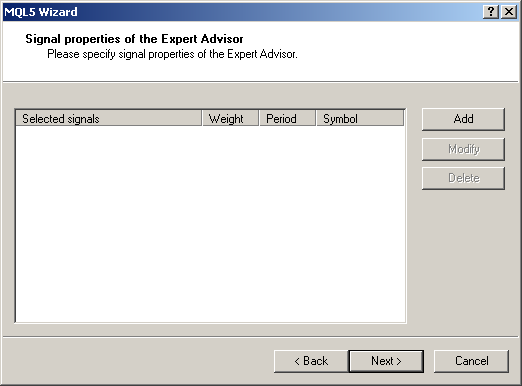
Fig. 4. Selection of trade signals of Expert Advisor
To add a module of trade signals, press "Add" button.
Let's add trade signals, based on Moving Average indicator.
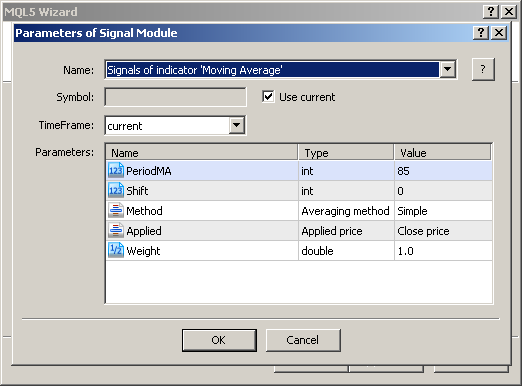
Fig. 5. Select the Algorithm of Trade Signals
Each module of trade signals has it's own parameters. You can use the default values.
There are two modes of parameters creation. You can switch between them by double-clicking left mouse button on parameter's icon. If parameter has the highlighted icon  , then it will be available as the input variable of Expert Advisor. Such parameters further can be used for expert optimization in Strategy Tester. If parameter has the gray icon
  , then it will have the fixed value that you can't modify from Expert Advisor's properties.
The module of trade signals will appear in the list:
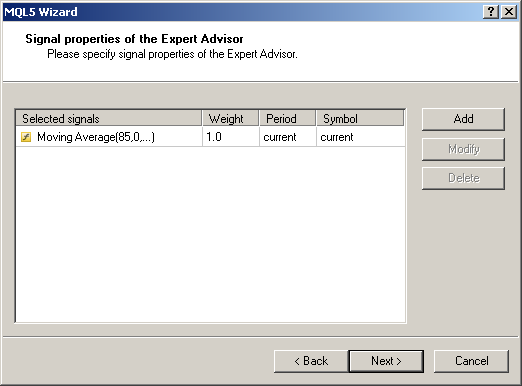
Fig. 6. Module of trade signals has been added
Step 3. Select the Module of Trailing Open Positions
The next step is to select the algorithm of trailing open positions (Trailing Stop). Using the trailing allows you to save earned profit.
The Standard Library provides several ways of trailing open positions:
- CTrailingNone - Trailing Stop is not used.
- CTrailingFixedPips - Trailing Stop based on fixed Stop Level.
- CTrailingMA - Trailing Stop based on MA.
- CTrailingPSAR - Trailing Stop based on Parabolic SAR.
In our Expert Advisor select "Trailing Stop based on fixed Stop Level":
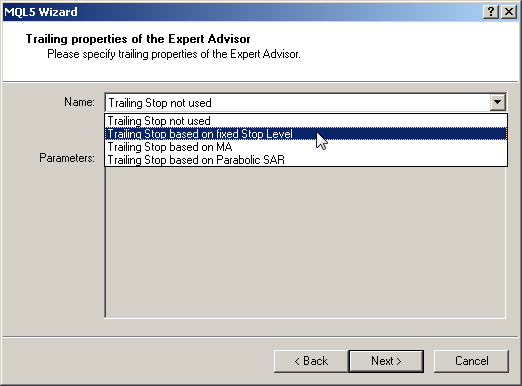
Fig. 7. Select the Algorithm of Trailing Open Positions
This type of trailing has two parameters: the StopLevel and ProfitLevel (in points for quotes with 2 and 4 digits after comma), which will be used to trail open positions:
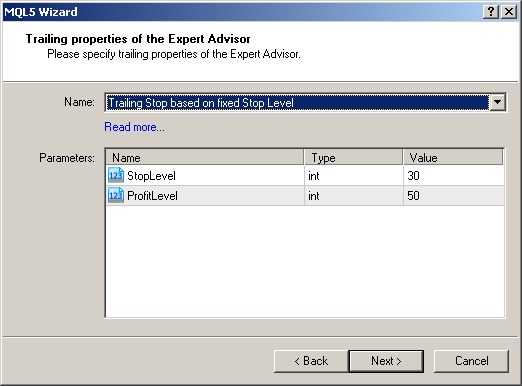
Fig. 9. Setting Parameters of Selected Algorithm of Trailing Open Positions
Step 4. Select the Module of Money and Risk Management
On the last step you need to select system of money and risk management, which will be used in your Expert Advisor.
The purpose of this algorithm is to determine the trading volume (in lots) for trading operations, and also the risk management. When the loss value exceeds allowed limit (for example, 10% of equity), the money and risk managing module will forcibly close the unprofitable position.
The Standard Library provides several ready-to-use implementations of money and risk management algorithms:
- CMoneyFixedLot - Trading with fixed trade volume.
- CMoneyFixedMargin - Trading with fixed margin.
- CMoneyFixedRisk - Trading with fixed risk.
- CMoneyNone - Trading with minimal allowed trade volume.
- CMoneySizeOptimized - Trading with optimized trade volume.
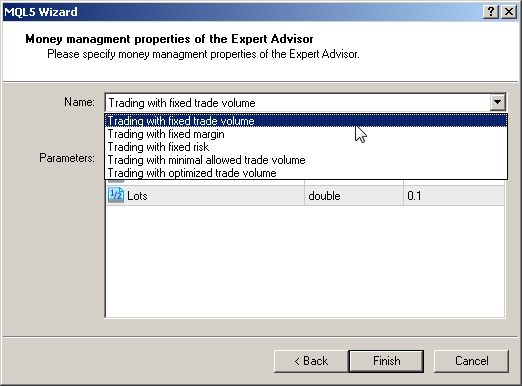
Fig. 9. Select the Algorithm of Money and Risk Management
Select the 'Trading with fixed trade volume' algorithm.
The module we have selected has two parameters:
- Lots - trading volume in lots.
- Percent - maximal allowed percentage of risk.
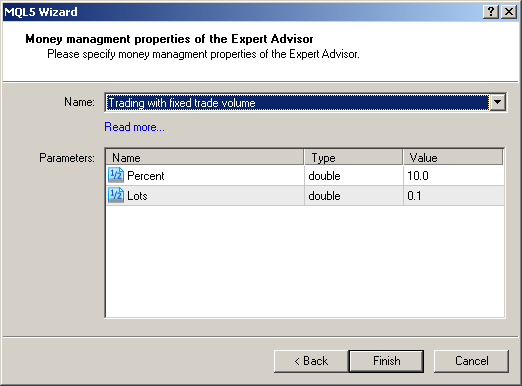
Fig. 10. Setting Parameters of Selected Algorithm of Money and Risk Management
After clicking "Finish" the TestExpert.mq5 file will appear in the \teminal_data_filder\MQL5\Experts\ folder. The filename corresponds to the specified name of Expert Advisor.
2. The Structure of Expert Advisor Created Using MQL5 Wizard
The source code of Expert Advisor, generated by MQL5 wizard, looks as follows:
//+------------------------------------------------------------------+
//|                                                   TestExpert.mq5 |
//|                        Copyright 2012, MetaQuotes Software Corp. |
//|                                              https://www.mql5.com |
//+------------------------------------------------------------------+
#property copyright "Copyright 2012, MetaQuotes Software Corp."
#property link      "https://www.mql5.com"
#property version   "1.00"
//+------------------------------------------------------------------+
//| Include                                                          |
//+------------------------------------------------------------------+
#include <Expert\Expert.mqh>
//--- available signals
#include <Expert\Signal\SignalMA.mqh>
//--- available trailing
#include <Expert\Trailing\TrailingFixedPips.mqh>
//--- available money management
#include <Expert\Money\MoneyFixedLot.mqh>
//+------------------------------------------------------------------+
//| Inputs                                                           |
//+------------------------------------------------------------------+
//--- inputs for expert
input string             Expert_Title                  ="TestExpert"; // Document name
ulong                    Expert_MagicNumber            =23689;        //
bool                     Expert_EveryTick              =false;        //
//--- inputs for main signal
input int                Signal_ThresholdOpen          =10;           // Signal threshold value to open [0...100]
input int                Signal_ThresholdClose         =10;           // Signal threshold value to close [0...100]
input double             Signal_PriceLevel             =0.0;          // Price level to execute a deal
input double             Signal_StopLevel              =50.0;         // Stop Loss level (in points)
input double             Signal_TakeLevel              =50.0;         // Take Profit level (in points)
input int                Signal_Expiration             =4;            // Expiration of pending orders (in bars)
input int                Signal_MA_PeriodMA            =85;           // Moving Average(85,0,...) Period of averaging
input int                Signal_MA_Shift               =0;            // Moving Average(85,0,...) Time shift
input ENUM_MA_METHOD      Signal_MA_Method              =MODE_SMA;      // Moving Average(85,0,...) Method of averaging
input ENUM_APPLIED_PRICE  Signal_MA_Applied             =PRICE_CLOSE;    // Moving Average(85,0,...) Prices series
input double             Signal_MA_Weight              =1.0;          // Moving Average(85,0,...) Weight [0...1.0]
//--- inputs for trailing
input int                Trailing_FixedPips_StopLevel  =30;           // Stop Loss trailing level (in points)
input int                Trailing_FixedPips_ProfitLevel=50;           // Take Profit trailing level (in points)
//--- inputs for money
input double             Money_FixLot_Percent          =10.0;         // Percent
input double             Money_FixLot_Lots             =0.1;          // Fixed volume
//+------------------------------------------------------------------+
//| Global expert object                                             |
//+------------------------------------------------------------------+
CExpert ExtExpert;
//+------------------------------------------------------------------+
//| Initialization function of the expert                            |
//+------------------------------------------------------------------+
int OnInit()
  {
//--- Initializing expert
   if(!ExtExpert.Init(Symbol(),Period(),Expert_EveryTick,Expert_MagicNumber))
     {
      //--- failed
      printf(__FUNCTION__+": error initializing expert");
      ExtExpert.Deinit();
      return(-1);
     }
//--- Creating signal
   CExpertSignal *signal=new CExpertSignal;
   if(signal==NULL)
     {
      //--- failed
      printf(__FUNCTION__+": error creating signal");
      ExtExpert.Deinit();
      return(-2);
     }
//---
   ExtExpert.InitSignal(signal);
   signal.ThresholdOpen(Signal_ThresholdOpen);
   signal.ThresholdClose(Signal_ThresholdClose);
   signal.PriceLevel(Signal_PriceLevel);
   signal.StopLevel(Signal_StopLevel);
   signal.TakeLevel(Signal_TakeLevel);
   signal.Expiration(Signal_Expiration);
//--- Creating filter CSignalMA
   CSignalMA *filter0=new CSignalMA;
   if(filter0==NULL)
     {
      //--- failed
      printf(__FUNCTION__+": error creating filter0");
      ExtExpert.Deinit();
      return(-3);
     }
   signal.AddFilter(filter0);
//--- Set filter parameters
   filter0.PeriodMA(Signal_MA_PeriodMA);
   filter0.Shift(Signal_MA_Shift);
   filter0.Method(Signal_MA_Method);
   filter0.Applied(Signal_MA_Applied);
   filter0.Weight(Signal_MA_Weight);
//--- Creation of trailing object
   CTrailingFixedPips *trailing=new CTrailingFixedPips;
   if(trailing==NULL)
     {
      //--- failed
      printf(__FUNCTION__+": error creating trailing");
      ExtExpert.Deinit();
      return(-4);
     }
//--- Add trailing to expert (will be deleted automatically))
   if(!ExtExpert.InitTrailing(trailing))
     {
      //--- failed
      printf(__FUNCTION__+": error initializing trailing");
      ExtExpert.Deinit();
      return(-5);
     }
//--- Set trailing parameters
   trailing.StopLevel(Trailing_FixedPips_StopLevel);
   trailing.ProfitLevel(Trailing_FixedPips_ProfitLevel);
//--- Creation of money object
   CMoneyFixedLot *money=new CMoneyFixedLot;
   if(money==NULL)
     {
      //--- failed
      printf(__FUNCTION__+": error creating money");
      ExtExpert.Deinit();
      return(-6);
     }
//--- Add money to expert (will be deleted automatically))
   if(!ExtExpert.InitMoney(money))
     {
      //--- failed
      printf(__FUNCTION__+": error initializing money");
      ExtExpert.Deinit();
      return(-7);
     }
//--- Set money parameters
   money.Percent(Money_FixLot_Percent);
   money.Lots(Money_FixLot_Lots);
//--- Check all trading objects parameters
   if(!ExtExpert.ValidationSettings())
     {
      //--- failed
      ExtExpert.Deinit();
      return(-8);
     }
//--- Tuning of all necessary indicators
   if(!ExtExpert.InitIndicators())
     {
      //--- failed
      printf(__FUNCTION__+": error initializing indicators");
      ExtExpert.Deinit();
      return(-9);
     }
//--- ok
   return(0);
  }
//+------------------------------------------------------------------+
//| Deinitialization function of the expert                          |
//+------------------------------------------------------------------+
void OnDeinit(const int reason)
  {
   ExtExpert.Deinit();
  }
//+------------------------------------------------------------------+
//| "Tick" event handler function                                    |
//+------------------------------------------------------------------+
void OnTick()
  {
   ExtExpert.OnTick();
  }
//+------------------------------------------------------------------+
//| "Trade" event handler function                                   |
//+------------------------------------------------------------------+
void OnTrade()
  {
   ExtExpert.OnTrade();
  }
//+------------------------------------------------------------------+
//| "Timer" event handler function                                   |
//+------------------------------------------------------------------+
void OnTimer()
  {
   ExtExpert.OnTimer();
  }
//+------------------------------------------------------------------+
Expert Advisor's code consists of several sections.
Section describing program properties:
#property copyright "Copyright 2012, MetaQuotes Software Corp."
#property link      "https://www.mql5.com"
#property version   "1.00"
Included files:
#include <Expert\Expert.mqh>
//--- available signals
#include <Expert\Signal\SignalMA.mqh>
//--- available trailing
#include <Expert\Trailing\TrailingFixedPips.mqh>
//--- available money management
#include <Expert\Money\MoneyFixedLot.mqh>
The code of the CExpert class (its instance is used in Expert Advisor) is located in the Expert.mqh file.
The SignalMA.mqh file contains the source code of the selected trade signals class - CSignalMA. The TrailingFixedPips.mqh file contains the source code of trailing open positions algorithm class - CTrailingFixedPips. Money and risk management will be implemented by the CMoneyFixedLot class contained in the MoneyFixedLot.mqh file.
Next come the input parameters of Expert Advisor:
//--- inputs for expert
input string             Expert_Title                  ="TestExpert"; // Document name
ulong                    Expert_MagicNumber            =23689;        //
bool                     Expert_EveryTick              =false;        //
//--- inputs for main signal
input int                Signal_ThresholdOpen          =10;           // Signal threshold value to open [0...100]
input int                Signal_ThresholdClose         =10;           // Signal threshold value to close [0...100]
input double             Signal_PriceLevel             =0.0;          // Price level to execute a deal
input double             Signal_StopLevel              =50.0;         // Stop Loss level (in points)
input double             Signal_TakeLevel              =50.0;         // Take Profit level (in points)
input int                Signal_Expiration             =4;            // Expiration of pending orders (in bars)
input int                Signal_MA_PeriodMA            =85;           // Moving Average(85,0,...) Period of averaging
input int                Signal_MA_Shift               =0;            // Moving Average(85,0,...) Time shift
input ENUM_MA_METHOD      Signal_MA_Method              =MODE_SMA;     // Moving Average(85,0,...) Method of averaging
input ENUM_APPLIED_PRICE   Signal_MA_Applied             =PRICE_CLOSE;  // Moving Average(85,0,...) Prices series
input double             Signal_MA_Weight              =1.0;          // Moving Average(85,0,...) Weight [0...1.0]
//--- inputs for trailing
input int                Trailing_FixedPips_StopLevel  =30;           // Stop Loss trailing level (in points)
input int                Trailing_FixedPips_ProfitLevel=50;           // Take Profit trailing level (in points)
//--- inputs for money
input double             Money_FixLot_Percent          =10.0;         // Percent
input double             Money_FixLot_Lots             =0.1;          // Fixed volume
The first three parameters (Expert_Title, Expert_MagicNumber and Expert_EveryTick) are general. They are always present regardless of the selected trading signals, trailing, and money and risk management algorithms.
The string Expert_Title parameter specifies the name of Expert Advisor, Expert_MagicNumber specifies its ID (this value will be used in trade requests' parameters), and the Expert_EveryTick parameter is used to set EA's working mode. If Expert_EveryTick is set to true, Expert Advisor will call handler functions (check for trade conditions, commit trade operations, trailing open position) each time a new tick is coming for the working symbol.
After the general parameters of Expert Advisor come the input parameters for selected trade signals algorithm (in our case it is the parameters used in the CSignalMA class).
We have selected the CTrailingStopFixedPips class of trailing open positions. It trails open position at fixed distance determined by Stop Loss and Take Profit levels, whose values are defined in "normal" 2/4 digit points. When price moves towards the open position by distance, that exceeds the number of points set by the Trailing_FixedPips_StopLevel level, Expert Advisor modifies the values of the Stop Loss and Take Profit levels (if Trailing_FixedPips_ProfitLevel > 0).
The Money_FixLot_Percent and Money_FixLot_Lots input parameters correspond to parameters of the algorithm with fixed trade lot, implemented in the CMoneyFixedLot class. In our case the trade will be performed with fixed volume equal to the value of Money_FixLot_Lots.
The CMoneyFixedLot class also implements the algorithm of risk management: if there is a loss (as a given percent of current equity) specified in the Inp_Money_FixLot_Percent parameter, the CMoneyFixedLot class will recommend the Expert Advisor to forcibly close of unprofitable position, and so it will be done.
After input parameters of Expert Advisor the ExtExpert object of the CExpert class is declared:
CExpert ExtExpert;
This is the instance of trading strategy class.
Being an instance of the CExpert class, the ExtExpert object contains references to child objects of the CExpertSignal (the base class of trade signals), the CExpertMoney (the base class of money and risk management) and the CExpertTrailing (the base class of trailing open positions) classes. In addition the CExpert class contains instances of the CExpertTrade, SSymbolInfo, CAccountInfo, CPositionInfo, COrderInfo classes and the CIndicators container.
To set parameters of Expert Advisor you have to create instances of corresponding classes and to specify references to created objects in the ExtExpert class.
Let's consider the OnInit function of Expert Advisor initialization. Here we initialize and configure properties of the ExtExpert class.
1. Initialization of the ExtExpert class:
//--- Initializing expert
   if(!ExtExpert.Init(Symbol(),Period(),Expert_EveryTick,Expert_MagicNumber))
     {
      //--- failed
      printf(__FUNCTION__+": error initializing expert");
      ExtExpert.Deinit();
      return(-1);
     }
The ExtExpert object is initialized using the Init method. Here we set the symbol, timeframe, flag of method calling on every tick, ID of Expert Advisor, and also create and initialize private objects of classes (on this stage the CExpertSignal, CExpertMoney and CExpertTrailing classes are used as the signals, trailing and money management objects).
If the ExtExpert object doesn't initialize successfully, Expert Advisor will be terminated with return code -1.
2. Create and configure the Signal object properties
//--- Creating signal
   CExpertSignal *signal=new CExpertSignal;
   if(signal==NULL)
     {
      //--- failed
      printf(__FUNCTION__+": error creating signal");
      ExtExpert.Deinit();
      return(-2);
     }
//---
   ExtExpert.InitSignal(signal);
   signal.ThresholdOpen(Signal_ThresholdOpen);
   signal.ThresholdClose(Signal_ThresholdClose);
   signal.PriceLevel(Signal_PriceLevel);
   signal.StopLevel(Signal_StopLevel);
   signal.TakeLevel(Signal_TakeLevel);
   signal.Expiration(Signal_Expiration);
//--- Creating filter CSignalMA
   CSignalMA *filter0=new CSignalMA;
   if(filter0==NULL)
     {
      //--- failed
      printf(__FUNCTION__+": error creating filter0");
      ExtExpert.Deinit();
      return(-3);
     }
   signal.AddFilter(filter0);
//--- Set filter parameters
   filter0.PeriodMA(Signal_MA_PeriodMA);
   filter0.Shift(Signal_MA_Shift);
   filter0.Method(Signal_MA_Method);
   filter0.Applied(Signal_MA_Applied);
   filter0.Weight(Signal_MA_Weight);
Configuration of the trade signals object consists of several steps:
- Creation of signal object and setting of its parameters;
- Creation of module of trade signals and its adding to CExpertSignal class instance.
If the ExtExpert object doesn't initialize successfully, Expert Advisor will be terminated with return code ( from -2 to -3), that depends on what step an error occurred.
Depending on how the parameters were specified in MQL5 Wizard, the appropriate code is generated.
//--- Set signal parameters
   filter0.PeriodMA(85);                        //--- Parameter was set as fixed in MQL5 Wizard
                                                   //--- (gray icon - fixed value equal to 85)
   filter0.SlowPeriod(Signal_MA_Shift);      //--- Parameter was set as input variable
                                                   //--- (blue icon - input parameter of Expert Advisor)
If parameter is fixed and its value does not differ from default value, it will not be written in the generated code. In such case the default value of parameter (specified in the corresponding class) will be used.
3. Create and configure the Trailing object properties
//--- Creation of trailing object
   CTrailingFixedPips *trailing=new CTrailingFixedPips;
   if(trailing==NULL)
     {
      //--- failed
      printf(__FUNCTION__+": error creating trailing");
      ExtExpert.Deinit();
      return(-4);
     }
//--- Add trailing to expert (will be deleted automatically))
   if(!ExtExpert.InitTrailing(trailing))
     {
      //--- failed
      printf(__FUNCTION__+": error initializing trailing");
      ExtExpert.Deinit();
      return(-5);
     }
//--- Set trailing parameters
   trailing.StopLevel(Trailing_FixedPips_StopLevel);
   trailing.ProfitLevel(Trailing_FixedPips_ProfitLevel);
Configuration of the trailing object also consists of several steps:
- Creation of trailing object;
- Adding trailing to expert;
- Setting trailing parameters.
If the trailing object doesn't initialize successfully, Expert Advisor will be terminated with return code ( from -4 to -5), that depends on what step an error occurred.
4. Create and configure the money object properties
//--- Creation of money object
   CMoneyFixedLot *money=new CMoneyFixedLot;
   if(money==NULL)
     {
      //--- failed
      printf(__FUNCTION__+": error creating money");
      ExtExpert.Deinit();
      return(-6);
     }
//--- Add money to expert (will be deleted automatically))
   if(!ExtExpert.InitMoney(money))
     {
      //--- failed
      printf(__FUNCTION__+": error initializing money");
      ExtExpert.Deinit();
      return(-7);
     }
//--- Set money parameters
   money.Percent(Money_FixLot_Percent);
   money.Lots(Money_FixLot_Lots);
Configuration of the money and risk management object also consists of 4 steps:
- Creation of money object;
- Adding money to expert;
- Setting money parameters.
If the money object doesn't initialize successfully, Expert Advisor will be terminated with return code ( from -6 to -7), that depends on what step an error occurred.
5. Initialize all indicators used in classes
//--- Check all trading objects parameters
   if(!ExtExpert.ValidationSettings())
     {
      //--- failed
      ExtExpert.Deinit();
      return(-8);
     }
//--- Tuning of all necessary indicators
   if(!ExtExpert.InitIndicators())
     {
      //--- failed
      printf(__FUNCTION__+": error initializing indicators");
      ExtExpert.Deinit();
      return(-9);
     }
//--- ok
   return(0);
After you create and initialize objects of trade signals, trailing and money management, the ValidationSettings() method of ExtExpert is called. After that the InitIndicators() method of ExtExpert object is called. It initializes indicators used in the signal, trailing and money objects.
The OnDeinit, OnTick, OnTrade and OnTimer events handling is performed by calling the appropriate methods of the ExtExpert class.
If you want to know the details of the CExpert methods implementation, you can view the indicator's source code, located in '\<client_terminal_directory>\MQL5\Include\Expert\expert.mqh'.
3. Checking Created Expert Advisor in MetaTrader 5 Strategy Tester
If all components of Standard Library are present, the code of generated Expert Advisor compiles successfully:
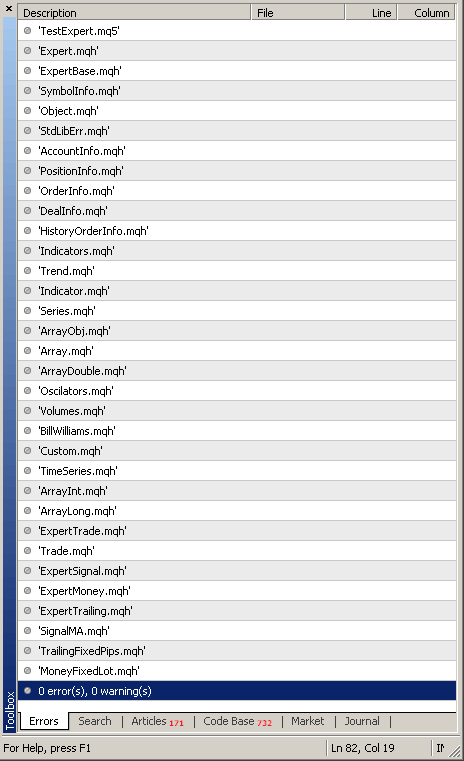
Figure 10. Successful Compilation of Expert Advisor's Source Code Created in MQL5 Wizard
The resulting Expert Advisor will trade according to selected algorithms of trade signals, trailing open positions and money and risk management.
You can check how your newly created trading system works using Strategy Tester from MetaTrader 5 client terminal. On figure 11 you can see the results of testing on historical data with default settings (EURUSD, H1, 2010.01.01-2011.06.01):
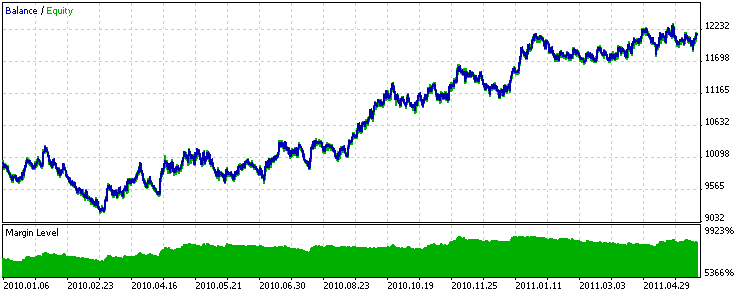
Figure 11. Results of Expert Advisor Testing on Historical Data (EURUSD, H1)
The best set of Expert Advisor's parameters can be found after optimization in MetaTrader 5 Strategy Tester.
Conclusion
Using the classes of trading strategies significantly eases creation and testing of your trading ideas. Now the entire source code of Expert Advisor can be constructed directly in MetaEditor using its MQL5 Wizard on the basis of ready-to-use Standard Library modules or your own modules.
If you don't want to or can't write your own trade signals module, you can always benefit from the Jobs service and order either entire trading robot, or only required modules. This approach gives additional benefits:
- Development cost of separate module should be lower than the cost of entire Expert Advisor.
- The resulting module can be reused to create both a standalone Expert Advisor and a whole family of trading robots (based on this module) using the MQL5 Wizard.
- Ordered module must strictly comply to additional requirements of MQL5 Wizard, and this gives additional control over the quality of code.
Translated from Russian by MetaQuotes Ltd.
Original article: https://www.mql5.com/ru/articles/171
 MQL5 Wizard: How to Create a Module of Trading Signals
 Create your own Market Watch using the Standard Library Classes
 Create Your Own Expert Advisor in MQL5 Wizard
 Andrey Voitenko: Programming errors cost me $15,000 (ATC 2010)

- Free trading apps
- Over 8,000 signals for copying
- Economic news for exploring financial markets
You agree to website policy and terms of use
In the example " creating expert advisors without programming ", strategy testing the same example - i get a declining graph result also using different inputs - i cannot get the same
result as shown in the example !
The testing results depend on historical data (also check dates and inputs), for MetaQuotes-Demo the testing results corresponds to the data from the article.
Why there is no trading signal? I follow the article produced by ea:https://www.mql5.com/en/articles/171
chart euruse 1m. Code used downloaded.
why ?
I apologise for a dumb question but I can't see where you specify whether it opens long or short position please?
I apologise for a dumb question but I can't see where you specify whether it opens long or short position please?
the signal module decides whether to open a short or long position. you should read this article https://www.mql5.com/en/articles/226
.